

Fast action tests a TV harder than any other content. A cricket shot, a football counter-attack, or a car chase can turn soft and smeary on the wrong screen.
TV motion blur comes from how the panel refreshes and how the picture is processed. Refresh rate, MEMC, and a few menu settings all play a part.
This guide explains what each term means, when motion smoothing helps, and when to switch it off. It also shows which Haier ranges list 120Hz, 144Hz and MEMC.
Why Fast Motion Looks Blurry on Some TVs
Most modern TVs show one frame and hold it until the next one arrives. Your eyes follow moving objects across the screen. The held frame smears across your vision, and that looks like blur.
Three things make it worse:
- Low frame rates: films run at 24 frames a second, and most TV and streaming content runs between 24 and 60
- Slow pixel response: pixels that change slowly leave faint trails behind moving objects
- Heavy compression: broadcast and streaming video can lose fine detail in busy scenes
A good TV reduces these problems. No TV removes all of them.
Refresh Rate Explained (60Hz, 120Hz, 144Hz)
Refresh rate is how many times per second the screen redraws the picture. It is measured in hertz (Hz).
- 60Hz: 60 redraws a second, which is fine for everyday viewing
- 120Hz: twice as many, which gives smoother pans and less blur
- 144Hz: a gaming-focused rate for sources that can send frames that fast
A 120Hz TV helps most with sport and gaming. It also divides evenly by 24, 30, and 60, so films and broadcasts keep a steadier rhythm. A 144Hz TV matters mainly for gamers.
Native vs Effective / Marketing Refresh Rate
Not every “120Hz” label means the same thing. A native refresh rate means the panel itself redraws 120 times a second. That is the smoothest version.
An effective refresh rate is a processed figure. The panel may run at 60Hz while backlight tricks or frame insertion simulate a higher number. Labels such as “Motion Rate 120” often point to this.
Both can help. Native is the stronger choice for sport and gaming. Check the product specification before you buy.
What Is MEMC / Motion Smoothing?
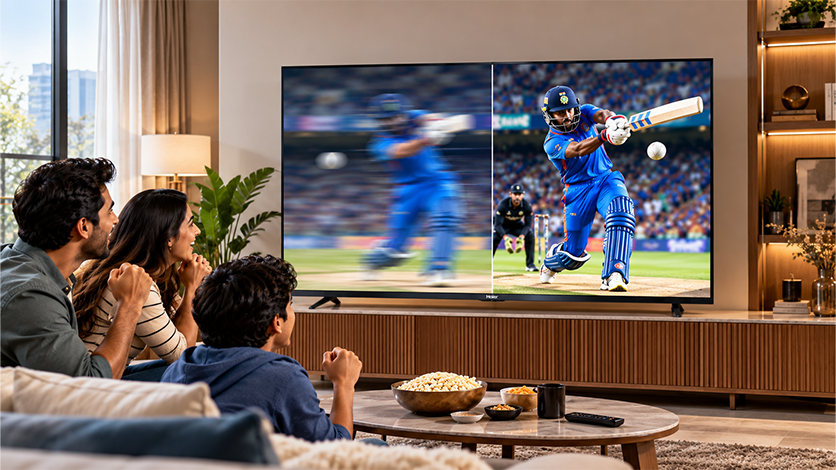
MEMC stands for Motion Estimation, Motion Compensation. The TV compares one frame with the next and works out how objects are moving. It then builds extra frames and places them in between.
Brands also call this motion smoothing. The name changes from model to model, but the idea stays the same.
How It Reduces Blur and Judder
Extra frames fill the gaps between the real ones. That brings three benefits:
- Sharper movement: a fast ball or a sprinting player stays clearer
- Steadier pans: slow camera sweeps look smooth instead of stuttering
- Works on 60Hz panels: MEMC is processing, so it can run on a 60Hz panel as well as a 120Hz one
It has limits. Fast, complex scenes may show faint halos or odd edges around moving objects.
The ‘Soap Opera Effect’ and When to Turn MEMC Off
Films are shot at 24 frames a second, and that gentle rhythm gives them their look. MEMC adds frames, so a film can start to look like a live TV recording. That is the soap opera effect.
Turn MEMC off or set it to the lowest level for:
- Films and dramas: to keep the original look
- Gaming: extra processing adds delay between the controller and the screen
- Detailed fast action: where halos and artefacts become easy to spot
Some viewers like a light touch of smoothing on sport. That is a personal choice, and a low setting is a sensible place to start.
Best Settings for Sports, Movies and Gaming
Menu names vary by model, so look for terms such as motion, smoothing, or clarity. Start low and raise the level slowly while you watch a familiar scene.
| Content | MEMC / motion smoothing | Other tips |
| Live sports | Low to medium | Test with fast pans and replays |
| Movies and series | Off or lowest | Use a film or cinema picture mode |
| Gaming | Off | Switch on game mode, and variable refresh rate if supported |
Setting up a console? Our guide on the Haier blog covers HDMI 2.1, ALLM and VRR in plain steps.
What to Look for When Buying
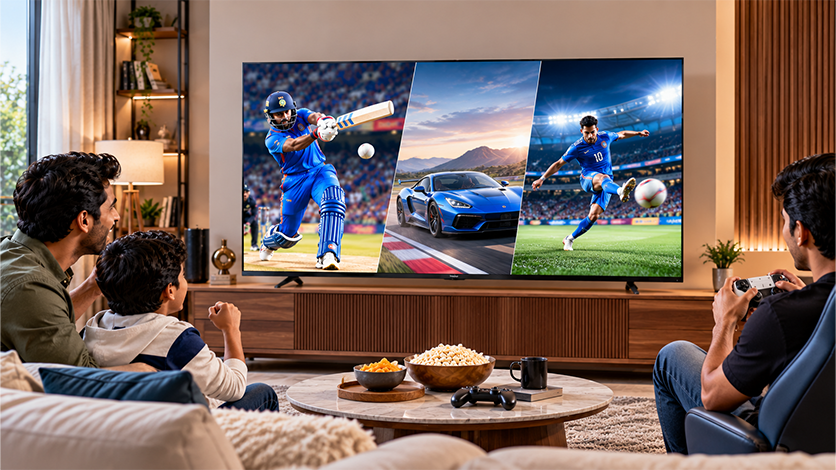
Run through this short checklist before you decide:
- Look for the word “native” next to 120Hz or 144Hz
- Check for HDMI 2.1 ports if you plan to game at 4K and 120Hz
- Confirm MEMC is listed, especially on 43-inch and 75-inch sets
- Match the panel type to your room lighting
- Read the warranty terms
Here is what Haier’s current listings show:
| Listed feature | Haier models | Sizes |
| 144Hz | C95 OLED, S90 QLED, M96 QD-Mini LED | 55 and 65-inch (C95), 100-inch (S90, M96) |
| 120Hz | C90 OLED, P7 Pro and Q7 Pro HQLED, M70 Mini LED, S80 and S80G QLED | 50 to 85-inch across the ranges |
| 240Hz (gaming) | M92 Mini LED | 85-inch |
| MEMC | A9UG, K85, K85G, P7 Pro, Q7 Pro, M70 | 43-inch and 75-inch models |
A sport-heavy living room may suit the 120Hz QLED and Mini LED ranges. Gamers may prefer the 144Hz models. A 43-inch MEMC model can work well for a bedroom. You can compare every range in the Haier Google TV lineup in India.
Conclusion
Smooth motion comes from three things working together: a good refresh rate, sensible MEMC, and the right settings for what you watch.
Match the feature to the content. Keep smoothing low for films, switch it off for games, and use a light touch for live sport.
FAQs
What is MEMC / motion smoothing on a TV?
MEMC means Motion Estimation, Motion Compensation. The TV studies how objects move between frames and creates extra frames to fill the gaps. This can reduce blur and judder, though it may also make films look too smooth.
Which TVs have a 144Hz refresh rate?
Haier lists 144Hz on the C95 OLED in 55 and 65-inch sizes. The 100-inch S90 QLED and M96 QD-Mini LED also list it. Check each product page for the full specification.
Which TV has a 120Hz refresh rate?
Haier lists 120Hz on the C90 OLED, the P7 Pro and Q7 Pro HQLED, the M70 Mini LED, and the S80 and S80G QLED. Check the specifications to see whether the rate is native or effective.
Is 120Hz worth it for sports?
It can be. Fast action looks steadier and less blurry at 120Hz. Most broadcasts run at lower frame rates, so MEMC and pixel response matter as well.
What is the difference between native and effective refresh rate?
A native refresh rate is how often the panel itself redraws the picture. An effective rate is a processed figure that uses techniques such as frame insertion to simulate a higher number.
Should I turn motion smoothing on or off?
Turn it off, or set it low, for movies and gaming. For live sport, a low-to-medium level may help. Try a few levels and keep the one that looks natural to you.