
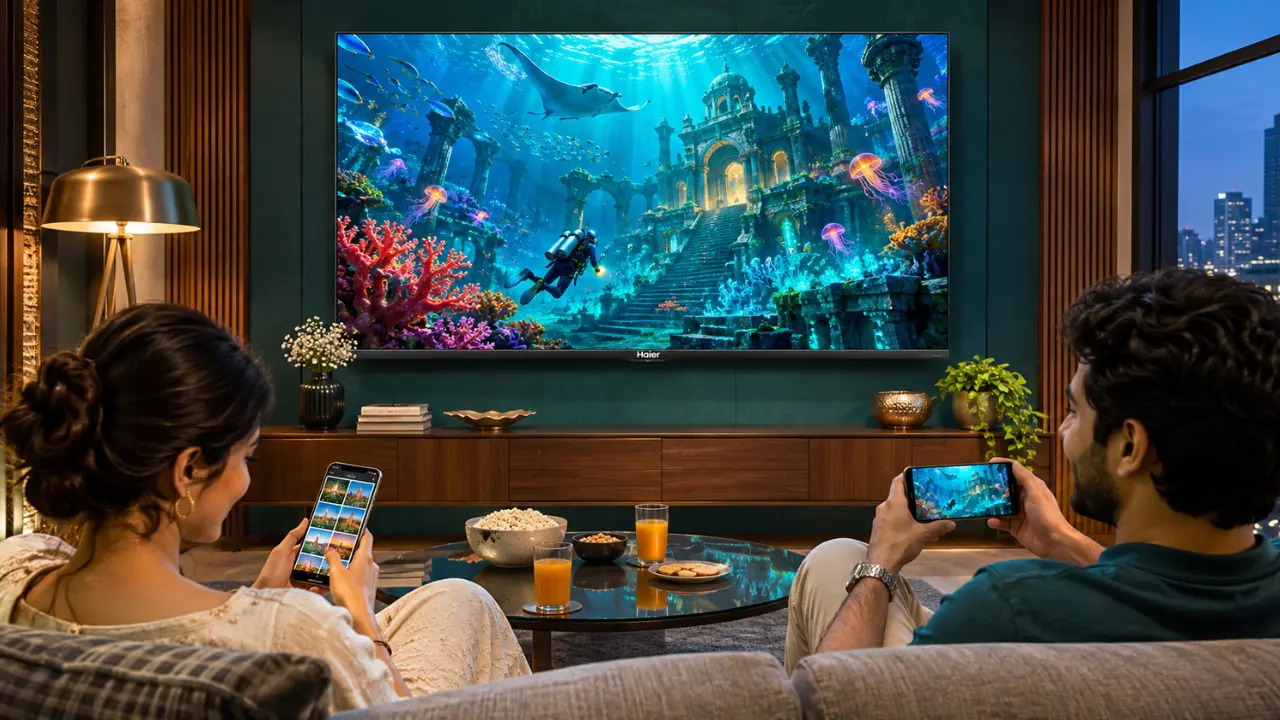

You’ve discovered a super travel video on your mobile phone. The scenery is gorgeous, the shots are amazing, and you want all the people in the living room to watch it. But there’s one problem. It’s not the same when seen on a six-inch smartphone screen.
You’ll want to get the video to your television, of course.
At this point, you’ll see two familiar options: screen mirroring and Chromecast Built-In.
Both options enable you to show what’s on your phone’s screen on a bigger screen, but they’re different. One allows you to play content that is compatible with your television, while the other reproduces the activity on your phone.
It may not seem like much until you get a WhatsApp message while watching a family film or realise that your phone is draining battery too quickly.
So, what technology should you employ? And how can a smart TV make it easier?
Chromecast Built-In vs Screen Mirroring: The Main Difference
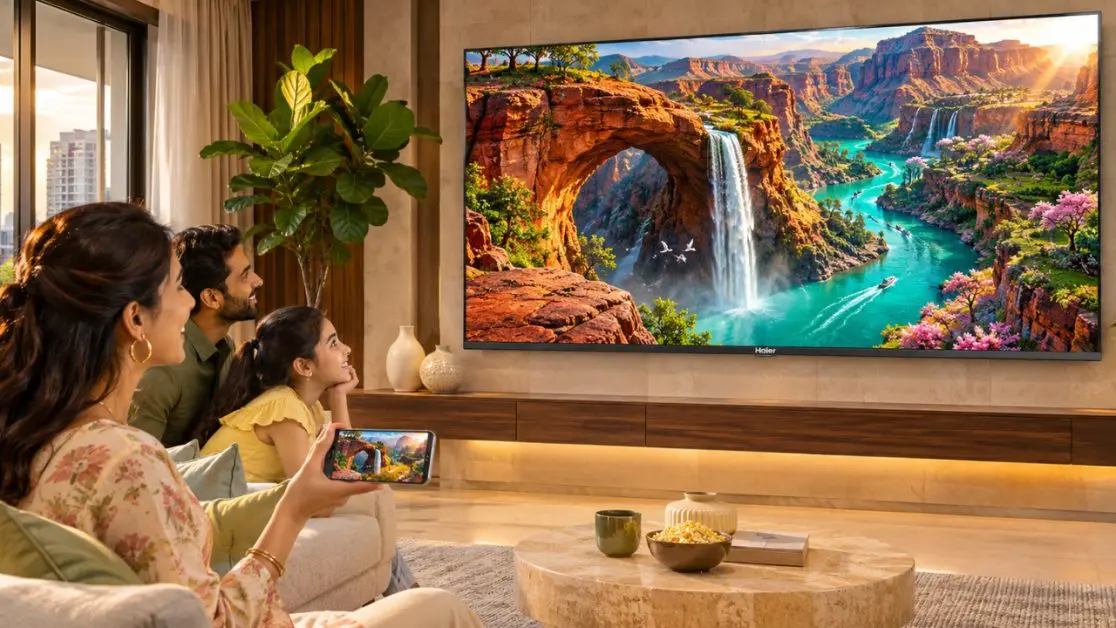
Google Cast, also known as Chromecast Built-In, is the function that enables apps with Google Cast support to stream supported content to the television via a network. The TV is used for playback, and your smartphone is used for control.
Screen mirroring, on the other hand, will project your smartphone’s display onto the TV. Anything you see on your phone, including compatible apps, menus and notifications, can be shown on a larger screen too.
Imagine you’re telling your TV to play something, but you’re not holding a remote. Screen mirroring is more akin to allowing everyone to have a live view of your smartphone.
Let’s take a look at the two in comparison:
| Feature | Chromecast Built-In | Screen Mirroring |
| Primary function | Supports content from compatible apps | Recreates what’s displayed on your device |
| Phone usage | Phone can generally be used independently | Phone remains involved in displaying content |
| Notifications | Generally remain on the phone | May be seen on TV |
| Battery consumption | Typically lower during direct streaming | May increase when mirroring is performed continuously |
| Content compatibility | Needs to be compatible with casting | Requires device and mirroring protocol compatibility |
| Video playback | TV generally handles supported streams | Phone transmits its displayed content |
| Best suited for | Movies, music and online videos | Presentations, demonstrations and screen sharing |
There is no one right answer. This will depend on what you want to show.
About Chromecast Built-In and How It Works
Chromecast Built-In is a wireless casting technology that is built into compatible smart TVs.
It lets users stream compatible videos, music and other content from their smartphone, tablet or computer to their TV without the need for a dedicated Chromecast streaming device.
Transform Your Smartphone Into a Remote Control
Suppose you are stuck in a cooking session on YouTube while preparing your meal.
You decide that the TV will help you follow the recipe.
The process is simple with Chromecast Built-In:
- Make sure that your TV and smartphone are connected to the same Wi-Fi network.
- Open the app that’s compatible with Chromecast.
- Click on the Cast button.
- Choose your television from the available devices.
- Pick the movie that you wish to see.
After you start playing, you should be able to use your smartphone for other tasks.
You could respond to a message, check the weather for the next day, or go on to a different recipe while the show plays on.
This independence is one of the most helpful benefits of Chromecast.
Does Chromecast Built-In Require Internet?
While not all casting activities are internet-dependent, most content from online platforms is.
Your TV and smartphone also must have a compatible network connection to discover and communicate.
A weak home Wi-Fi signal can cause buffering or even cause internet streaming to stop.
However, there is one more thing to consider. Not all mobile apps support casting, even if they’re Chromecast-compatible.
The application should have a compatible casting feature.
Screen Mirroring: When You Want It All on the Big Screen
There’s a difference with screen mirroring.
Rather than having to select the video to play on the television, your device sends the picture that is displayed on it.
Open up your photo gallery, and your television can display your photos. Click on a slide of a presentation, and the image appears. Switch apps, and the mirrored image changes.
It’s especially great if the content you wish to share doesn’t come with a dedicated Cast option.
When It Makes More Sense to Use Screen Mirroring
Think of these normal situations:
- Family photos: Display photos at a wedding, holiday or birthday celebration without moving individual files.
- Office presentations: Show slides or compatible documents in discussions.
- Educational demonstrations: Help family members walk through an application or online process.
- Mobile apps: Show an app’s UI if native casting isn’t available.
- Web browsing: Show webpages on a bigger screen.
But there are some restrictions in screen mirroring.
Your cell phone typically must be on, and incoming notifications can be seen on the mirrored screen.
Mirroring may also be limited by some protected streaming apps, leading to a black screen or playback issues.
Is Screen Mirroring Equal to Casting?
Not exactly.
Casting typically is defined as sending a certain type of content to a compatible receiver. Screen mirroring is the process of reproducing the display of the source device.
Some overlap exists, as some casting technologies also have full-screen mirroring capabilities.
For instance, compatible Android devices can provide screen casting via Google Cast.
But it’s not the same on every smartphone, operating system and TV set.
Which Is Better for Watching Movies and Web Series?
Imagine an average Saturday evening.
You’ve finally decided on a movie with your family. Someone is ordering food, the lights are dim, and everyone is ready.
Do you want your phone to be occupied during your movie, or do you want your TV to handle playback?
The Chromecast Built-In app is typically more convenient for compatible streaming apps.
Why Chromecast Is an Excellent Choice for Entertainment
There are some practical reasons.
- Independent playback: Your smartphone doesn’t have to keep displaying the video while it plays.
- Pause, resume and play content from your mobile phone: You can use compatible applications to pause, resume or select content from your mobile phone.
- Fewer interruptions: Personal notifications are typically kept off the TV screen.
- Possibly more efficient playback: Direct streaming means your phone screen isn’t continuously streamed.
- Shared entertainment: Families can watch supported content on a bigger screen.
The result, of course, will depend on the source resolution, streaming application, internet connection and television.
Running a lower-resolution video on a 4K TV is not the same as watching genuine 4K video.
That’s worth remembering.
Enjoy Wireless Entertainment From Haier Q7 Pro Series Smart Google TVs
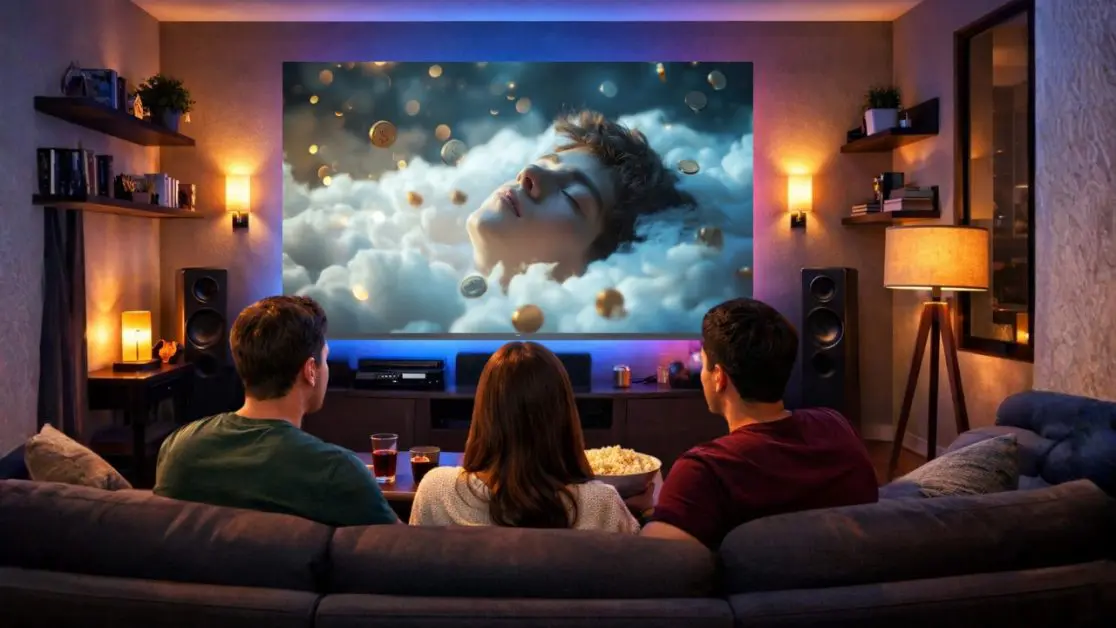
The TV itself provides good picture processing, excellent audio and intelligent entertainment functions, making the casting experience even more convenient.
The Haier New Q7 Pro Series HQLED AI Smart Google TV is designed for the home user seeking to connect with the best in home entertainment while enabling wireless content sharing.
The Q7 Pro Series features Chromecast Built-In in combination with Google TV, AI Picture Quality and advanced AV technologies in 164 cm (65-inch) and 189 cm (75-inch) screen sizes.
Makes It Easy to Share Content With Chromecast
With Chromecast Built-In support, the Haier Q7 Pro Series enables casting of supported movies, music, photographs and applications from compatible devices.
Suppose you find a wonderful wildlife show on your mobile.
Don’t let everyone sit around a small screen. You can cast the content to your Haier television screen and enjoy it together.
The bigger screen makes it a more interesting experience, particularly when viewing landscapes, sporting moments or family videos in detail.
HQLED Display With AI Picture Quality
The Q7 Pro is equipped with Haier’s HQLED technology for rich colours and brightness enhancement.
AI Picture Quality optimises and enhances brightness, contrast, colour and clarity automatically, depending on the content being displayed.
The televisions are also compatible with:
- Dolby Vision: For better film presentation.
- HDR10+: Offers dynamic contrast and scene-by-scene detail.
- Rich Colour Gamut: For rich colour reproduction.
- 93% DCI-P3 colour gamut coverage: For vibrant visuals.
- MEMC technology: Eases the appearance of fast-moving content.
Whether you’re using content via a casting-supported app or via Google TV itself, these technologies enhance the viewing experience of the television.
50W Audio With a Built-In Subwoofer
The experience of the picture is only half!
The atmosphere of a cricket match is different when you can hear it. Likewise, a background score for a film should not be weak and faint.
The Haier Q7 Pro Series has a 50W, 2.1-channel audio system with a built-in subwoofer.
The system, in conjunction with Dolby Atmos support, offers a more immersive entertainment experience that provides added depth of sound.
Google TV With Gemini and Hands-Free Voice Control
The Q7 Pro Series also includes Google TV with Gemini, an AI-powered content discovery and intelligent entertainment system that offers a range of advantages.
Voice control is even more convenient, allowing you to operate the device without using your hands.
Users can use verbal instructions to perform supported functions on their televisions instead of navigating through several menus.
These features help make the TV more user-friendly for homes that frequently switch between shows, music and entertainment.
Chromecast Not Working? Follow These Easy Solutions
Sometimes, even compatible devices cannot connect.
Perhaps your television isn’t appearing in the Cast menu. Or the connection begins successfully but ends after a few minutes.
So, don’t assume that there’s something wrong with the TV. Consider some of the common causes.
1. Ensure That Both Devices Are on the Same Network
Normally, your mobile phone and TV should be on the same Wi-Fi network.
Guest networks or router configurations that separate connected devices from the network can prevent discovery.
2. Restart the Application
Close and reopen the casting app.
Sometimes, device detection may be affected by temporary application glitches.
3. See If There Are Any Software Updates
Older applications or TV software can cause compatibility issues.
Update your smartphone applications and TV operating system.
4. Restart Your Router
Restarting the router can restore normal network communication if several devices are having connectivity issues.
5. Check Application Compatibility
Some apps do not work with Chromecast.
If the Cast icon is missing, check whether the app on your device supports Google Cast.
If screen mirroring is your goal, however, check that both your TV and smartphone can be mirrored using a compatible technique.
Is Chromecast Built-In Screen Mirroring?
Yes.
You don’t need to mirror your phone’s screen when using Chromecast Built-In to watch supported content.
This is one of its key benefits.
You can play a video from a compatible app, display it on the TV and use your cell phone at the same time.
Screen mirroring should only be used if you want to duplicate the screen or share content that is not possible to cast directly.
Enhance the Experience of Screen Sharing With Haier
The final decision between Chromecast Built-In and screen mirroring will depend on your television use.
Chromecast Built-In is for streaming movies, music and online videos conveniently. Screen mirroring can be a better choice to share presentations, navigate through applications or show the display of your smartphone screen.
However, a really fun experience concerns more than just getting a good amount of content on screen.
The Haier New Q7 Pro Series HQLED AI Smart Google TV features Chromecast Built-In, AI Picture Quality, Dolby Vision, Dolby Atmos, Google TV with Gemini and a powerful 50W audio system.
Whether you’re setting up your family movie night, reminiscing about your holidays or enjoying your favourite entertainment on a big screen, the Q7 Pro Series provides an attractive balance of smart connectivity and quality viewing options.
Visit Haier to explore the 65-inch and 75-inch screens of the Haier New Q7 Pro Series and find out how to make your favourite content a part of your living-room entertainment with ease.
Frequently Asked Questions
1. Is Chromecast Built-In better than screen mirroring?
Chromecast Built-In is generally better for streaming supported movies, videos and music because the television handles playback independently. Screen mirroring is more suitable for displaying applications, presentations and other content directly from your smartphone.
2. Does Chromecast Built-In work with Android and iPhone?
Yes. Compatible casting applications on Android smartphones and iPhones can connect to televisions supporting Google Cast. However, full-screen mirroring capabilities differ between operating systems and devices.
3. Can I use my phone while casting to a television?
Yes. During supported Chromecast playback, you can generally use other applications, make calls or lock your smartphone without interrupting the content playing on the television.
4. Why does screen mirroring sometimes lag?
Screen mirroring can experience delays because the device must continuously transmit its display. Network congestion, wireless interference, device performance and connection quality can all affect responsiveness.
5. Does the Haier Q7 Pro Series support Chromecast Built-In?
Yes. Both the Haier New Q7 Pro Series 65-inch and 75-inch HQLED AI Smart Google TVs support Chromecast Built-In, allowing users to share compatible content from supported devices.