
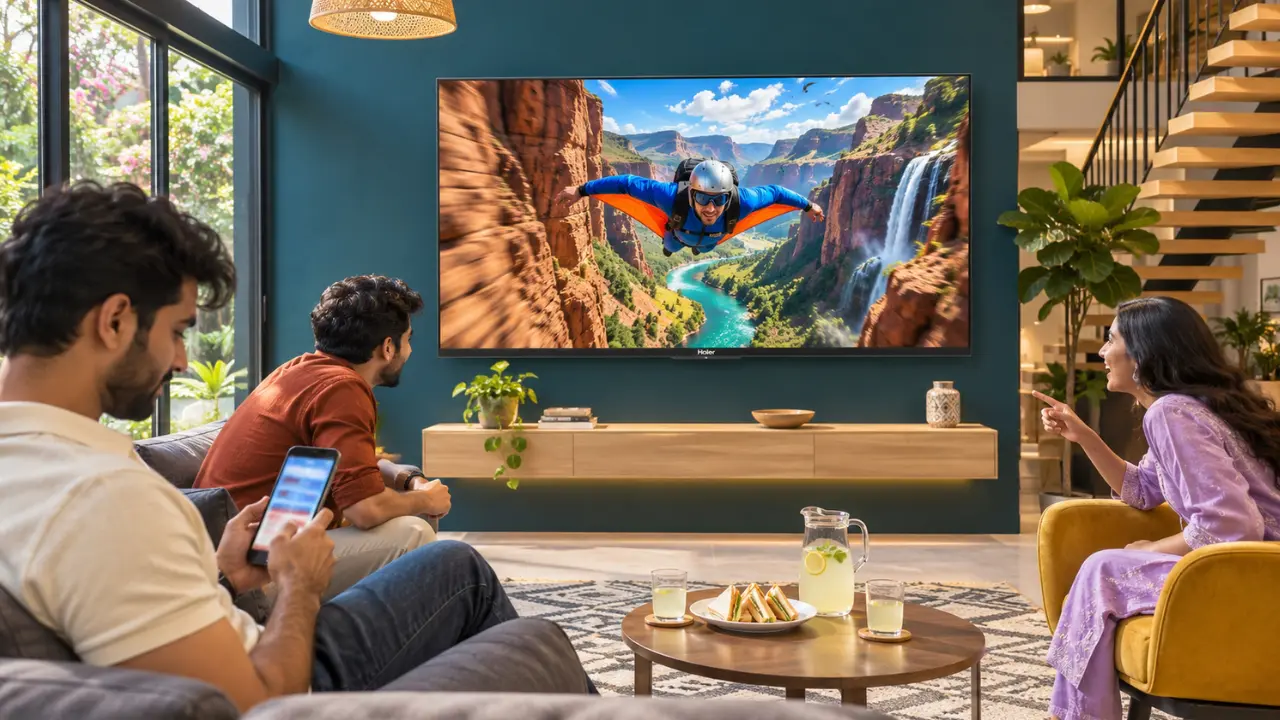

You’ve stumbled on a hilarious video on YouTube, and everyone in the living room wants to watch it. Your cellphone is connected to the TV, the video is playing, and suddenly, you see a personal WhatsApp notification on the big screen.
Not exactly what you had planned.
While many people think connecting a smartphone to a smart TV means displaying everything happening on their smartphone, that is not always the case. Luckily, this is not required.
Video casting lets you watch a particular video on your TV screen while doing something else with your cellphone. You don’t have to display your messages, other applications or personal activities on the TV.
It’s surprisingly simple, particularly if you’re using a Google TV that supports Chromecast.
Is It Possible to Show Just One Video Instead of the Entire Phone Screen?
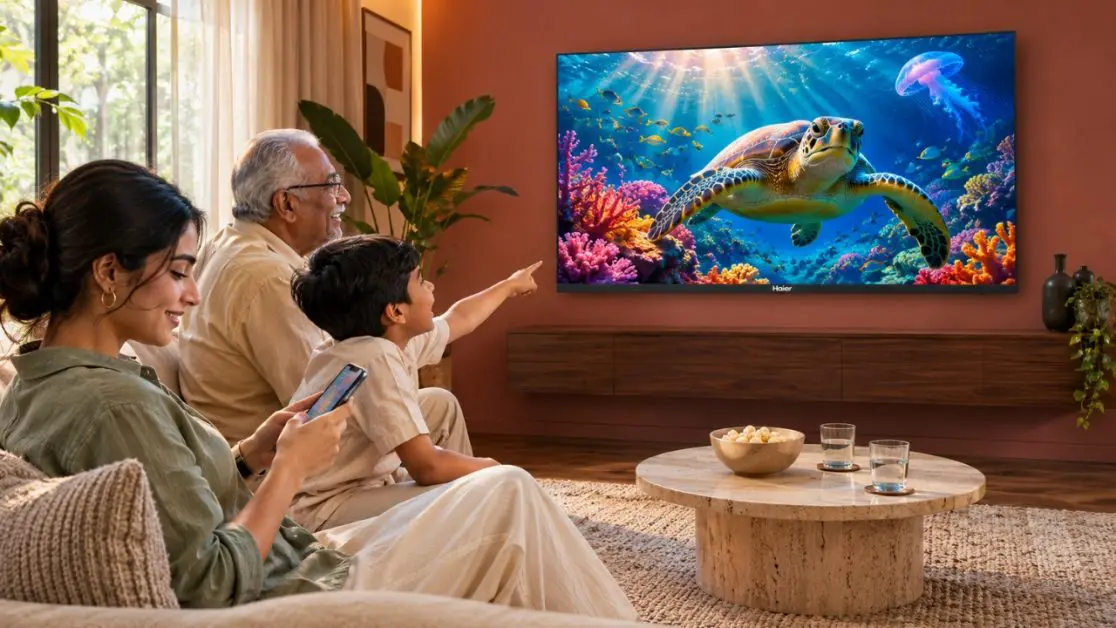
Yes. You can send a single video to a compatible smart TV without sharing your entire phone screen, as long as the video application supports casting.
The big difference is between casting and screen mirroring.
When you cast a video, your phone communicates with the TV and instructs it to play the video you want to watch. The television can retrieve and play the video independently through supported streaming applications.
Screen mirroring works differently. It displays whatever you are doing on your mobile phone on the TV, including changing applications and potentially incoming notifications.
So, What’s the Difference Between Casting and Screen Mirroring?
| Feature | Video Casting | Screen Mirroring |
| Content displayed | Selected video | Entire phone screen |
| Phone multitasking | Generally possible | Phone activity remains visible |
| Notifications | Typically stay on the phone | May appear on TV |
| Video playback | TV handles playback in supported apps | Phone display is duplicated |
| Phone screen | Can often be turned off | Usually needs to remain active |
| Best suited for | Streaming videos and entertainment | Presentations and demonstrations |
If you’re looking for a convenient way to enjoy everyday entertainment, casting is generally the better option.
Think of playing a cricket highlights video for your family while checking tomorrow’s office schedule on your mobile. Everyone continues watching, and your personal activities remain separate.
This is where app-based casting becomes helpful.
How to Cast a Single Video From Your Phone to a Smart TV
The following method works with compatible Android phones, iPhones and Chromecast-enabled televisions, although not all phones and applications offer the same functionality or controls.
Step 1: Connect Both Devices to the Same Wi-Fi Network
First, make sure your smartphone and smart TV are connected to the same home Wi-Fi network.
For example, if your television is connected to your home broadband network, your smartphone should also be connected to the same network rather than using mobile data.
Here are some things to remember:
- Turn on your television and connect it to Wi-Fi.
- Check that your cellphone is connected to the same network.
- Avoid guest networks that do not allow connected devices to communicate.
- If the television cannot be discovered, check whether device isolation is enabled on your router.
A stable internet connection also helps ensure a smooth streaming experience, especially when watching high-resolution videos.
Step 2: Start a Video Application That Supports Casting
Next, launch a compatible application on your smartphone.
For Indian households, YouTube is a popular platform. The application allows you to send content you enjoy, such as cricket highlights or videos of your favourite music band, directly to your TV.
Depending on their functionality and subscription requirements, other streaming applications may offer similar features.
Choose the video you want to watch.
Step 3: Find the Cast Icon
Look for the Cast icon in the video application.
It typically looks like a small television screen with a curved set of wireless signals in one corner.
Tap the icon to see compatible devices available on your network.
If your television is discoverable and supports the casting protocol, it should appear in the device list.
Step 4: Select Your Smart TV
Select your television from the available options.
Once connected, choose or play your preferred video.
The TV screen should begin playing the selected content without displaying your entire smartphone screen.
You don’t have to open the screen mirroring settings on your phone.
Step 5: Use Your Phone as Usual
After playback begins, you can generally:
- Respond to personal messages.
- Browse other applications.
- Read emails or notifications.
- Lock your smartphone.
- Use the casting application to adjust playback.
The selected video continues playing on your TV.
One thing to remember: some applications may offer different functionality, and certain casting sessions may require your phone to remain connected to the network.
Why Haier S80G QLED Google TVs Offer a Convenient Way to Cast Videos
Built-in casting support means that, in many common situations, there is no need to use an additional streaming device.
This convenience is now possible in the living room with the Haier S80G QLED Google TV range, which features Google Chromecast Built-In to cast compatible videos and applications directly from a smartphone.
Two models worth considering are the Haier S80G QLED 55-inch Google TV (H55S80GUX) and Haier S80G QLED 65-inch Google TV (H65S80GUX).
Both models feature 4K UHD QLED display technology and smart connectivity, making them suitable for families who regularly enjoy entertainment on a bigger screen.
Haier S80G QLED 55-inch Google TV (H55S80GUX)
The Haier S80G QLED 55-inch Google TV provides a practical combination of screen size and features, making it a suitable choice for households in India looking for a smart television that fits comfortably into their living room.
Its Google Chromecast Built-In feature allows users to cast compatible smartphone applications without requiring full-screen mirroring.
The TV also provides:
- 4K UHD QLED display with 3840 × 2160 resolution.
- HDR10 support for enhanced picture contrast and detail.
- Dolby Audio with 30W audio output.
- Google TV for personalised content suggestions.
- Google Assistant for supported voice commands.
- Built-in Wi-Fi 5 connectivity.
- 2GB RAM and 32GB internal storage.
For example, imagine you’ve recorded a family celebration and uploaded the video to a compatible casting application. Instead of asking everyone to gather around your smartphone, you can enjoy the video together on the larger television screen.
The 4K QLED display can enhance the viewing experience with high-quality videos, although the actual resolution depends on the source content.
Haier S80G QLED 65-inch Google TV (H65S80GUX)
Sometimes, it’s more enjoyable to have a larger display.
Families who like watching movies, sports highlights and online entertainment together can benefit from the Haier S80G QLED 65-inch Google TV (H65S80GUX), which provides a larger viewing area.
Like the 55-inch version, it comes with Google Chromecast Built-In, Google TV and 4K UHD QLED technology.
Its features include:
- 65-inch QLED display with 4K UHD resolution.
- HDR10 and HLG support.
- Dolby Audio with 30W sound output.
- Google Assistant integration.
- Built-in Chromecast connectivity.
- Bluetooth 5.1 support.
- 2GB RAM and 32GB internal storage.
Imagine it’s Sunday afternoon, everyone has finished lunch, and someone comes across a travel programme about the mountains of Himachal Pradesh.
Instead of watching it on a small smartphone display, the family can enjoy the scenery on a spacious 65-inch television.
The phone remains available for personal use while the selected video continues playing on the TV.
What Happens to Your Phone’s Privacy While Casting?
The biggest advantage of application-based casting is that it doesn’t require continuously displaying your entire smartphone screen.
However, casting is not the same as complete privacy.
The video you select and certain playback details may still be visible on the television. Depending on device settings, other individuals connected to the same network may also be able to interact with supported casting sessions.
For better privacy:
- Use the Cast button inside the video application instead of screen mirroring.
- Avoid casting personal videos to shared televisions.
- Disconnect from playback once you’re finished.
- Check casting permissions and network settings.
- Verify the television’s name before connecting.
When using a television in shared accommodation or a hostel, confirming the correct device is particularly important.
Nobody wants their weekend entertainment appearing on a neighbour’s television.
Why Is Your Smart TV Not Showing Up When You Try to Cast?
Sometimes, everything appears to be connected, but the television doesn’t show up in the casting list.
Before immediately assuming something is wrong with the television, try checking some of the more common causes.
Your Phone and TV Are on Different Networks
This is one of the most common reasons for casting failures.
Make sure both devices are connected to the same Wi-Fi network and that the network allows device discovery.
The Application Does Not Support Casting
Not all applications have a Cast button.
Certain applications only support screen mirroring, while others allow casting for specific content.
Check which options the application supports before troubleshooting the television.
Your Casting Application Needs an Update
An outdated smartphone application may experience communication and connectivity problems.
Update the application and restart it before attempting to reconnect.
Your Television Needs a Restart
Sometimes, a simple restart can resolve device discovery issues.
Switch off the television, restart your phone if necessary, and reconnect both devices to the internet.
Casting Permissions Are Disabled
Some applications require local network permissions to discover nearby devices on certain smartphones.
Check the relevant permissions in your phone’s settings.
If you’re using a Google TV, also check whether the television’s built-in casting functionality is enabled and whether available system updates have been installed.
Does Casting a Video Reduce Picture Quality?
Not necessarily.
With compatible applications, the television can stream the selected video directly from the content provider rather than reproducing the smartphone’s screen.
This may help maintain the available streaming quality.
However, the final picture quality depends on several factors:
- Original video resolution.
- Internet speed and reliability.
- Streaming application settings.
- Available content quality.
- Television display capabilities.
For example, casting a 720p video to a 4K television does not automatically turn it into genuine 4K content.
On Haier S80G QLED Google TVs, the 4K UHD display provides the resolution needed to enjoy compatible 4K content when available.
Make Your Favourite Videos a Bigger Part of Everyday Entertainment
While smartphones are great for discovering videos, they aren’t always the most convenient screens for enjoying entertainment with family.
Application-based casting fills that gap. You decide what everyone watches, send it to the TV and continue using your phone without sharing your entire screen.
The Haier S80G QLED Google TV series brings together built-in Chromecast, Google TV, 4K UHD QLED picture quality and Dolby Audio for households looking to upgrade their television.
Both the 55-inch H55S80GUX and the larger 65-inch H65S80GUX provide a convenient way to enjoy compatible smartphone content on a bigger screen.
Explore Haier India’s S80G QLED Google TV collection and discover how convenient everyday entertainment can be when your smartphone and television work together.
Frequently Asked Questions
1. Can I cast a video to my TV without showing WhatsApp messages?
Yes. When using application-based video casting, your WhatsApp messages and other phone activities are not normally mirrored to the television.
2. Can I lock my phone while casting a video?
Generally, yes. Supported applications allow video playback to continue on the television even when your smartphone is locked.
3. Does casting require Bluetooth?
No. Chromecast-based video casting generally uses Wi-Fi and network connectivity rather than Bluetooth for video transmission.
4. Can I cast videos from an iPhone to a Google TV?
Yes. Compatible iPhone applications can cast videos to Chromecast-enabled Google TVs. Availability depends on application support and permissions.
5. Can I cast a downloaded video from my phone?
It depends on the application. Some media player applications support casting locally stored videos, while others require additional software or use screen mirroring.
6. Do Haier S80G QLED Google TVs support built-in Chromecast?
Yes. Both the Haier S80G QLED 55-inch Google TV (H55S80GUX) and 65-inch Google TV (H65S80GUX) feature Google Chromecast Built-In.