

A smart TV is only as useful as the apps running on it. Streaming services, free live TV, music, news, kids’ content, games nearly everything we actually watch comes through an app rather than a cable connection.
Most of the time, installing a new app is easy. Open the app store, search, install, sign in. But every now and then you’ll hit a wall: an app that doesn’t show up in search, a message saying your TV is out of storage, or a familiar app that just stops working after an update.
This guide covers how to install apps on smart TV sets, which ones are supported (and which aren’t), how to free up space when storage runs out, and when sideloading an app actually makes sense.
How Apps Work on a Smart TV
Smart TVs run an operating system, much like your phone. On top of that, the OS has an app store, and inside the app store are the apps you can install.
The three most common OS options in India:
- Google TV / Android TV: by far the most common on current smart TVs; uses Google Play Store
- WebOS: LG’s own OS; uses the LG Content Store
- Tizen: Samsung’s own OS; uses the Samsung Smart Hub
Each OS has its own app library. An app available on Google TV may or may not be available on WebOS or Tizen, which is one reason app availability can vary from one TV brand to another.
For most Indian buyers in 2026, Android TV and Google TV cover the broadest app selection, which is why they’re the default on Haier’s lineup. Explore the Haier Google TV range in India, with models available in all screen sizes.
Installing Apps From the App Store
The basic process is the same across every smart TV platform:
- Press the Home button on your remote
- Open the Apps section or the app store directly
- Use the search bar to find the app you want
- Select the app and press Install
- Wait for the download to complete (usually under a minute)
- Launch the app, sign in if required, and it’s ready to use
Google Play and App Stores by OS
Different platforms, different stores and different app selections:
- Google TV / Android TV: Google Play Store, with the widest third-party app selection in India
- WebOS (LG): LG Content Store, focused on streaming and smart-home apps
- Tizen (Samsung): Samsung Smart Hub, with core streaming and smart apps
- Fire TV: Amazon Appstore, strong on Prime and third-party streamers
For most Android TV apps, Netflix, Prime Video, JioCinema, Disney+ Hotstar, Sony LIV, YouTube, and Spotify, availability is nearly universal. The gaps show up on niche or regional apps.
Can You Install Any App? (What’s Supported)
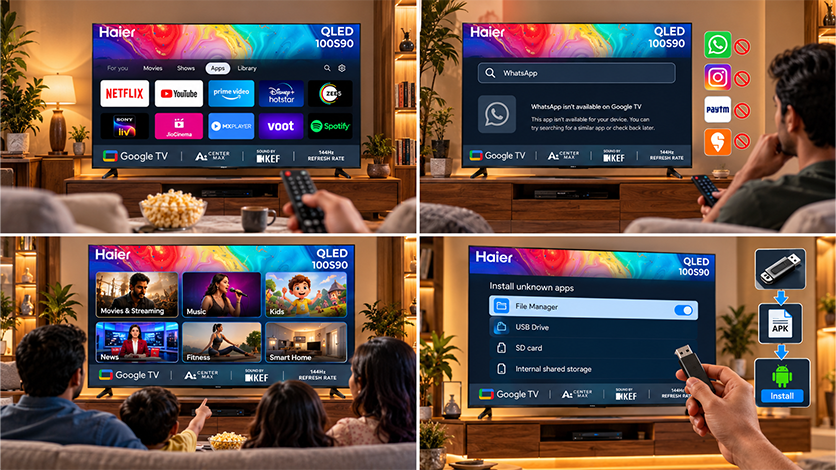
Short answer: no, not every app you’ll find on a phone is also available on a TV.
Reasons an app may not be supported:
- Developer hasn’t built a TV version — the most common reason
- App is designed for touch input and doesn’t work with a TV remote
- Regional restrictions — some apps are limited to specific countries
- OS mismatch — the app is built for a different platform
- TV firmware is outdated — the app requires a newer OS version
For streaming, music, kids’ content, news, fitness, and smart home control, you’ll find strong coverage. For most banking, delivery, social, and productivity apps, there’s often no TV version at all, which is by design, since these are usually built around touch and keyboard input.
Sideloading / APKs on Android TV
If an app you want isn’t available in the Google Play Store on your TV but exists as an Android APK file, you can technically sideload apps on Android TV installations. This means installing an app from an APK file outside the official store.
Rough process on Android TV / Google TV:
- In the TV’s Settings, enable Install from unknown sources for your file manager app
- Download the APK file to a USB drive (or use a file manager app like Send Files to TV)
- Open the file manager on the TV and locate the APK
- Select the file and install it
Important caveats:
- Not every APK will work – some require touch gestures, Google Mobile Services, or hardware your TV doesn’t have
- Security risk – APKs from untrusted sources can carry malware; stick to known, verified sources only
- Warranty considerations – modifying system settings may void certain software warranties on some brands
- Updates don’t come automatically – sideloaded apps don’t get Play Store updates
For most users, sideloading isn’t worth the hassle. It’s genuinely useful only for a specific app that has no TV equivalent and that you absolutely need.
Managing Storage and Updates
Smart TVs typically ship with 8 GB to 32 GB of internal storage, split between the OS, pre-installed apps, cache, and your downloaded apps. Over time, that fills up, and when it does, new installs fail, and existing apps start lagging.
Clearing Space and Cache
To manage TV storage effectively:
- Uninstall apps you don’t use – Settings → Apps → select app → Uninstall
- Clear app cache regularly – Settings → Apps → select app → Clear Cache
- Clear app data for apps that still don’t work after clearing the cache (note: this logs you out)
- Avoid duplicate streaming apps – pick one of Hotstar or JioCinema if you don’t actively use both
- Restart the TV periodically – clears temporary system files
For updates:
- Enable automatic app updates in the Play Store settings (Google TV / Android TV)
- Update the TV firmware when prompted – Settings → System → Software Update
- Check manually every few months for apps that didn’t auto-update
For long-term care of your smart TV once you’ve got the apps sorted, our guide on the Haier blog covers practical maintenance tips worth reading.
Why Some Apps Aren’t Available
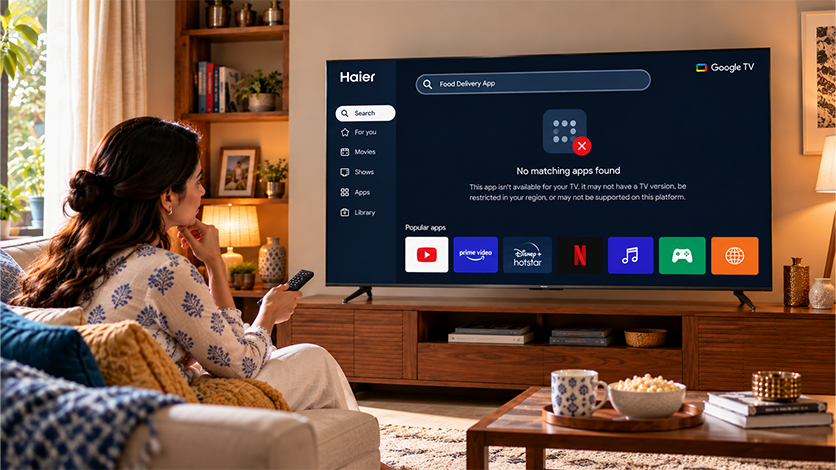
If you’ve searched for an app and it isn’t showing up, one of these is usually the reason:
- The app has no TV version – most banking, food delivery, cab, and social apps fall here
- Regional lock – the app is restricted to specific countries
- OS or firmware version is too old – update the TV’s software and retry
- TV platform mismatch – the app is on Google Play but not on your WebOS or Tizen store
- The app was removed – some apps get delisted or go through brand changes
When an app shows up as apps not supported on smart TV in search results, it’s usually one of the above. The fix is often not possible; either the app genuinely doesn’t exist for TV, or it needs to be sideloaded (which is only sensible in a few cases).
Troubleshooting App Problems
If an installed app isn’t working, crashes, won’t open, shows a black screen, or has audio-video out of sync, try these in order:
- Force close the app, then reopen it
- Restart the TV (power cycle, not just standby)
- Clear the app’s cache in settings
- Check for an app update in the Play Store
- Check for a TV firmware update in system settings
- Clear app data (this signs you out but often fixes stubborn issues)
- Uninstall and reinstall the app
- Check your internet speed – streaming apps often fail on weak Wi-Fi
If none of the above help and the app is still not working after reinstall, the issue is likely on the app’s side (server outage) or a known compatibility problem with your TV’s OS version.
FAQs
Can I install all apps on Android TV?
No. Only apps built with a TV interface and listed on the Google Play Store on your TV can be installed directly. Many phone apps don’t have TV versions.
Why isn’t an app available on my smart TV?
Common reasons: the developer hasn’t built a TV version, your TV runs a different OS, the app is regionally restricted, or your TV firmware is outdated. Updating the TV’s software often helps.
How do I free up storage on a smart TV?
Uninstall apps you don’t use, clear cache regularly for heavy apps, remove duplicate streaming services, and restart the TV periodically. Settings → Apps lets you manage each app individually.
How do I update apps on a smart TV?
On Google TV and Android TV, enable auto-updates in Play Store settings. You can also check manually by opening the Play Store, selecting the app, and tapping Update if an update is available.
Can I sideload apps on a smart TV?
Yes, on Android TV and Google TV. You’ll need to enable “Install from unknown sources”, transfer the APK via USB or a file manager, and install it manually. Only use APKs from trusted sources to avoid security risks.