
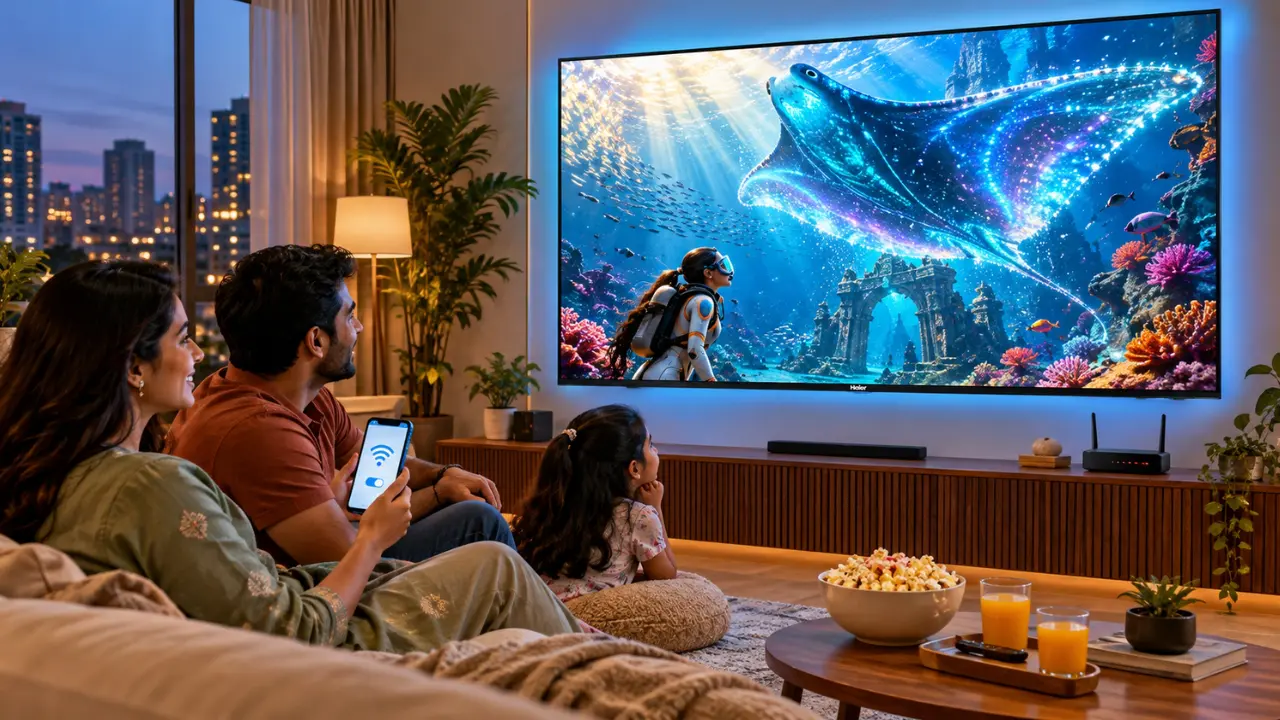

The film has finished playing and all the people have gone to the sofa and you press the play button and all the internet goes down at home.
That’s so frustrating, particularly while watching an exciting series or waiting to see a cricket match start.
However, there is something that most people don’t think about. Your cell phone may serve as a temporary Internet connection for your television. No need for a broadband router.
In principle, it’s fairly easy to connect a smart TV to a mobile hotspot, if your TV is one that supports Wi-Fi and your smartphone utilizes an energetic mobile information association.
Whether you’re a renter and want to connect your smart TV to a mobile hotspot, you’re out of service or you’ve just moved, you’ll find that you can save a lot of hassle if you know how to connect the smart TV to the mobile hotspot.
Access to online entertainment, with the help of a compatible mobile hotspot is a viable option when broadband isn’t available, as can be seen with TVs that can be accessed via Wi-Fi, such as the Haier K85G 4K Ultra HD Google TV series.
Do You Have a Smart TV That You Can Connect to a Mobile Hotspot?
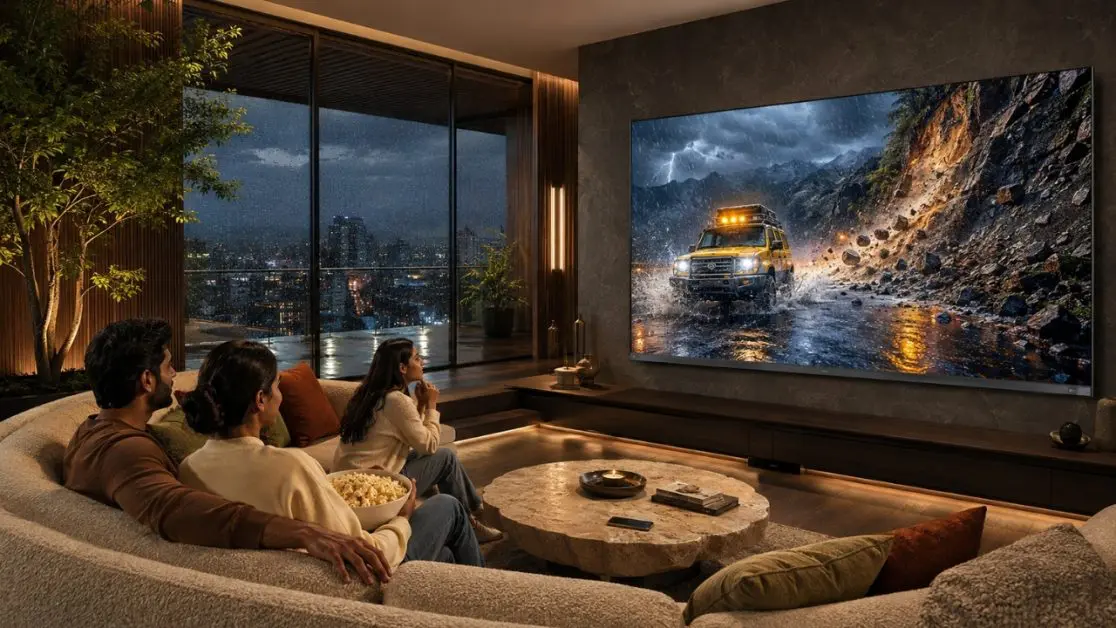
Yes. The majority of smart TVs that come with their own Wi-Fi will be compatible with a smartphone’s mobile hotspot, as they are with a traditional wireless router.
Your mobile device acts as a miniature wireless hotspot, providing your neighbors with access to your mobile internet connection.
With connectivity, your Smart TV is able to access the internet and get its help with:
- Watch movies and web series online in the supported OTT apps.
- Viewing video clips and live sporting events on the Internet.
- Using online music and entertainment services.
- Downloading compatible applications and software updates.
- Voice search via Internet and smart TV functionality.
But, the viewing experience will depend on the speed of your mobile network, signal strength, data balance, and streaming quality you choose.
While a 5G connection could provide enough bandwidth to stream high-quality content, network congestion or poor reception can still disrupt the stream.
How to Use a Mobile TV With a Mobile Hotspot: Step-by-Step Guide
You don’t need additional equipment to establish a basic wireless connection.
Follow these steps, with the smartphone kept close to the TV, while mobile data is on.
Step 1: Enable Mobile Hotspot on Your Smartphone
To use a smartphone as a Wi-Fi hotspot, you must first turn this feature on. You need to enable Mobile Hotspot on your smartphone.
To begin with, make your smartphone a Wi-Fi hotspot.
For Android smartphones:
- Tap Settings on your cell phone.
- Click on Connections, Network & Internet or similar option.
- Click on Mobile Hotspot or Hotspot & Tethering.
- Turn on Wi-Fi hotspot.
- Verify the name and password of the hotspot.
For iPhones:
- Open Settings.
- Select Personal Hotspot.
- Set the Allow Others to Join option to Yes.
- Write down the Wi-Fi password that appears on the screen.
- Maintain the hotspot’s discoverability when connecting TV.
Menu names can differ, due to different versions of the OS and different phone manufacturer.
Step 2: Open Network Settings on Your Smart TV
In the next step, enter a smart TV’s network settings.
Next, turn on the TV.
With the remote control press the Settings button on the TV and select Network or Internet.
Typically, the steps are to go to Settings and then Network & Internet on Google TV devices.
Once there, make sure that Wi-Fi is turned on.
The wireless network search on the television should start.
Step 3: Choose Your Mobile Hotspot
The name of your smartphone’s hotspot will be in the list of wireless networks available for connection.
Using the TV remote, press it.
For multiple networks, verify the specific hotspot name that is listed in your smartphone settings.
This will prevent you from accidentally connecting to another network in the vicinity.
Step 4: Type in the Hotspot Password
Provide the password for the smartphone’s Hotspot.
Be careful with capital letters, lower case letters and symbols.
Any typographical error can cause disconnection.
After successful entry of the password, click on Connect.
Step 5: Access the Internet
Once connected, activate an online application on your television.
Test the internet connection by watching a video for a few minutes to be sure it is working.
You will know that your smart TV is successfully connected to your mobile hotspot if the video loads and plays without any problems.
That’s it. Your TV is now able to access your mobile data to facilitate certain online experiences.
To Connect a Haier K85G Google TV to a Mobile Hotspot, Follow These Steps
The Haier K85G 4K Ultra HD Google TV series includes inbuilt Wi-Fi, suitable for households that wish to have flexible internet access.
The series comes in various screen sizes, such as:
- Haier K85G 127cm (50) 4K Ultra HD Google TV (H50K85GUX).
- Haier K85G 139cm (55) Ultra HD Google TV (H55K85GUX).
- Haier K85G 164cm (65) 4K Ultra HD Google TV (H65K85GUX).
- Haier K85G 189 cm (75) 4K Ultra HD Google TV (H75K85GUX).
Featuring 4K Ultra HD resolution and Google TV integration, these TVs enable viewers to discover the available streaming apps and personalized entertainment recommendations.
Suppose you have been moving into a new flat in Bengaluru.
You have already bought your TV but your broadband installation is next week.
You can disable the internet connection and you can connect your Haier K85G Google TV via the wireless network settings via your smartphone hotspot.
The television can then access entertainment services from the internet that could be compatible with your mobile connection.
Google TV Makes Entertainment Easier to Explore
The Haier K85G series is equipped with Google TV, thus combining entertainment suggestions and compatible streaming applications in a personalized interface.
Users can discover the content available to them by exploring the Google TV experience, instead of having to navigate multiple menus.
With the appropriate internet connection, Google Assistant can also be used to search content via voice command and to control compatible smart devices.
This is especially helpful when you have various forms of entertainment in your home.
Built-in Chromecast Adds More Flexibility
Another cool feature of the Haier K85G series is that it comes with built-in Chromecast.
It enables users to send content that’s supported by their compatible smartphones and other devices to the TV set.
But casting and hotspot connectivity are two different things.
The mobile hotspot offers internet service, and Chromecast is a means to send content from another device to the TV set.
To be able to perform some casting functions both devices must be on the same network that is compatible. If the phone is serving as the hotspot, casting may be available. The use of a second smartphone attached to the hotspot might be more convenient.
Why Does Your Smart TV Tend to Disconnect From the Mobile Hotspot?
In some cases, the TV may have a successful connection, but after a few minutes, it loses internet connectivity.
Before assuming there’s a problem with the television, check the following possibilities.
1. Weak Mobile Network Reception
Your cell phone could show you a hotspot, yet have a weak cell phone signal.
See if you can get the phone closer to a window or to another place that receives a stronger signal.
Keep in mind that the hotspot will only offer you a speed as fast as what the mobile device can get.
2. Incompatible Hotspot Frequency
Some smartphones will have a switch that lets you switch between the 2.4GHz hotspot band and the 5GHz band.
Most of today’s smart TVs are dual-frequency, but not all.
Sometimes it’s possible to switch off your smartphone’s hotspot to 2.4GHz and then your TV will pick it up.
3. Battery-Saving Restrictions
Some cellphones limit hotspot use when they are in battery-saving mode.
If your phone has been idled for a while, see if it turns off the hotspot automatically.
Maintaining a relatively full charge to the phone can also minimize disruptions.
4. Incorrect Network Credentials
Have you recently changed the password of your hotspot?
Your TV could be trying to reconnect with the old password.
Go and log off the saved network on your TV and log on again with the new ones.
5. Mobile Data Limitations
Some mobile plans have a limit on the amount of high-speed data you can use per day or a speed limit on the data you can access.
If the amount of high-speed data is depleted, there could be a drop in streaming performance.
Before you start problem solving the TV, look into your cell phone plan.
How Much Data Does Streaming Smart TVs Use?
This is where some planning can help.
Spending a lot of streamed mobile data, particularly at higher resolution, can be consumed on a large TV.
These are rough estimates of video streaming usage for an hour.
| Streaming Quality | Approximate Data Consumption |
| Standard Definition (480p) | 0.5GB to 1GB |
| High Definition (720p) | 1GB to 2GB |
| Full HD (1080p) | 1.5GB to 3GB |
| Ultra HD (4K) | 7GB or more |
This is based on real-life consumption which is dependent on the streaming platform, video compression, frame rate and playback settings.
For Indian households with mobile plans of a specific limit of data per day, streaming in 4K continuously can quickly deplete the data plan.
If you use a hotspot for long sessions, you may want to set the playback quality lower.
Will a Mobile Hotspot Impact Picture Quality With 4K?
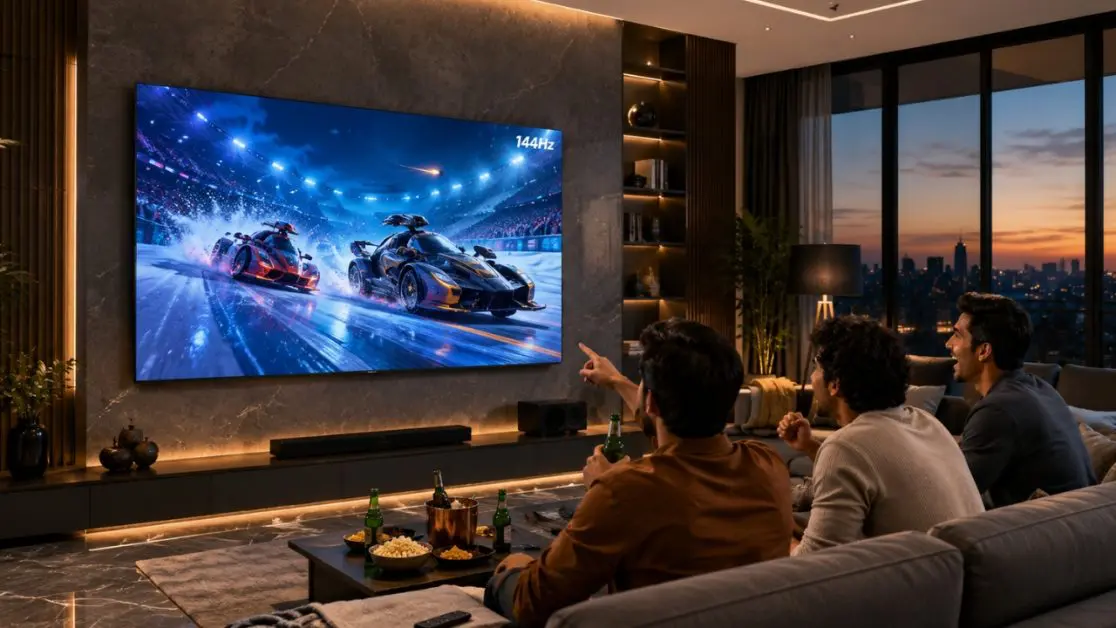
The mobile hotspot is not a resolution changeer.
But it can affect the rendition of the video stream that is sent to the screen.
For instance, the Haier K85G 4K Ultra HD Google TV series.
It features a 3840 × 2160 display resolution to deliver detailed 4K visuals, and HDR10 improves the rendering of high-dynamic-range content that’s compatible with 4K.
There’s also Dolby Audio and dbx-tv sound enhancement technologies, which add to the entertainment experience.
However, there’s a key difference.
You can’t simply stream a low resolution video from the internet and get it to play at 4K.
The streaming app might lower the video’s quality if the mobile connection slows down, to avoid buffering.
To get the best viewing experience:
- Use a mobile connection that has a good signal.
- Select the appropriate streaming resolution.
- Prevent unnecessary downloads on devices that are connected.
- Ensure the smartphone is in a good Wi-Fi range.
- Be careful of how much information you use on your phone.
It’s not just about having a 5G sign on your smartphone; it’s about having a stable connection.
Which Is Better for Smart TV Streaming, Mobile Hotspot or Home Wi-Fi?
Both can give internet connection, but depending on the frequency of streaming, they are suitable for the purpose.
A mobile Hot Spot can be very handy if you are in an emergency.
You might have a broadband maintenance window, or be some days at a second home.
In such situations, mobile data can continue to keep your entertainment at your fingertips.
However, for regular family viewing, a home broadband connection is usually more convenient.
It can offer continuous connectivity, even when you don’t have enough battery, mobile signal or mobile data plan on your smart phone.
Mobile hotspots can be a good alternative. They aren’t necessarily the most economical option for several hours of daily 4K streaming.
Use Haier K85G Google TV to Connect With Entertainment
When there’s no internet connection, you don’t have to put a halt to your whole entertainment plan.
If your mobile internet is not connected, you can connect your smart TV to it for another way to enjoy your favourite content.
This Google TV series by Haier combines built-in Wi-Fi, Google TV, Google Assistant, Chromecast, 4K resolution and Dolby Audio in various screen sizes for different homes in India.
From watching films on the weekend in your bedroom to watching a cricket match with the family, the television provides the flexibility to connect via a compatible wireless network such as a smartphone hotspot.
Find the most appropriate screen size for you and your entertainment lifestyle with the Haier K85G Google TV range.
Frequently Asked Questions
Can I connect my smart TV to a hotspot without Wi-Fi?
Yes. You can connect a Wi-Fi-enabled smart TV to your smartphone’s mobile hotspot without a separate home Wi-Fi router. The smartphone must have an active mobile data connection.
Why is my mobile hotspot not showing on my smart TV?
Possible reasons include hotspot visibility settings, incompatible Wi-Fi bands, weak signal strength or temporary connectivity problems. Try enabling the 2.4GHz hotspot band and restarting the network search.
Can I watch Netflix or YouTube on a smart TV using mobile data?
Yes. Supported streaming applications can use your smartphone’s shared mobile internet connection, subject to application availability, subscriptions and network performance.
Can I connect a Haier Google TV to an iPhone hotspot?
Yes. A compatible Haier Google TV can connect to an iPhone’s Personal Hotspot through the television’s Wi-Fi settings. If the network isn’t visible, check the iPhone’s hotspot settings and compatibility options.
Does connecting a smart TV to a hotspot drain the phone battery?
Yes. Sharing mobile data through a Wi-Fi hotspot consumes additional smartphone power. Battery usage may increase further during prolonged streaming sessions.