


The soundbar connects to the TV via the HDMI ARC.
The film has begun.The photo looks so great, the lights are lowered and everyone is nice and cozy in the sofa. Then the first scene is all dialogue and someone grabs a remote.
“Can you increase the volume? I can’t hear what they say.”
After a couple of minutes, an action sequence starts and suddenly the TV gets too loud.
The atmosphere of a movie night is so important that it can either make or break the experience. With a big 4K screen, you still might not feel like you are at home when you watch videos that aren’t clear, or the background music is weak.
To get sound coming from your TV into an external speaker system with just a single, complex connection, you can connect the soundbar to the TV via HDMI ARC.
The procedure is relatively simple. Requires a compatible TV, soundbar with HDMI ARC, and an HDMI cable.
Here are the steps to make all of them go together.
So, what is HDMI ARC and why should it matter?

The High-Definition Multimedia Interface Audio Return Channel (HDMI ARC) is a new audio and video standard.
Sounds technical, but it is actually quite simple.
Typically, an HDMI cable would transmit video and audio from a device, like a video game console, to the television.
Audio can also flow in the other direction with HDMI ARC. The soundbar has a HDMI input, and your television can deliver sound directly to this input.
What is HDMI ARC?
Suppose that you are viewing a movie on your preferred streaming service.
When HDMI ARC is turned on:
- The TV shows the film.
- The audio is sent from the TV to the soundbar.
- The soundbar plays the audio through its speakers.
- Relying on HDMI-CEC, the volume of the soundbar might be controlled via the TV remote.
This allows you to have external audio without having to have a separate optical cable.
The other benefit is comfort. Compatible audio sources can be sent over the same connection, whether you’re viewing TV channels, streaming or playing games.
Both devices need to have the necessary features, however.
Before you connect your Soundbar, make sure to check these 3 things
It is not all HDMI ports that support ARC.
This is likely the most crucial thing to know before you begin.
1. Locate the HDMI ARC Port on Your Television
Check the rear or side of your TV for the HDMI connections.
The compatible connection will typically be indicated:
- HDMI ARC
- HDMI eARC
- Another HDMI port labeled “ARC” (HDMI 2), or labeled with any number if the port is labeled ARC
Be aware that not all HDMI connections are capable of audio return.
A few examples of TVs with HDMI 2.1 eARC connectivity are the Haier New P7 Pro Series HQLED 164 cm (65) AI Smart Google TV with Gemini (65P7 Pro)
This will enable the television to receive audio feedback via the television’s compatible HDMI port.
2. Check Your Soundbar’s HDMI Connections
Search for a port with an HDMI OUT (ARC), HDMI OUT (eARC) or HDMI ARC label.
Not all soundbars have a standard HDMI input that can easily handle ARC audio input from the TV.
3. Keep a Suitable HDMI Cable Ready
The majority of standard HDMI ARC connections require a standard high speed HDMI cable.
A certified Ultra High Speed HDMI cable is recommended if you are using the same eARC devices and wish to use high bandwidth audio formats.
Don’t have to purchase the most expensive cable available. The important point is compatibility, reliability of construction and bandwidth needs of your equipment.
To connect a soundbar to a TV via HDMI ARC is a straightforward process.
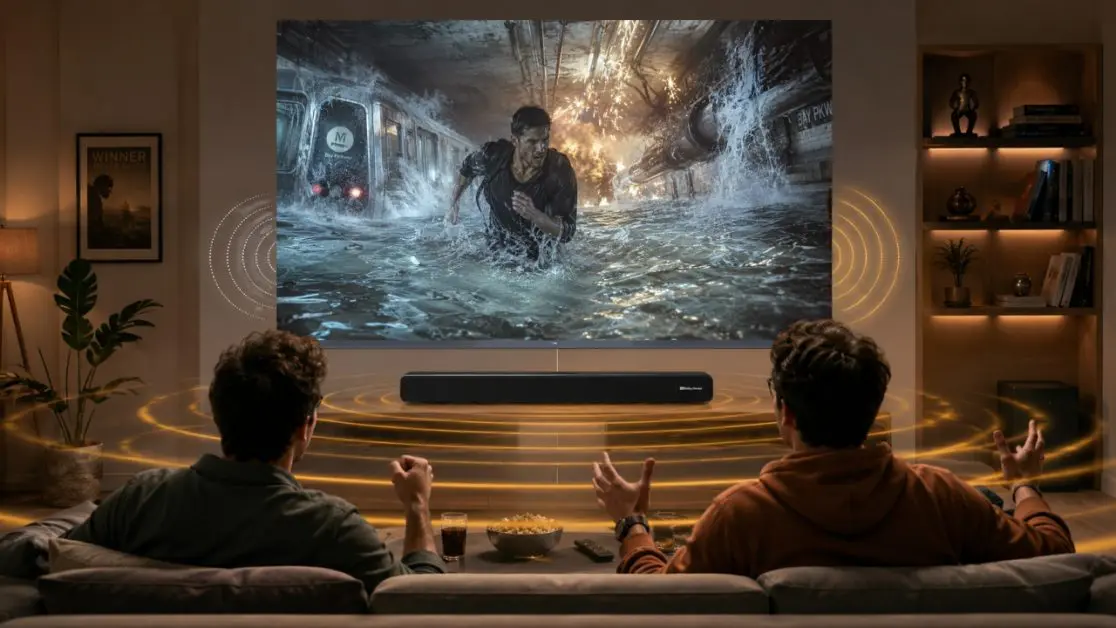
Connecting a soundbar to a TV with HDMI ARC is a simple process.
This setup is not complicated to do with advanced technical knowledge.
Please read carefully and follow the steps.
Step 1: Turn off your TV and sound bar.
First, turn off both devices.
This simplifies connecting the equipment without inadvertently changing parameters or interrupting audio playback.
If the TV is wall-mounted, ensure that all the HDMI connections are accessible.
Don’t take the tv out of its stand or squeeze the screen.
Step 2: Just connect the HDMI Cable to Your TV.
Plug one end of the HDMI cable into the television’s HDMI ARC/eARC port.
Make sure the connector fits securely.
If the sound connection is loose, it may lead to occasional sound, audio dropouts or failure to hear the soundbar.
Step 3: Attach the Other End to your Soundbar
Use the other end of the cable and plug it into the soundbar’s HDMI OUT (ARC/eARC) port.
Just note that you’re taking the ARC port on the television and plugging it into the ARC-compatible port on the soundbar.
Failure to use an ordinary HDMI input can cause the system to fail.
Step 4: Turn on both devices.
Don’t forget to switch on your tv and soundbar.
Choose the correct HDMI ARC or TV audio input of your soundbar.
Both some soundbars and some Android TVs/OVOs automatically detect it. Some will ask you to pick which one you want to use instead.
It will vary from one soundbar model to another.
Step 5: Access the Audio Settings of your Television.
Now is the bit that lots of people miss.
Sometimes the cable connection doesn’t automatically turn on the audio feed to the soundbar.
Access your TV’s Settings menu, and find the audio output.
The menu will show up under one of the following:
To control the audio output, go to Settings → Sound → Audio Output.
Choose HDMI ARC, HDMI eARC or external audio system option available.
The names of the menus might change from one TV to another and from one software version to another.
Step 6: Enable HDMI-CEC (if required)
With HDMI-CEC, compatible HDMI devices can exchange data with each other.
With support and enablement, it can enable you to use your TV remote to adjust the volume of the soundbar.
If necessary, go to your TV settings and search for HDMI-CEC and activate it.
Some manufacturers refer to this by a different name, so reference to the user manual will help.
Step 7: Play Something and Test the Audio.
Start a streaming site or play a familiar scene from a movie.
Listen carefully.
Does the soundbar sound? Can you adjust the volume of the sound? Are the words spoken in the dialogue consistent with the movement of the lips?
If you do not encounter any errors, your HDMI ARC connection is ready to use.
HDMI ARC vs HDMI eARC: What’s the Difference?
You may encounter another term when you’re setting up your soundbar: HDMI eARC.
The letter ‘e’ is for Enhanced.
Both technologies enable televisions to transmit audio to external sound systems that can be controlled by the TV, but eARC also provides extra features.
| Feature | HDMI ARC | HDMI eARC |
| Main function | Connects the TV audio to another sound system | Sends TV audio with greater bandwidth |
| Audio bandwidth | Lower | Higher |
| Uncompressed multichannel audio | Generally not supported | Aided by suitable equipment |
| Dolby Atmos | The compressed file format is compatible. | Supports formats that are compatible with higher bandwidths |
| Lip-sync handling | Depends on equipment | Supports enhanced lip sync |
| Device requirements | ARC-compatible devices | eARC devices for full functionality available. |
HDMI ARC can be used quite fine for everyday use on TV.
If you are creating a home entertainment system using a high-end soundbar, however, eARC might provide more flexibility when it comes to advanced audio formats.
How to Use an ARC Soundbar with an eARC TV?
Yes, in many cases.
Most HDMI eARC connections are backward compatible with HDMI ARC.
For example, if your TV has eARC, but your soundbar does not, they are generally compatible and can communicate with ARC.
You won’t get extra audio bandwidth with a full eARC setup, though.
The Haier New P7 Pro Series is worth considering for several reasons
Here are the reasons why the Haier New P7 Pro Series is worth considering.
While a soundbar will enhance the home entertainment system, the TV is also a vital component.
Enjoying your favorite content depends on picture quality, audio processing and connectivity as well.
The Haier New P7 Pro Series HQLED AI Smart Google TV is a contemporary entertainment system that bundles these features.
The series comes in 65-inch and 75-inch sizes, and features a built-in audio system, smart entertainment and HQLED display technology.
50W 2.1-Channel Sound With a Built-In Subwoofer
The television has an integrated audio system that’s interesting.
Both the Haier New P7 Pro Series 65P7 Pro and 75P7 Pro feature 50W 2.1-channel sound with a built-in subwoofer.
This setup is intended to provide deeper bass and richer sound from a standard speaker setup.
Consider attending a cricket match.
You want the commentator’s voice to be clearly heard, but you also want to have a lively atmosphere in the stadium.
Likewise, for a film action movie, music and sound effects play a major role in the film.
This is a great feature for those who want to watch some entertainment without having to get external speakers.
Dolby Atmos for an Immersive Audio Experience
The Haier New P7 Pro Series also features Dolby Atmos.
Dolby Atmos is an audio technology that provides an enhanced listening experience by allowing immersive content and playback equipment to be compatible with each other.
The TV’s HDMI 2.1 eARC support offers a crucial connection point for users who may eventually require an external HDMI-enabled audio system that is compatible with the TV.
The actual audio support and playback will vary by soundbar, content and device settings.
HQLED Picture Quality and Dolby Vision
But hearing is not all there is to it.
Haier New P7 Pro Series has HQLED technology, which produces rich colors, high brightness and high detail.
The picture technologies it has are:
- Dolby Vision for compatible high dynamic range content.
- HDR10+ for increased contrast and scene detail.
- Optimisation using artificial intelligence (AI) for picture quality.
- Wide Colour Gamut for colourful colour reproduction.
- Smoother, faster action scenes with MEMC technology.
They can enhance the visuals, whether you’re viewing a colourful animated movie or a late-night drama.
When paired with proper sound, the whole viewing experience is more complete.
What if Your Soundbar Isn’t Producing Any Sound?

Everything seems to be hooked up properly, or at least that’s what you think, but you still don’t hear any sound.
Don’t worry. It is a typical setup problem.
Before assuming there’s a hardware problem, check the following.
The Soundbar is Connected, but Silent
Possible reasons include:
- The HDMI cable is plugged in into an incorrect TV port.
- An incorrect input is being used for the soundbar.
- HDMI-CEC is disabled.
- The TV’s internal speakers are still working.
- The selected audio format isn’t supported by the soundbar.
First, you will need to go over the ports and audio output settings.
You might want to temporarily switch the television’s digital audio out to PCM for basic stereo play to see if the issue is that the stereo audio isn’t working.
If audio is successful, you can try other supported file formats.
The sound is still intermittent
If you’re having intermittent audio problems, you might be facing a connection or compatibility problem.
Try these steps:
- Unplug and replug the HDMI cable.
- Inspect the cable for damage.
- Restart both devices.
- Ensure that all firmware updates are installed.
- Try out another compatible HDMI cable.
If it still does not solve the problem, you can refer to the manuals of your TV and sound bar.
The audio does not match with the video
In some cases, you might see some lips moving before or after the sound of a character’s speech.
This is known as audio video synchronisation delay.
Investigate to see if the TV or sound bar has a delay or lip sync setting.
Do a few tweaks to a familiar dialog scene, while playing.
Don’t change drastically right away as that will make the delay more apparent.
Getting the Best Sound After Connecting Your Soundbar
Connecting is just the first step in the process of a successful connection.
There are some simple changes that can help you listen better every day.
Position Your Soundbar Properly
When possible, position the soundbar beneath your TV.
Ensure its speakers are not blocked.
Where your soundbar has upward firing speakers, follow the manufacturer’s guidelines on speaker placement to ensure that you aren’t blocking speakers.
Set up Audio Settings That Match Your Content
Audio needs vary from type to type of entertainment.
For example:
- Movies: If available, use a suitable cinema or surround mode.
- News: Focus on clarity of dialogue.
- Sports: Select a balanced environment, maintaining commentary and crowd noise.
- Music: Play with the music mode of the soundbar.
- Late Night viewing: If your soundbar supports a night mode function, use it.
It is not always essential to have maximum bass in all programmes.
Sometimes a balance sound profile helps one understand conversations better.
Make Every Movie Night Sound as Good as it Looks!
Increasing the volume is not the only part of a good home entertainment experience.
It is more about being able to hear conversations clearly, enjoy background music and feel the ambience that film makers wanted to convey.
One practical solution to that is to connect a compatible soundbar via the HDMI ARC connection.
When buying a TV to upgrade, you might want to get a TV with modern connectivity and good built-in sound.
The Haier New P7 Pro Series HQLED AI Smart Google TV features 50W 2.1-channel audio output with a built-in subwoofer, Dolby Atmos support, HDMI 2.1 eARC connectivity and immersive picture technologies.
You can use the built-in sound system or, if you want to, you can connect a soundbar that is compatible with the TV and enjoy the sound system in your home.
Visit Haier New P7 Pro Series TVs in 65” and 75” screen sizes and find a TV that brings your favorite movies, sports and entertainment to life.
Frequently Asked Questions
1. Can I Connect a Soundbar to My TV Using Any HDMI Port?
No. For HDMI ARC audio, you must use the television’s designated HDMI ARC or eARC port and the corresponding compatible port on your soundbar.
2. Do I Need a Special HDMI Cable for ARC?
A suitable High Speed HDMI cable generally works for standard ARC connections. For full eARC capabilities, choose a cable that meets the bandwidth requirements of your connected equipment.
3. Is HDMI ARC Better Than Bluetooth for a Soundbar?
HDMI ARC generally provides a more dependable connection for television audio and can offer better integration with compatible TV controls. Bluetooth is convenient for wireless listening, but latency and audio format support vary.
4. Does HDMI ARC Support Dolby Atmos?
Yes, HDMI ARC can carry Dolby Atmos through compatible compressed formats, such as Dolby Digital Plus. HDMI eARC supports additional higher-bandwidth audio formats when both devices are compatible.
5. Can I Use My TV Remote to Control the Soundbar?
Often, yes. If both devices support HDMI-CEC and the feature is enabled, your television remote may control the soundbar’s volume.
6. Does the Haier New P7 Pro Series Support HDMI eARC?
Yes. The Haier New P7 Pro Series HQLED 65P7 Pro and 75P7 Pro models feature HDMI 2.1 eARC connectivity, allowing compatible external audio systems to connect through the television’s designated audio return channel.