
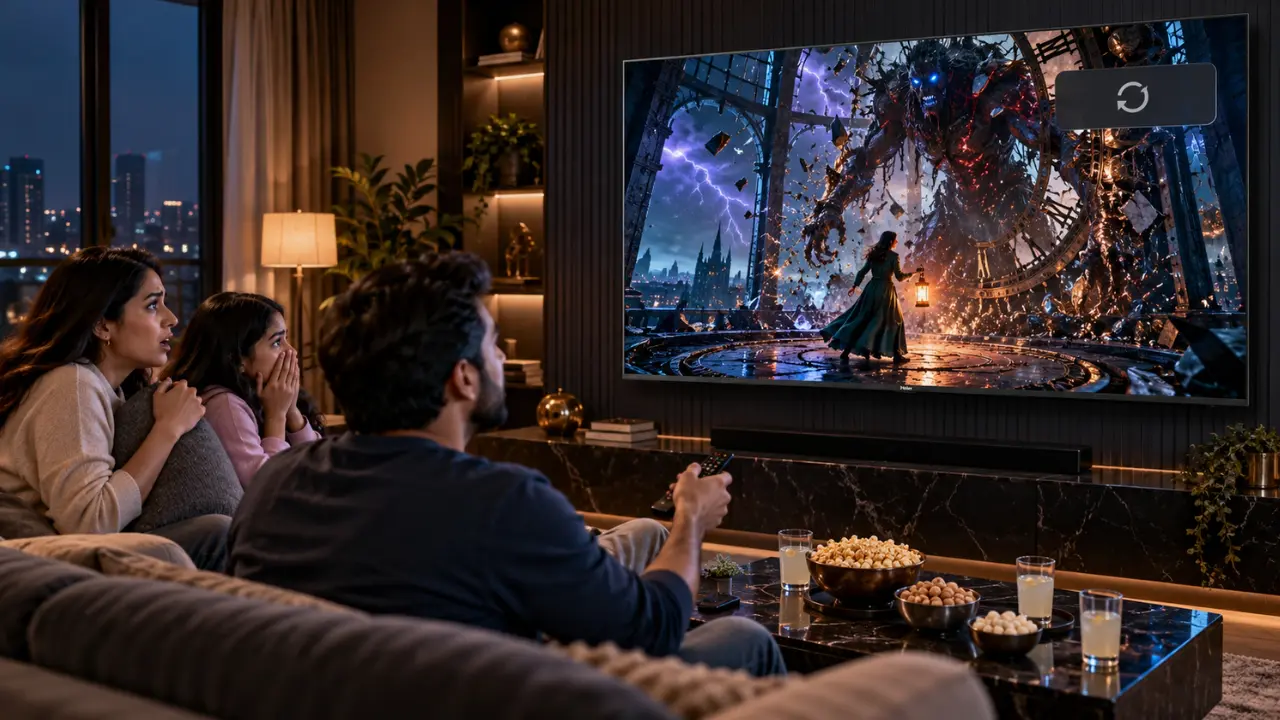

The evil creature is going to make himself known. The background music starts to build up in volume, everyone in the living room starts to hush, and then just when you think it can’t get any more dire, a notification pops up on your TV.
“There is an update you can get.”
Seriously? Right now?
Smart TVs have made watching TV at home a much more convenient experience, but unannounced pop-ups can taint the experience of watching a great film. From recommending apps to reminding you of software updates to alerting you about connected devices, notifications tend to show up at the worst times.
Luckily, there’s no need to endure such interruptions.
In most cases, the process of learning how to disable smart TV notifications takes minimal time. With the right settings, you can enjoy your favourite Bollywood horror flicks, Hollywood blockbusters or weekend family movies without having to constantly pick up the remote.
Why Is Your Smart TV Giving You Notifications?
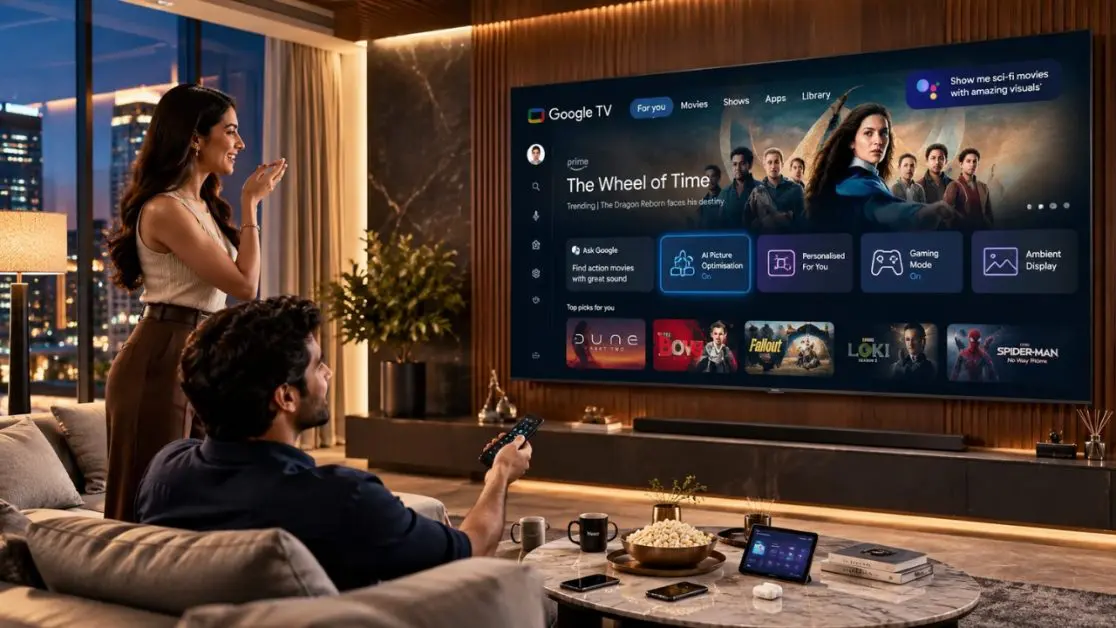
Understanding the source of these alerts is beneficial before turning everything off.
In contrast to traditional TV sets, modern smart TVs are connected to the internet, and they allow streaming applications, personalised recommendations and software updates.
This makes entertainment more accessible, but it can also come with notifications.
These Are the Top Sources of Smart TV Notifications
- App notifications: Streaming apps can show recommendations, account reminders or promotional messages.
- Software updates: Your TV might alert you to a software update.
- Apps and connected devices: Alerts can be triggered by Bluetooth accessories, casting devices and other connected equipment.
- Sign-in prompts: Google TV or specific apps might show sign-in prompts or account details.
- Wi-Fi connectivity changes: These can trigger an alert message on the screen.
But not all notifications are bad news.
A warning to update security, for example, is more worthy of your attention. It’s about minimising unnecessary interruptions while still capturing all the important details about your television.
How to Disable Notifications on Google Smart TV
Most Google TVs have system settings that you can use to control notifications from applications.
The exact names of the menus may vary depending on the TV model, software version and installed applications.
Step 1: Open Your TV Settings
On the TV, access TV Settings.
- Go to the Google TV home screen.
- Click on the Settings icon, which is typically found in the top-right corner.
- Open the main Settings menu.
- Navigate to Apps.
- Try to find items like See all apps or Special app access, depending on the software version you are using.
Google TV versions have some controls for notifications within the settings of individual apps, instead of one central notification menu.
Step 2: Review Application Notifications
After finding the settings of the appropriate application, see which applications are sending unnecessary alerts.
If notification controls are supported for your application:
- Open the app info screen.
- Check for a permission named Notifications or something similar.
- If possible, turn off unwanted notifications.
- Repeat for other applications.
Some Google TV applications do not have separate switches for notifications. If so, you may have to make changes to the preferences of the application you are using.
Step 3: Test the Changes
Now the fun begins.
Run a movie or TV show and see if the unwanted notifications are gone.
Before changing other settings, determine the cause of a specific alert.
This is more reliable than turning off multiple features without knowing which feature caused the interruption.
Is Do Not Disturb Mode Available on a Smart TV?
Do Not Disturb is generally the easiest feature to use on smartphones to mute interruptions.
It’s a slightly different story with smart TVs.
A Do Not Disturb (DND) mode is not standard on all Google TV models, although some interfaces for Android TV do provide a DND mode.
If you don’t have such an option on your TV, it’s okay. There is still an opportunity to minimise interruptions by managing each application and connected device.
The key is not to make assumptions about the functionality of notification controls on every smart TV.
Prevent Movie Night From Being Disturbed by Streaming Apps
Suppose you spend a Saturday evening watching a three-hour Bollywood movie!
You’ve set up the snacks, switched off the main lights and finally convinced everyone to turn off their phones and put them away.
You don’t want another application that you have to deal with.
Manage Notifications in Streaming Applications
Some streaming services include features to control promotional messages, suggestions and account communications within the app or account settings.
If you can, check these preferences and turn off notifications that you don’t need.
Remember that email notifications, mobile push notifications and TV pop-ups are not necessarily controlled by the same setting.
Uninstall Programs You No Longer Use
Unused applications can unnecessarily clutter your smart TV experience.
If an app is no longer needed:
- Open Settings.
- Navigate to Apps.
- Select the application.
- If possible, select Uninstall.
Take care with system applications that are pre-installed. Some may be removed, while others are required to maintain normal television operation.
A simpler home screen also makes it easier to locate the entertainment you’re really looking for.
What About Software Update Notifications?
Reminders to update software can be a nuisance while watching a movie, but ignoring them forever isn’t a great idea.
Updates can provide you with security enhancements, bug fixes and changes to application compatibility.
Rather than trying to stay away from them altogether, have a regular schedule for checking for updates when you aren’t viewing anything.
A Better Way to Manage TV Updates
- Before watching a long movie, check for available updates.
- Install crucial updates when you have the time to do so.
- Don’t unplug the TV’s power cord while an update is being installed.
- Check automatic update settings, if applicable.
- Turn the TV back on if instructed after installation.
This helps to keep your TV up to date so that your show doesn’t have to become a software maintenance ordeal.
Enjoy a More Enjoyable Movie Experience With Haier K85G Google TVs
One way to make your home entertainment more enjoyable is to minimise unnecessary notifications.
The TV itself is just as important.
The Haier K85G 4K Ultra HD Google TV Series has a number of benefits for Indian households seeking an immersive viewing experience with smart entertainment capabilities.
The series includes screen sizes of 50, 55, 65 and 75 inches and features 4K UHD resolution, HDR10 and Dolby Audio in addition to Google TV.
Google TV for Personalised Entertainment
The Haier K85G Series also has Google TV to combine content suggestions and streaming applications under a customised interface.
Viewers can browse entertainment without spending valuable movie time switching between several menus.
Google TV also features watchlists where users can save movies and TV shows they’re interested in for later viewing.
In the case of families where everyone has different tastes, this could make it a lot easier to choose what to watch.
The control of notifications continues to rely on the software and app settings available on Google TV.
4K UHD Resolution to Provide Enhanced Detail in Visuals
An interesting film requires a screen that can do justice to its visuals.
The Haier K85G Series has a resolution of 3840 × 2160, which is four times that of Full HD.
When high-resolution content is used, 4K UHD helps reveal even some of the subtlest nuances in pictures, from elaborate historical film sets to colourful musical sequences.
The series also includes support for HDR10 for a better presentation of compatible high-dynamic-range content.
Dolby Audio for Engaging Movie Sound
You may be drawn to the picture, but sound also helps to create a film’s atmosphere.
A whispered word, an approaching step or a sudden tune may completely alter the mood of a scene.
The Haier K85G Series comes with Dolby Audio and dbx-tv sound enhancement technology.
These audio technologies are engineered to enhance the listening experience, making dialogue and sound effects more engaging.
The 50-inch, 55-inch and 65-inch models feature 20W audio output, while the 75-inch model offers 30W.
Google Assistant for Convenient Voice Control
Picture everyone waiting for a movie to start while someone is searching through several different menus.
The Haier K85G Series supports Google Assistant, allowing users to access compatible smart functions, search for content and issue supported voice commands.
It’s an easy-to-use feature that complements regular TV watching, especially if you already know what you want to see.
Choosing the Right Haier K85G Screen Size for Your Home
Big TVs are not necessary in all Indian living rooms.
A compact apartment, a dedicated entertainment room and a large family lounge can have very different viewing requirements.
The Haier K85G Series comes in four screen sizes:
- Haier K85G (H50K85GUX): A practical choice for smaller living rooms and bedrooms where viewing distance is limited.
- Haier K85G (H55K85GUX): A great option for many medium-sized living areas and regular family entertainment.
- Haier K85G (H65K85GUX): A good option for those who want a bigger screen for movie watching.
- Haier K85G (H75K85GUX): For viewers who want a bigger screen in an appropriately sized space.
All four models come with 4K UHD resolution, Google TV and HDR10 support.
Before you determine the size of the screen, think about the distance you need to sit from the screen, the available space in front of it and how you’ll use it.
A larger TV screen can help make the experience more immersive, but it is important to ensure a comfortable viewing experience.
The Five-Minute Checklist Before Pressing Play
The most basic preparations can sometimes make the biggest difference.
Before playing your next film, check out this quick list:
- Check whether your TV settings contain notifications you don’t want.
- Install any outstanding software updates before starting the movie.
- Disconnect unused wireless devices or casting devices.
- Make sure that your Wi-Fi signal is strong.
- Choose an appropriate picture mode for your room.
The Haier K85G Series also has a Movie picture mode, allowing viewers to customise their viewing experience.
And remember to put your mobile phone on mute, too. A phone going off next to the popcorn bowl isn’t much better than having the TV go off.
Make Movie Nights About the Movie, Not the Notifications
Movie night should be about watching the story, not repeatedly dismissing messages from the corner of the TV.
There are a few changes to application permissions, update preferences and connected devices that can make your smart TV experience considerably less distracting.
And when you’re ready to enhance your home entertainment setup, explore the Haier K85G 4K Ultra HD Google TV Series.
The series comes with features that cater to Indian entertainment, including 4K UHD resolution, HDR10, Dolby Audio and Google TV in four screen sizes.
Explore the Haier K85G Series and select a TV to match your home, entertainment requirements and family movie nights.
When the best scene comes, you need to be focused on the screen.
Frequently Asked Questions
1. How do I stop notifications from popping up on my smart TV?
Open your television’s settings and review application notification permissions. On Google TV, relevant controls may appear under Apps or within individual applications. Available options vary by model and software version.
2. Can I turn off all notifications on Google TV?
Google TV does not offer the same notification controls on every device. Some notifications can be managed individually, while system alerts may not be fully removable.
3. Why does my smart TV show notifications while watching Netflix or other streaming apps?
These alerts may originate from the television’s operating system, connected devices or installed applications. Identifying the source helps you choose the correct setting.
4. Will disabling notifications affect my streaming applications?
Disabling optional notifications generally does not prevent an application from streaming content. However, certain account or system messages may still appear when action is required.
5. Does the Haier K85G Series support Google TV?
Yes. The Haier K85G 4K Ultra HD Series features Google TV across its 50-inch, 55-inch, 65-inch and 75-inch variants, along with Google Assistant support.