
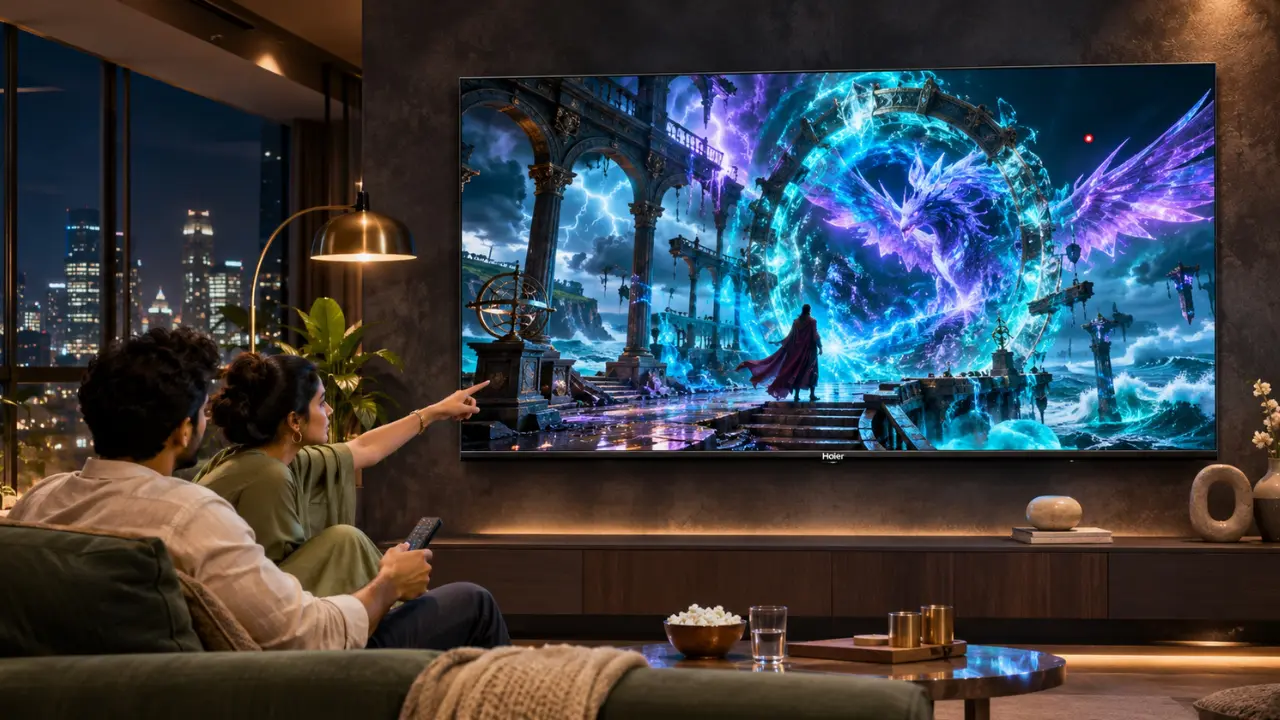

You’re on the edge of a thrilling suspense story. The screen goes dark, the image fades to black and you are met with a small red dot stubbornly lodged in the corner of your TV screen.
You rewind. It’s still there.
When you switch to a cricket match, the same dot appears in the green outfield. Initially, you may believe it is an issue with the streaming application or even the video itself. However, if the little dot does not vanish, you may have what is called a stuck pixel.
But at times, it is black instead. This may be a sign of a dead pixel.
Although these display problems may look similar, they aren’t quite the same. The difference between a dead pixel and a stuck pixel is important to understand for three reasons: to help you identify the problem, avoid unnecessary repairs and determine whether to call in a professional.
What Are Pixels on a TV Screen?
It is helpful to know how a television picture comes onto the screen before discussing what causes it to be defective.
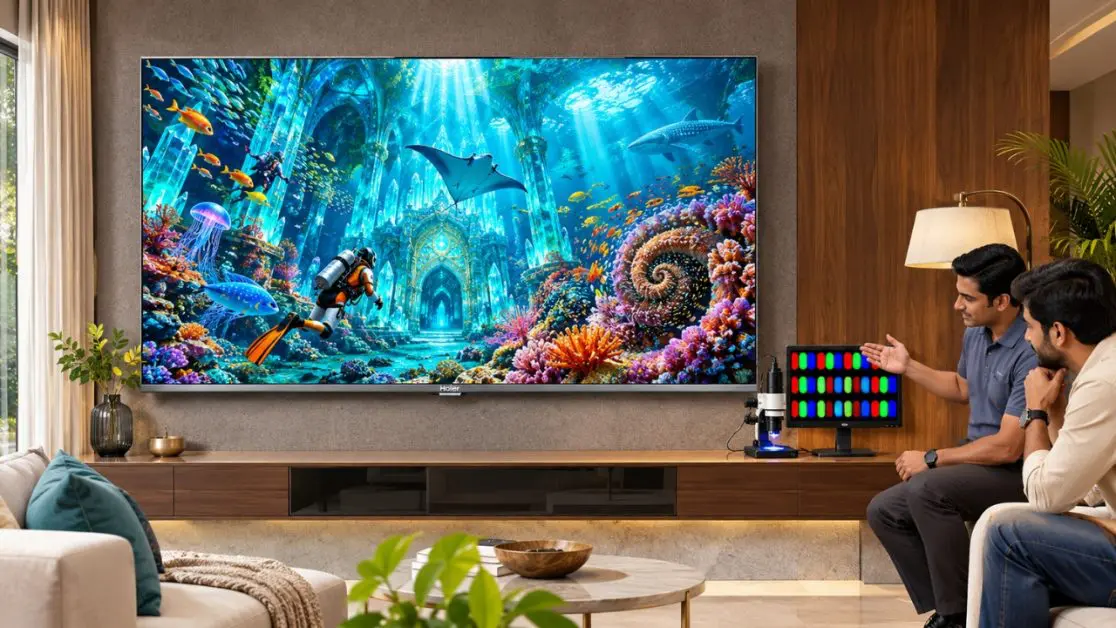
Each digital TV screen has millions of very small picture elements (pixels). These combine to make up the pictures that you see while watching movies, playing games or watching your favourite shows online.
For example, a 4K television’s resolution is 3840 × 2160 pixels. That’s about 8.3 million pixels working in tandem to create the entire picture.
At the pixel level, each pixel is normally divided into three colours (subpixels):
- Red subpixel: Supplies the red light to the picture.
- Green subpixel: Generates the green part of the image.
- Blue subpixel: Provides blue light for colour reproduction.
The intensity of these components can be adjusted to give different colours and tones to the TV.
The exact process will vary according to the type of display technology. LCD-based televisions use liquid crystals and a backlight, while OLED displays produce light from individual emissive elements.
If a pixel or subpixel malfunctions, a small area of the screen might show up differently.
Dead Pixels vs Stuck Pixels: What’s the Actual Difference?
The simplest means of understanding these defects is to observe the way they show up during normal viewing.
Dead Pixels: The Tiny Black Spots That Don’t Change Colour
There are tiny black spots that will not change colour. These are called dead pixels.
A dead pixel is a pixel that is no longer able to display its intended image.
Many LCDs will have a completely dead pixel that shows up as a black pixel, even against a bright background image.
Suppose you are looking at a landscape with snow on the mountains. All of it seems white and detailed, except for one little black spot that won’t fade.
This could be a dead pixel.
Common characteristics include:
- A consistently black spot on the screen.
- No colour change observed when the displayed colour changes.
- A fixed position, regardless of the content.
- A fault that normally cannot be fixed or corrected by using normal picture controls.
A dead pixel is typically a hardware issue with the display.
Stuck Pixels: When One Colour Refuses to Leave
A stuck pixel, on the other hand, acts differently.
It can stay the same colour instead of appearing black because one or more subpixels are not working properly.
A stuck red subpixel can produce, for instance, a red dot on a dark screen.
The spot may be red, green, blue or some other colour, depending on the defect.
Typical signs include:
- A spot or colour that stays in the same position.
- A location that stands out against a contrasting background.
- An appearance that can differ depending on the colour being displayed.
- A defect that may be partially fixed using various forms of pixel refresh, although recovery is not always possible.
There is an important difference: not all bright spots are stuck pixels, nor are all dark spots dead pixels. A proper test is required before reaching a conclusion.
How to Check Your TV for Dead or Stuck Pixels
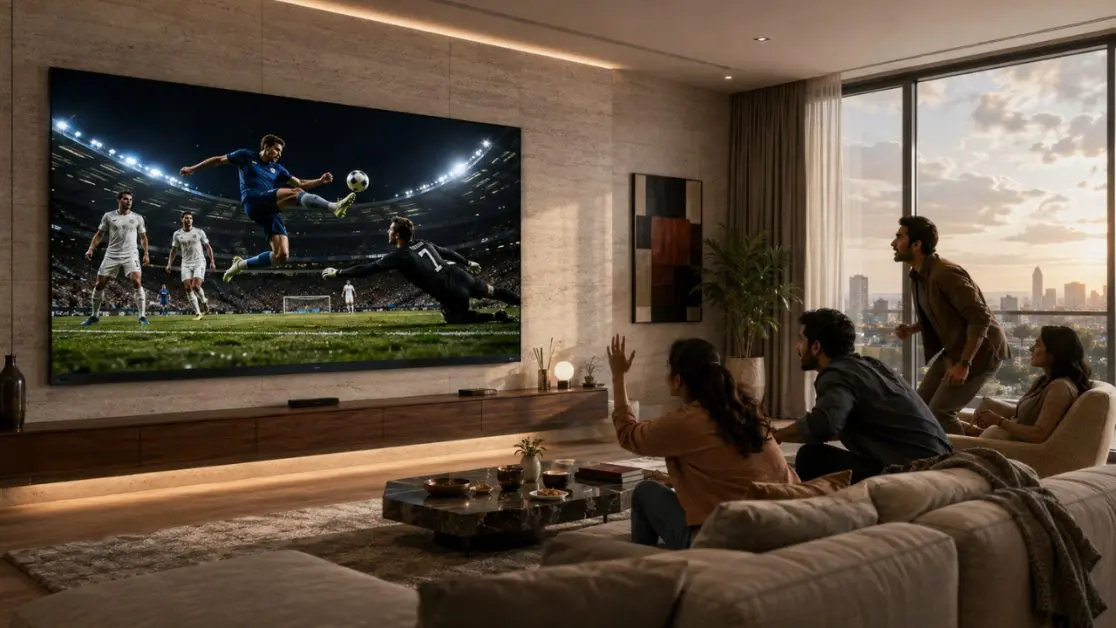
Special equipment for an initial screen inspection is not required.
There is a simple colour test to determine if the issue is with the panel or the content that is being watched.
Step 1: Clean the Screen Carefully
A speck of dust can sometimes appear like a non-functioning pixel.
Turn off the TV and check the screen under normal room lighting.
For cleaning, use a clean, dry microfibre cloth and follow the manufacturer’s guidelines for screen cleaning.
Do not apply pressure or cleaning fluid directly to the screen.
Step 2: Display Solid Colours
Open a trusted full-screen colour-testing image or video.
Show each of these colours one at a time:
- White
- Black
- Red
- Green
- Blue
Do not get too close to the screen to check suspicious areas. Instead, take a few steps back to look at the screen.
If there is a black spot visible against white, red, green and blue backgrounds, it might be a dead pixel or another defect in the panel.
If a coloured spot shows up even when it is supposed to be dark, this could indicate a stuck or overly bright subpixel.
Step 3: Review Other Sources
Avoid relying on a single source this time, such as watching one YouTube video or using a streaming application.
Try displaying the same colours using another medium, like a USB image or connected computer.
When the location of the spot is the same across different sources, it is likely to be a display-panel problem.
If it clears up when you change the source, the problem may be associated with the original video, application or connected device.
Step 4: Document the Problem
If the spot is still visible, take clear photographs showing its location.
Document the time of its first observation and whether it was noticed immediately after installation.
This information may be beneficial when reaching out to authorised customer support.
Can You Fix Dead Pixels or Stuck Pixels at Home?
This is likely one of the first questions that many people will ask when purchasing a TV.
The answer will vary depending on the type of defect.
Is It Possible to Correct or Repair Dead Pixels?
A true dead pixel typically cannot be corrected with software modifications.
If the issue is due to a physical defect, restarting the TV, adjusting the brightness or installing software updates will not fix the problem.
For most viewing situations, professional inspection may be required if the issue has an impact on daily viewing.
Is It Possible to Repair Stuck Pixels?
There is no universal, reliable solution to fix pixels that are stuck.
There are a couple of troubleshooting steps that can be taken.
Restart the Television
Turn off the television using its normal power controls.
Let it remain off for a while and then turn it back on.
This can help eliminate temporary display-processing issues, but it cannot fix damaged components on a panel.
Try a Short Pixel-Colour Test
Some pixel-testing programmes flash various colours in quick succession.
In some cases, this can help a temporarily unresponsive subpixel return to normal operation.
However, these tools do not always work, and there is no need to use extended flashing sequences.
Don’t use content that flashes quickly if there’s someone watching who is sensitive to flashing lights.
Avoid Physical Pressure
It may be possible to fix the problem by pressing or rubbing the affected pixel, an approach some online videos suggest.
Don’t attempt this.
Television panels are very delicate and can be damaged if they are pressed too hard.
A single defect is frustrating enough. If an entire section of the display is permanently damaged, it becomes a much bigger problem.
What Causes Dead and Stuck Pixels?
There are a number of reasons for the occurrence of pixel defects.
Manufacturing Variations
TV panels are made up of millions of display elements and electronic connections.
Sometimes, manufacturing variations cause some of the pixels or subpixels to operate incorrectly.
Ageing Display Components
Like other electronic components, display elements can experience changes over time.
It doesn’t mean that all televisions will suffer from pixel defects, but ageing can be a factor in some panel-related issues.
Physical Damage
Fragile display structures can be damaged by accidents, impacts or careless handling.
This is especially important if you’re transferring or installing a large-screen TV.
Panel-Level or Electrical Faults
Sometimes, a faulty display element or connection may cause some of the pixels to malfunction.
However, a coloured or black spot by itself is not sufficient to pinpoint exactly what the cause is.
How Haier’s Q7 Pro Series Enhances Your Viewing Experience
After determining whether your TV has any damaged pixels, you may want to ask yourself what features to look for in a television when choosing one for everyday entertainment.
While pixel reliability is important, picture quality is much more complex.
The ease of using a television is affected by its colour reproduction, contrast, motion handling and image processing.
The Haier New Q7 Pro Series HQLED AI Smart Google TV is an intriguing option for Indian homes looking to upgrade their entertainment setup with a big screen.
The series comes in two sizes, 164 cm (65-inch) and 189 cm (75-inch), for families that like to watch films or players who love to play on a console.
HQLED Technology for Richer Colours
The Haier Q7 Pro Series boasts HQLED display technology, which provides rich and vivid colours and clear imagery.
It has 93% DCI-P3 colour gamut coverage, enabling it to capture and reproduce a wide array of colours, enhancing the richness and expressiveness of colourful scenes.
Imagine a cricket match lit by stadium lights or a nature programme with tropical scenes.
These scenes become more visually interesting when they can be reproduced across a wider colour range on a TV.
Advanced AI Picture Quality for Different Content
All programmes are not created equal.
Bright lighting at a football match is different from a suspense film that takes place in a dark room.
The Q7 Pro Series comes with AI Picture Quality technology, which adapts brightness, contrast, colour and clarity to suit the content.
It also features Dolby Vision and HDR10+ standards to optimise HDR viewing of compatible content.
These features enhance the way images are presented, but they are not a substitute for pixel-repair technology. They are not able to fix a physical defect in a pixel.
Gaming Features for Responsive Entertainment
The Q7 Pro Series provides a handful of features focused on gaming for households that have consoles as a way to relax and have fun.
These include:
- Improved 120Hz gaming performance to support smoother gameplay.
- ALLM to minimise input lag through automatic low-latency operation.
- VRR support for a smoother gaming experience with compatible VRR sources.
- Game Mode for a gaming-focused experience.
The series also includes MEMC technology to help deliver smoother motion and reduce judder in fast-moving scenes.
Sound That Complements the Picture
Having a good television experience doesn’t end at the TV screen.
The Haier Q7 Pro Series sound system is designed with 50W of power and 2.1-channel sound with a built-in subwoofer.
With Dolby Atmos support, compatible entertainment gets an added dimension.
Whether you’re watching an action film or enjoying a weekend music playlist, the Q7 Pro Series is worth exploring for its combination of picture and sound features.
How to Protect Your Television Screen From Damage
Not all pixel defects are preventable. For example, manufacturing-related problems are not something that owners can control.
If proper care is taken, however, the display can be protected from unnecessary damage.
Here are a few helpful tips:
- Do not press the TV screen directly.
- Use appropriate cleaning materials and follow the user manual.
- Avoid having sharp objects or heavy items near the screen.
- Make sure that the TV is properly mounted.
- Do not allow the TV to come into contact with excessive moisture or unsuitable temperatures.
- When moving the television, follow the manufacturer’s guidelines.
In the case of larger TVs, the installation process is even more crucial since the panel needs to be handled with care.
When Should You Contact Haier Customer Support?
When you see a black or coloured spot on your Haier television, first check whether the same spot appears on more than one source.
If the problem persists, do not attempt to disassemble the display. Instead, contact Haier’s authorised after-sales support.
Have the following information on hand:
- Television model number.
- Purchase invoice.
- Outline of the problem you’re experiencing with the pixel defect.
- Photos of the affected area.
- Estimated time of occurrence of the problem.
The three-year warranty stated on the Haier Q7 Pro Series product listings comprises a one-year standard warranty plus two years of extended comprehensive warranty, subject to applicable terms and conditions.
Importantly, the warranty period does not automatically determine whether an individual pixel defect is covered for repair or replacement. Eligibility will be based on the specific conditions of the relevant warranty and technical assessment.
A Better Viewing Experience Begins With Understanding Your Screen
A small dot on the screen of a TV might not seem so important until it begins to catch your eye during every movie or cricket match.
When you know the difference between dead pixels and stuck pixels, you can take the appropriate action rather than poking at a stuck pixel with potentially harmful home remedies.
When it comes time to try a new TV, don’t just consider the size of the TV.
The Haier New Q7 Pro Series HQLED AI Smart Google TV is available in 65-inch and 75-inch sizes and packs a 50W sound system, AI Picture Quality, Dolby Vision, HDR10+ and gaming capabilities with 4K resolution and Haier’s HQLED colour technology.
It’s an interesting choice for Indian families looking for a television that is perfect for films, sports, games and everyday streaming.
Visit Haier India’s official online store to check out the Haier Q7 Pro Series and find the right screen size that fits your home entertainment requirements.
Frequently Asked Questions
1. Are dead pixels and stuck pixels the same thing?
No. A dead pixel typically appears black because it cannot produce its intended output, while a stuck pixel or subpixel may remain illuminated in a particular colour.
2. Can a stuck pixel disappear on its own?
Sometimes. Certain temporarily unresponsive subpixels may recover, although there is no guarantee that a stuck pixel will disappear without professional intervention.
3. Will a dead pixel spread across the TV screen?
A dead pixel doesn’t normally spread like an infection. However, multiple defects may appear if the display develops a broader hardware problem.
4. Does a 4K TV have a higher chance of developing dead pixels?
A 4K screen contains more pixels than a Full HD screen, but resolution alone doesn’t determine whether defects will develop. Manufacturing quality, component condition and handling also matter.
5. Can a software update fix dead pixels?
A software update may resolve certain image-processing glitches, but it generally cannot repair a physically defective pixel.
6. Should I replace my TV because of one dead pixel?
Not necessarily. Consider the location and visibility of the defect, the television’s age and the applicable warranty conditions. An authorised service assessment can help determine the appropriate next step.