
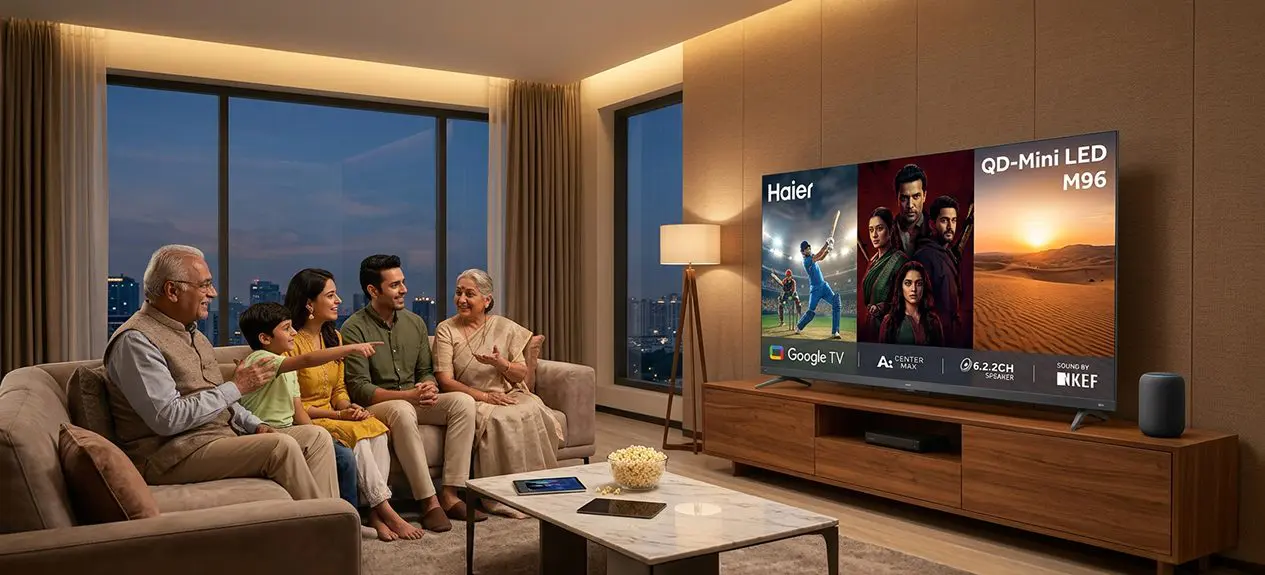

One evening, you might be streaming a series on Netflix. The next morning, you’re catching the news, and by the weekend the TV is showing a cricket match. Each type of content puts different demands on your screen, so choosing a TV takes more than picking a size and checking the price.
If you’re wondering how to choose a TV that handles all these viewing habits, start with the features you’ll use most. Haier offers televisions in a range of screen sizes and picture technologies, which makes it easier to compare options for everyday entertainment. This smart TV buying guide covers what to look for before you decide.
Start With How You Actually Watch
Before you compare TV specifications, think about what you watch most and where you watch it. Your habits will tell you which features are worth paying for.
- For OTT and Streaming: Choose a smart platform with easy-to-use apps and sharp picture quality.
- For live TV: Look for good upscaling, clear dialogue, and the right ports for your cable or DTH box.
- For movies: Pay attention to contrast, HDR support, and good sound for a more cinematic experience.
- For sports: Look at motion handling, refresh rate, and brightness, especially for daytime matches.
Haier’s range includes standard 4K UHD, QLED and Mini-LED models, so you can compare features according to your needs and budget.
Choosing a TV for OTT / Streaming
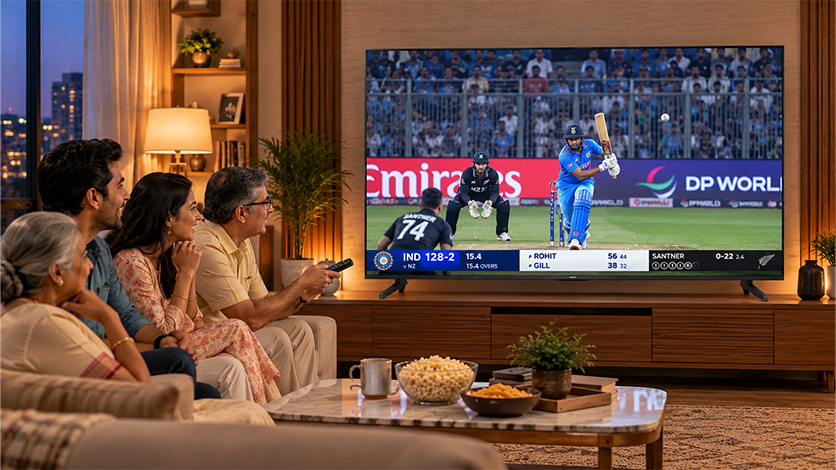
When you’re picking the best TV for OTT and streaming, the picture is only part of it. Quick access to your apps, steady connectivity, and support for modern video formats do just as much for everyday viewing.
1. Built-in Apps and OS Support
A smart TV with Google TV or Android TV gives you supported streaming apps through its app store. Before buying, check that your preferred services are available and whether the interface feels easy to use.
For a TV for Netflix and Prime, look for built-in support for both, dependable Wi-Fi, and simple search features. The Haier P7GT 4K Ultra HD Google TV comes with Google TV, hands-free voice control, Dolby Vision and Dolby Atmos support.
If you’re thinking, how do I use a TV streaming device? It’s simple. Plug a compatible streaming stick into your TV’s HDMI port, connect it to Wi-Fi, and follow the on-screen setup instructions. This gives an older TV access to supported streaming apps, as long as the device and the TV are compatible.
2. Resolution and HDR for Streaming
4K Ultra HD (3,840 × 2,160 pixels) shows more detail than Full HD, and you’ll notice it most on bigger screens. It’s a useful choice for TVs above 43 inches, though the right resolution also depends on how far you sit, what you watch, and your budget.
HDR10 and Dolby Vision can improve colour, brightness, and detail in compatible content, depending on the TV. Some of our models also include picture-processing features that make content look better. Support varies across the range, so check each model’s specifications.
Choosing a TV for Live TV
If you regularly watch news, serials, or live sports, your TV should work smoothly with the setup you already have. It should also handle lower-resolution broadcasts well, since not every channel comes in Full HD or 4K.
Built-in Tuner vs Set-Top Box vs Live-TV Apps
A compatible built-in tuner can pick up supported broadcast signals through an antenna. For cable or DTH, most households connect a set-top box over HDMI. Internet-based live-TV apps are another option if you have a compatible smart TV and an internet connection.
If you’re thinking about how to get live TV on Android TV, you can install a supported broadcaster or live-TV app from the Google Play Store, or open the Live section if your TV has one. If you use cable or DTH, connect your set-top box to the TV and select the correct HDMI input.
Getting Free Live TV
Don’t want to pay for a cable subscription? You’ve got options. Free-to-air broadcasts work with compatible equipment, and free, ad-supported streaming services (often called FAST channels) offer scheduled programming. Availability varies by region and platform, so check what’s offered where you live.
Choosing the right app comes down to the channels and programmes you enjoy. If you’re comparing which app is best for live TV, explore services such as JioHotstar, official broadcaster apps, and the free channels available through your TV’s platform. Some content requires a subscription, so check availability and access before choosing.
Choosing a TV for Movies
For films, picture detail matters, but so do contrast, colour, and sound. Together they preserve the mood of a dark scene and bring out the detail in a bright, colourful one.
Contrast, HDR, and Sound
Good contrast helps to maintain darkness within dark scenes without losing out on the details in the dark areas. The use of local dimming helps this be accomplished through controlling different zones of the backlight. QLED has good colors and high brightness while Mini-LED utilizes small backlight LEDs.
For a more cinematic setup, look at our QLED TV range or Mini-LED options. If you plan to add a compatible soundbar or home theatre system, check the audio output, Dolby Atmos support, and eARC as well.
Choosing a TV for Sports
Sports are tough on TV. The camera is chasing fast-moving players, balls, and vehicles, and good motion handling makes that action easier to follow.
Refresh Rate and Motion Handling
A standard 60Hz panel refreshes the image 60 times a second, and a native 120Hz panel does it 120 times. The higher rate can make fast action look smoother, though the source content and the TV’s processing play a part too.
MEMC (Motion Estimation, Motion Compensation) processes movement to reduce perceived blur in supported content. If live sports are a regular part of your week, check the native refresh rate and the motion features.
One TV for Everything: What to Prioritize
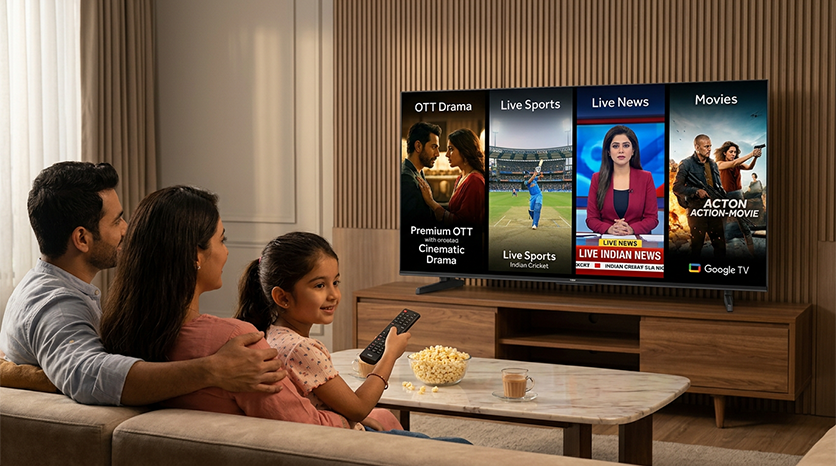
If your household streams shows, watches live channels, and likes a film or a match at the weekend, go for a balanced set: 4K resolution, an easy smart platform, good brightness, capable motion handling, and clear sound.
Native 120Hz is worth considering if sports matter most, but not everyone needs it. Haier’s premium models combine Google TV, 4K resolution, advanced picture technology, and enhanced audio, with specifications varying by model.
Quick Buying Checklist
Before choosing your TV, check this smart TV buying guide:
- Resolution: 4K Ultra HD for detailed viewing, especially on larger screens.
- Operating system: Google TV or Android TV with your preferred apps.
- Refresh rate: Consider native 120Hz for frequent sports viewing.
- HDR: Look for HDR10 or Dolby Vision support that suits your content.
- Audio: Check speaker output, Dolby Atmos support and eARC if needed.
- Connectivity: Confirm HDMI ports, Wi-Fi and compatibility with your setup.
Conclusion
Whether you stream your favorite shows, watch a live game, or have a movie night, your television needs to be the one that gives you the best experience when watching anything. Pay attention to the features that you think are important for you, whether its 4K resolution, access to OTT apps, sports mode, or better audio experience.
Discover our wide range of smart televisions and see how screen size and smart functionality differ among them. Choose the one that suits your preferences, budget, and makes every day more entertaining.
FAQs
How do I get free live TV?
You can watch free-to-air channels with compatible equipment or use free, ad-supported streaming services. Availability depends on your location and the platform.
How do I get live TV on an Android TV?
Install a supported live-TV or broadcaster app from the Google Play Store, or connect your cable/DTH set-top box through HDMI.
Which app is best for live TV?
It depends on the channels you want. Explore JioHotstar, official broadcaster apps, and your TV’s available free live channels, checking subscription requirements first.
What is the best TV for watching sports?
Look for a TV with good motion handling, high brightness, and a native 120Hz refresh rate for smoother fast-moving action.
Do I need a 4K TV for OTT streaming?
No, Full HD can be sufficient for smaller screens, but 4K UHD offers sharper detail on larger TVs when streaming compatible content.
How do I use a TV streaming device?
Plug a compatible streaming stick into your TV’s HDMI port, connect it to Wi-Fi and follow the setup instructions to access supported streaming apps.