
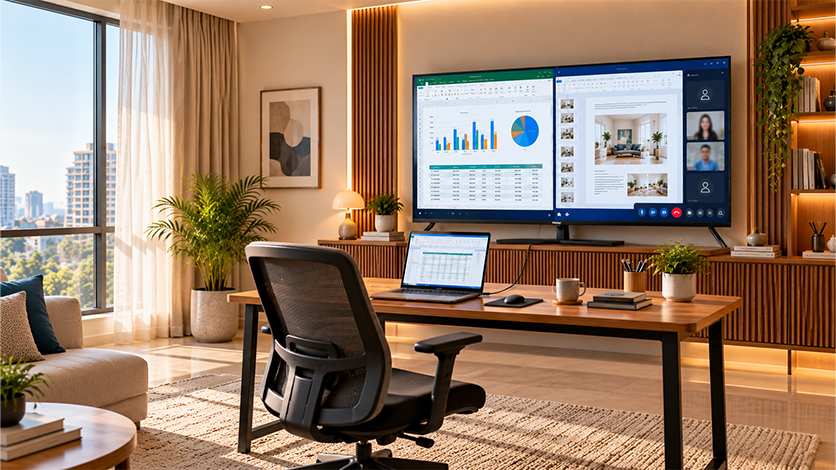

Ever tried keeping a video call open while checking a spreadsheet and referring to a document on your laptop? You end up minimising one window to open another, then switching back a few seconds later. If this sounds like your usual workday, your TV might help. Instead of buying a separate monitor, you could connect your laptop to the TV and get more room to work with.
You might not need to buy a monitor at all. If your TV has an HDMI port, try connecting it to your laptop first. Using your TV as a monitor could make it easier to read spreadsheets, keep a document open during a meeting or simply stop jumping between tabs. If you have a compatible Haier TV, you can use the bigger screen for work during the day and switch back to your favourite shows later.
Can You Use a TV as a Monitor?
Yes, you can use a TV as a computer monitor, as long as your television and computer share a compatible connection, such as HDMI.
So is a TV screen a monitor? Both show images from a connected device, but they’re built for different jobs. Monitors are made for close-up viewing, while televisions are made for watching content from across a room. TVs also typically include built-in speakers and smart features.
A TV can work well for presentations, video calls, research, and multitasking. The bigger display lets you keep documents and apps visible together, so you’re not constantly minimising one to view another.
A Haier 4K UHD TV might be a good option if you want one screen for work during the day and movies at night. Before hooking it up to your laptop, check which ports it has, and whether it supports the resolution and refresh rate you need.
TV vs Monitor: The Key Differences
A bigger screen doesn’t always mean a better work setup. When looking at a TV vs monitor for work from home, think about what you’ll be doing on it. Reading spreadsheets for hours, scrolling through documents, or moving between windows can feel different on a TV than on a monitor.
Resolution, Pixel Density, and Text Clarity
Resolution is the number of pixels in the picture, while pixel density is how closely those pixels are packed together.
A 4K television has a resolution of 3840 x 2160 pixels, which gives you plenty of screen space for documents, spreadsheets, and several apps at once. The catch is that TVs are usually bigger than desktop monitors, so the pixels are spread over a larger area.
This doesn’t mean text will look blurry. Screen size, how far you sit, and your computer settings all play a part.
If you’re looking at a 4K TV as a monitor, check that your computer can output 4K at the refresh rate you want. You may also need to adjust display scaling so text, icons, and menus are easy to read.
Input Lag and Refresh Rate
Input lag is the time difference between performing an action, such as moving the mouse, and the appearance of its effect on the screen. The refresh rate is a term used to indicate how many times your monitor refreshes each second; its unit is Hertz (Hz).
For everyday tasks such as writing emails, attending video calls, and working on spreadsheets, a compatible 60Hz display is generally enough. A higher refresh rate can make scrolling and cursor movement feel smoother.
Some TVs process the picture to make films and shows look better, and that can add delay when you use one with a computer. If your TV has PC Mode or Game Mode, try switching it on. It cuts the extra processing and usually makes the screen feel quicker.
How to Connect Your TV as a Monitor
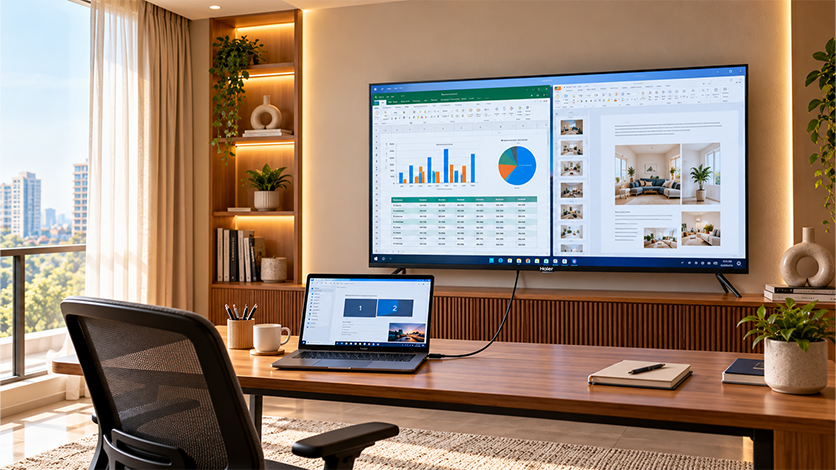
It’s usually easy to connect a laptop to a TV with an HDMI cable. First, check that both devices have compatible ports and that your laptop supports the desired display resolution.
HDMI, Display Settings, and Scaling
Follow these steps to set up your TV:
- Connect the cable: Plug one end of the HDMI cable into your laptop and the other into an available HDMI port on your TV.
- Select the input: Use your TV remote to choose the HDMI input connected to your laptop.
- Adjust your computer settings: On Windows, open Settings, select System, and then Display. Choose whether to duplicate your laptop screen or extend it. On macOS, open System Settings and select Displays to configure the connected screen.
- Set the resolution: Select a resolution supported by both devices. If your TV supports 4K and your laptop can output it, you can select that resolution.
- Make text easier to read: If emails and documents look too small, adjust the display scaling until they’re comfortable to read from your seat.
The Extend option is particularly useful when you’re working with several things at once. You could keep a video call open on your laptop and move your spreadsheet or presentation to the TV, so you don’t have to keep switching between windows.
Quick Setup Checklist
Before you sit down to work, check these five things:
- The cable: Does it work with both your laptop and your TV?
- The settings: Is the resolution right, and have you chosen Duplicate or Extend?
- The text: Can you read your documents and menus from where you actually sit?
- The TV position: Is it at a comfortable distance and height?
- The picture mode: If your TV has PC Mode or Game Mode, try it. The screen usually feels more responsive.
When a TV Works Well as a Second Screen
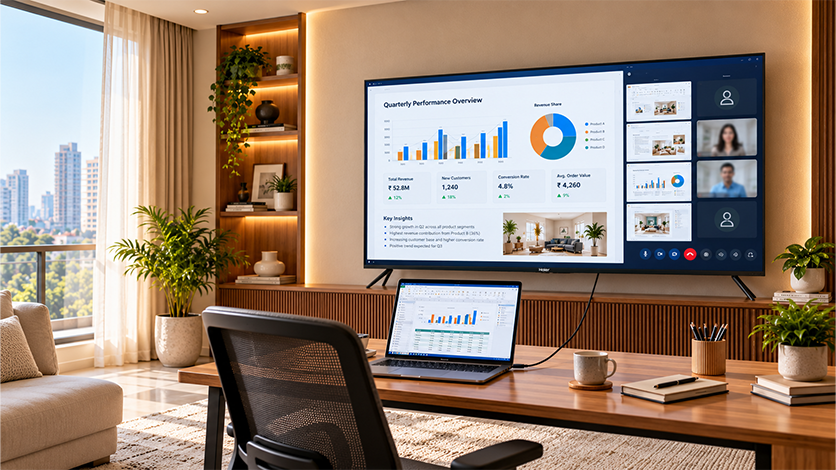
A TV as a second screen helps when your work involves several apps, or when you keep switching between reference material and the task in front of you.
You could keep a spreadsheet open on your laptop and view a report on the TV. During a video call, the big screen can show presentation slides while you take notes on your computer.
A TV can also suit a shared living space, where you want one screen for work by day and entertainment later. If you’re looking at Haier smart TVs for this, compare screen sizes, resolution and connectivity to find one that fits your space and your routine.
Haier’s range of smart TVs includes options to explore if you’re looking for a larger screen for home use. Compare the resolution, connectivity, and screen size before choosing one for your workspace.
When You’re Better Off With a Monitor
A television isn’t right for every desk or every job.
If you spend hours reading small text, editing code or working in detailed spreadsheets, a monitor made for close-up viewing may be more comfortable. A smaller screen with high pixel density keeps text sharp without making you sit far back.
For colour-critical work, such as professional photo editing, a dedicated monitor is a better fit, because accurate colour matters there.
Desk space is another consideration. A large TV placed too close means turning your head frequently to follow content across the screen. Measure your space and your viewing distance before you make it your main display.
Tips for Comfortable All-Day Use
A few small changes make working on a TV a lot more comfortable:
- Find a comfortable viewing distance: Sit far enough back to see the whole screen without turning your head all the time.
- Adjust brightness: Match the screen to your room’s lighting, so glare doesn’t tire you out.
- Keep text readable: Change the scaling and font size instead of leaning forward to read.
- Position the screen carefully: Keep it at a height that spares your neck.
- Reduce reflections: Don’t put the TV where sunlight or strong lights bounce off the screen.
- Check picture settings: Try PC Mode or Game Mode if available, and turn off any picture processing that blurs text or slows things down.
Make More Room for Your Workday
If your laptop screen feels cramped when you’re working with multiple tabs, spreadsheets, or presentations, your TV might be all the extra space you need. You can use it for work during the day and switch back to your favourite shows once you’re done. Just make sure the screen works for your desk setup and the kind of work you do.
Looking for a TV that can do both? Explore Haier’s range of 4K UHD TVs to find a screen size and set of features that work for your home and the way you work.
FAQs
Is a TV screen a monitor?
Yes, a TV can work as a monitor when connected to a computer, letting you view documents, apps, and other content on a larger screen.
Can I use my TV as a computer monitor?
Yes, you can connect your TV to a laptop or desktop, usually through an HDMI cable, and adjust the display settings to suit your work.
Is a TV good for working from home?
A TV can be useful for video calls, presentations, and multitasking, especially if you need more screen space. Make sure the text is clear and the screen is at a comfortable distance.
How do I connect my laptop to a TV?
Connect both devices using an HDMI cable, select the correct HDMI input on your TV, then adjust the display settings on your laptop.
What size TV works well as a monitor?
A 32-inch to 43-inch TV may work well for a desk setup, depending on your viewing distance, available space, and the resolution.
Does using a TV as a monitor cause eye strain?
Not necessarily, but small text, glare, high brightness, and sitting too close can cause discomfort. Adjust the display settings and take regular breaks.