
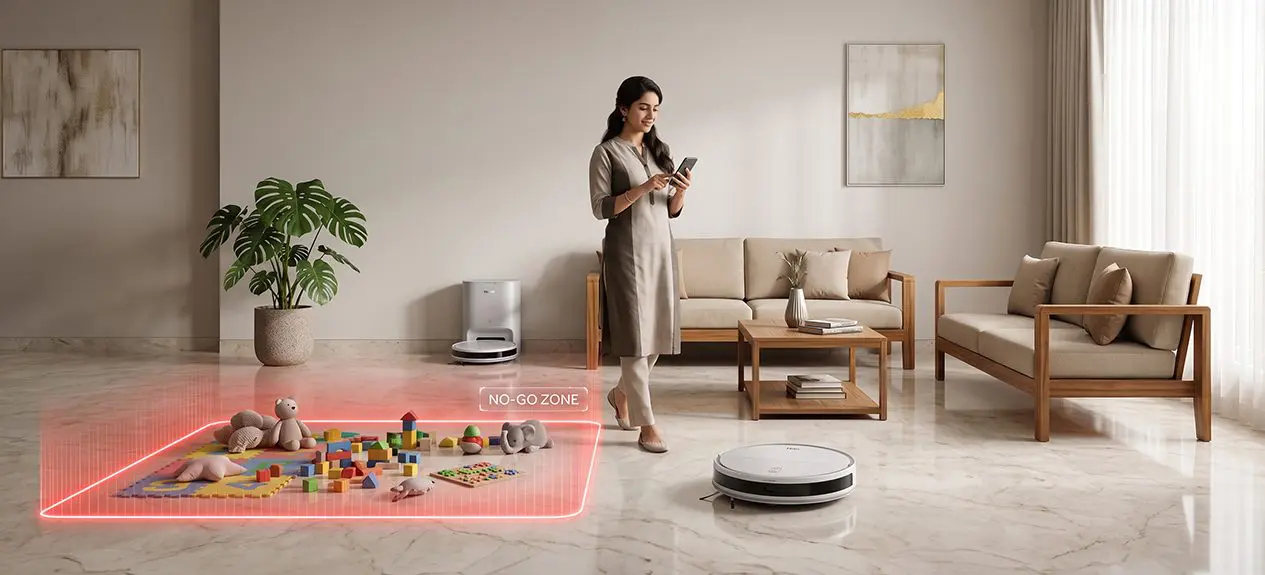

Your robot vacuum cleaner can help you clean exactly where you want and not go where you don’t want it to go. You can set boundaries and create no-go zones with your robot vacuum cleaner to stop it from cleaning areas you don’t want cleaned.
You can set these invisible boundaries with the help of your robot vacuum cleaner’s app. These robot vacuum no-go zones can help to make your cleaning more efficient and protect the sensitive areas of your home.
In this guide, we’ll explain how the virtual boundaries work and how to set them up for the best cleaning experience.
What Are Virtual Boundaries?
It simply means you are putting an invisible wall for your robot vacuum cleaner. You can do this after you map your home. You can use the app of your robot vacuum cleaner to draw these boundaries. Your vacuum robot would then avoid those areas and clean elsewhere.
You can change or remove the virtual boundary using the app of your robot vacuum cleaner.
What Are No-Go Zones?
The no-go zones are where your robot vacuum cleaner is not allowed to go in your house. This can be used for areas in your home that have fragile items.
- You can use it for the area where your pet food is kept
- You can also use it for areas with small toys
- This can also be used to make your robot vacuum avoid areas with loose cables
- You can use it for thick carpets while mopping
How to Set Up Robot Vacuum Virtual Boundaries
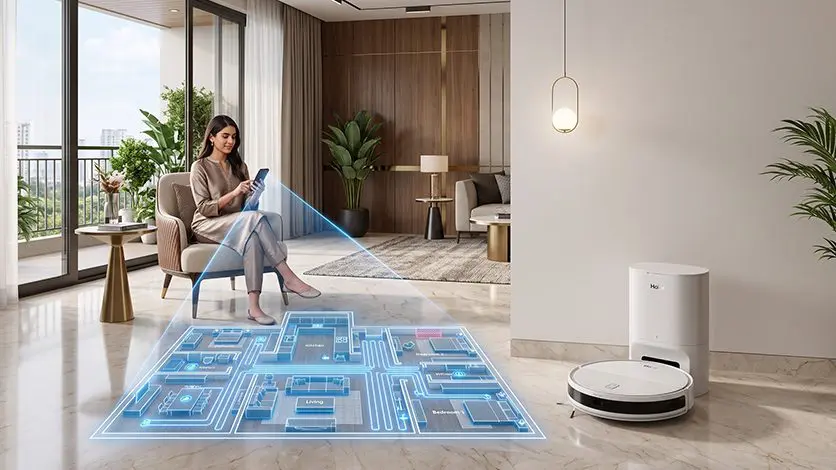
You can create a virtual boundary for your robot vacuum cleaner using the app.
Step 1: Complete Home Mapping
You should first let the robot vacuum cleaner map your home completely. The robot would need your floor map to identify restricted areas.
Step 2: Open the Mobile App
Open the app for your robot vacuum cleaner and then choose the map of your floor. Haier’s robot vacuum cleaner comes with 5-map memory and an easy-to-use app system to access them.
Step 3: Select the Boundary Tool
You should choose the restriction you want to put on a certain area.
- No-Go Zone
- Virtual Wall
- Restricted Area
You might have different options based on the model of your robot vacuum.
Step 4: Draw the Restricted Area
You should then create a restricted area or a no-go zone using the app of your robot vacuum cleaner.
- A no-go zone is rectangular
- A virtual wall is a straight line
The robot would then avoid these areas of your house while cleaning it.
When Should You Use No-Go Zones?
You can use the virtual boundary feature of your robot vacuum cleaner in many different situations.
- It can be used around the pet areas
- It can be used for your children’s play spaces
- It can be used for home offices
- You can use it for delicate rugs
- You can also use it for decorative furniture
Benefits of Robot Vacuum Virtual Boundaries
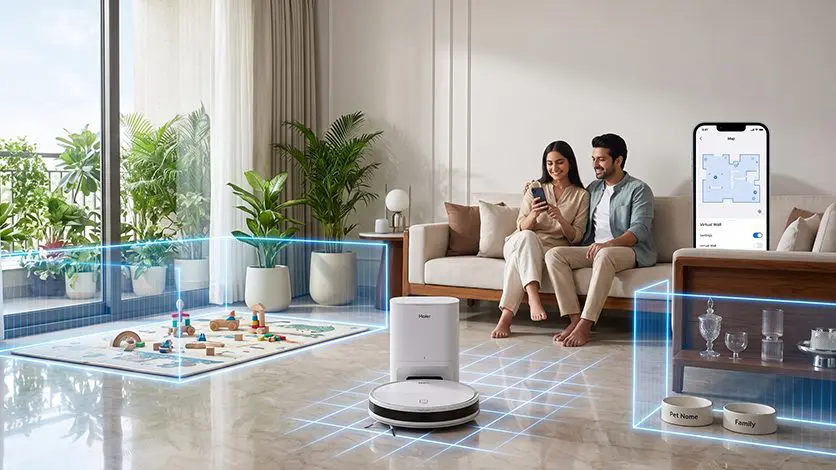
The virtual boundary feature of your robot vacuum cleaner has many advantages.
- It can help with more efficient cleaning
- It gives better protection to sensitive items
- It helps your robot to navigate correctly
- It can give you more control over the cleaning process
Can You Create Different Boundaries for Different Floors?
Yes. If your robot has a multi-map memory system, you can create different boundaries for different floors.
- You can set different no-go zones for your multi-storey home
- You can create virtual walls for any of your floors
- You can also make more room divisions
- You can set different cleaning schedules
This can help to save you time and make your everyday cleaning easier.
Tips for Using Virtual Boundaries Effectively
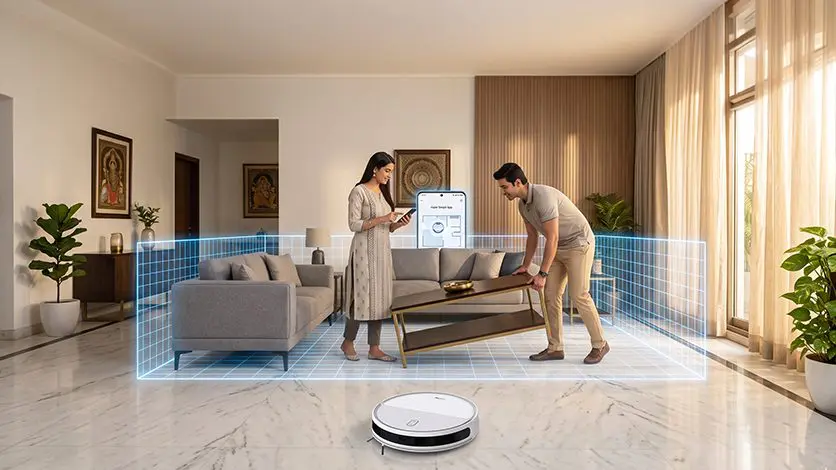
You should first let your robot vacuum cleaner create a complete map of your home before adding virtual boundaries.
- You should update boundaries if your furniture is moved
- Make sure you keep the map organized by naming your rooms
- Make sure you review all the restricted areas after a software update
- You should not create any unnecessary boundaries
These tips can help you create boundaries at your home intelligently and make sure your cleaning process is convenient.
Conclusion
Advanced features like robot vacuum virtual boundaries, robot vacuum no go zones, and virtual wall robot vacuum technology give you greater control over how your home is cleaned. You can create no go zones and virtual boundaries to make sure that your robot vacuum cleaner doesn’t go where you don’t need it.
Haier’s intelligent robot vacuum cleaners come with features such as Auto Mop Cleaning and Auto Empty Dustbin. They also include LDS Laser Navigation and Hot Flue Dryer. This can help to make your every day cleaning better and save you more time. Haier helps make every cleaning session smarter and more efficient.
Explore Haier’s range of smart robot vacuums and experience intelligent home cleaning designed around your lifestyle.
FAQs
What are Virtual Boundaries and No-Go Zones on a robot vacuum?
A virtual boundary of your robot vacuum cleaner is a wall beyond which your cleaner can’t go. A no-go zone is a specific area you can make your robot vacuum avoid
What is the difference between a Virtual Boundary and a No-Go Zone?
A virtual boundary acts like a physical wall. A no-go zone is a zone you can create within your room to make your robot vacuum avoid it
Which areas of your home should be marked as No-Go Zones?
You should mark areas with pet food, loose cables, and toys as no-go zones while cleaning your home with a robot vacuum cleaner
Why is your robot vacuum ignoring No-Go Zones?
It can be ignoring no-go zones due to improper mapping of your home or dirty sensors
How many Virtual Boundaries or No-Go Zones can you create?
You can create 10-50 zones or boundaries per map depending on your robot vacuum cleaner model