
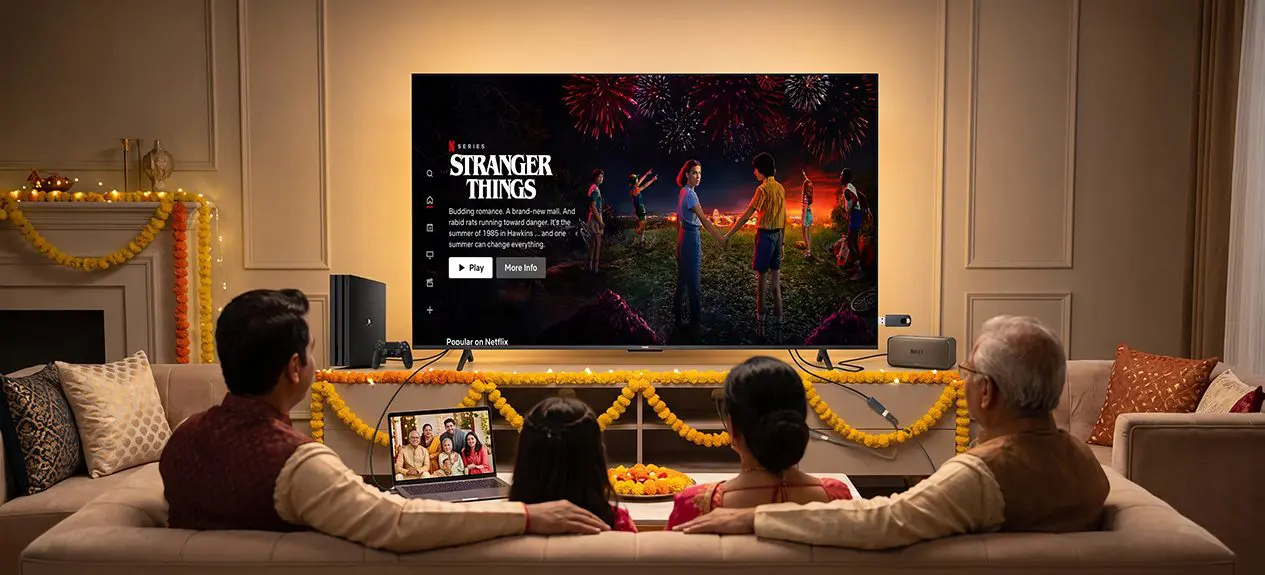

Festive evenings rarely revolve around just one kind of entertainment. One person might want to stream a movie, someone else has a phone full of family photos, the kids are angling for a game, and the guests are hoping for music or a live event playing in the background. Instead of constantly unplugging one device to switch to another, some planning upfront can turn your television into a shared entertainment hub for the festive evening.
A well-configured smart TV multi-device connectivity setup can handle all of this through HDMI, USB, Bluetooth, Wi-Fi, and screen mirroring. The key is knowing which connection suits which device, and getting it all sorted before the house fills up with guests.
Turn Your TV into the Family Entertainment Hub
A television can do a lot more than play channels and streaming apps. With the right connections in place, it can bring gaming consoles, laptops, soundbars, streaming sticks, and smartphones together on one screen.
Haier’s smart TVs, depending on the model, support a mix of HDMI, USB, Bluetooth, and wireless casting. These options make it easier to bring different kinds of entertainment together without the setup turning into a mess of cables.
For festive get-togethers, this means the TV can end up being the place where everyone contributes something, from a family slideshow one minute to a playlist the next or a late-night movie.
Know Your TV’s Connectivity Options First
Before you begin your smart TV setup, it’s worth taking a look at the ports and wireless options your TV has. Each one is built for a slightly different purpose.
- HDMI: It is the go-to for gaming consoles, streaming devices, Blu-ray players, and laptops. It carries both high-quality video and audio through a single cable.
- USB: Useful for compatible USB drives and external storage loaded with photos, videos, or music.
- Bluetooth: The easy route for wireless speakers, headphones, and wireless accessories.
- Wi-Fi: Essential for streaming services and any wireless features like casting or screen mirroring.
If your TV has several HDMI ports, you can leave your most-used devices plugged in permanently and switch between inputs when needed, rather than swapping cables back and forth. Haier’s connectivity guide recommends using HDMI to keep devices like consoles, soundbars, and streaming boxes connected at once.
Connect Every Device Without the Cable Chaos
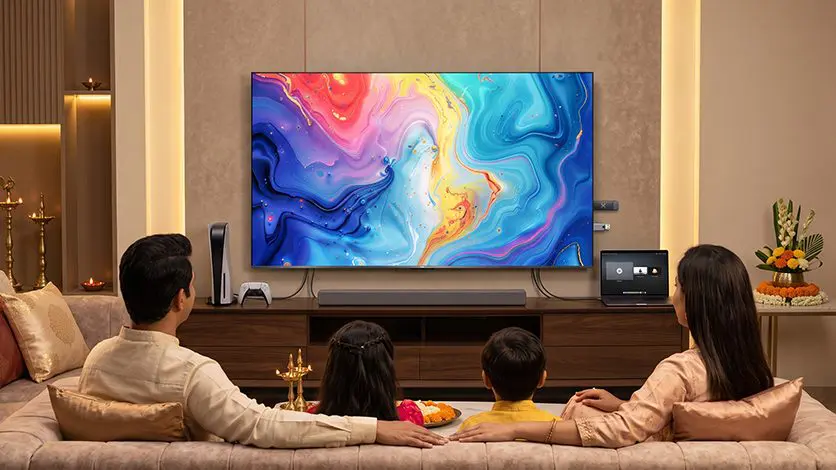
Once you know what your TV can support, connect each device according to how you plan to use it.
- Gaming consoles: Plug the console into an available HDMI port. If you’re using a newer console and TV, check whether the HDMI standard supports features like higher refresh rates.
- Soundbars: HDMI ARC/eARC is ideal where it’s supported; otherwise, Bluetooth or optical connectivity will do the job depending on your soundbar and TV.
- Laptops: An HDMI cable is the easiest way when you want to display a laptop screen on the TV for photos, videos, or a presentation.
- Streaming devices: Devices such as streaming sticks can plug straight into an HDMI port. If your smart TV runs the streaming apps you use, you might not need the extra device at all.
- USB drives: Connect compatible storage to the TV’s USB port to access supported media files directly.
Setting it up this way lets you connect multiple devices to the TV without repeatedly removing cables every time someone wants to switch what is playing.
Read More: How to Connect Soundbars and Gaming Consoles Like a Pro
Make Screen Mirroring Easier for the Whole Family
Festivals fill your phone with hundreds of photos, short clips, and messages shared between family members. Rather than passing phones around the room, screen mirroring puts all of the content up on the big screen instead.
Haier’s HaiCast feature allows compatible Android devices and PCs running Windows 10 to mirror their screens on supported TVs.
For the HaiCast screen mirroring setup, the initial step is to prepare the TV and the device that can mirror screens with it. To do this, start HaiCast on the TV and activate the mirroring feature on your phone or computer, then choose your TV when it is detected as a device.
This can be useful for sharing a family photo album, displaying a festive greeting, playing a video straight from a phone, or even playing a mobile game onto the big screen.
One thing worth knowing: HaiCast only mirrors one device at a time. If someone else wants to take over, the current mirroring session needs to be disconnected first.
How to Switch Between Devices Smoothly
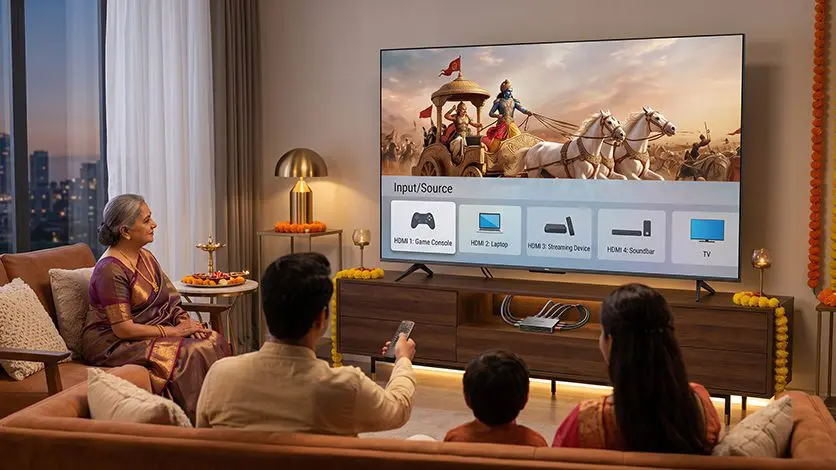
Once everything is connected, switching between inputs becomes the most important part of everyday use.
Use the remote to open the input or source menu, then select the HDMI port your device is connected to. If your TV remembers connected devices, switching between sources usually takes only a few seconds.
If your household has more devices than available HDMI ports, an HDMI switch can solve that. It lets you change between several connected sources without unplugging cables.
Keep Your Wireless Display Setup Reliable
Wireless connections are convenient, but they only work well when the basics are sorted first.
Start with a stable Wi-Fi connection for streaming and any wireless features. Keep your phone or laptop reasonably close to the TV when mirroring, and make sure the software on both ends is up to date.
For HaiCast specifically, it’s worth double-checking device compatibility before trying to mirror content.
It also helps to decide ahead of time which devices will stay connected during the festivities, so you’re not searching for an HDMI cable right as everyone settles in for the evening’s main event.
Bring Festive Entertainment Together with Haier
Haier’s smart TV range is built around more than just a bigger screen to watch things on. Depending on the model, connectivity can include HDMI, USB, Wi-Fi, Bluetooth, Chromecast, and HaiCast screen mirroring.
The P7 Pro Series comes with HaiCast, Bluetooth 5.1, and Wi-Fi built in, giving households several ways to pull content from their devices onto the television.
Haier’s M92 and M96 series also support HaiCast for wireless screen projection from compatible Android devices and Windows 10 (or later) PCs.
The goal isn’t using every single feature available; it’s finding the right combination for how your family watches, plays, and shares content.
Read More: Best Haier AI TVs in India
Your Festive Multi-Device Checklist
Before the guests show up, it’s worth running through a quick checklist:
- Connect the gaming console and any streaming devices to available HDMI ports
- Pair the soundbar or wireless speaker
- Test screen mirroring from the phone you’ll likely use most
- Make sure the TV is on a stable Wi-Fi connection
- Keep the essential HDMI cables within easy reach
- Do a full test run before the celebrations begin
One Screen, Everyone’s Celebration
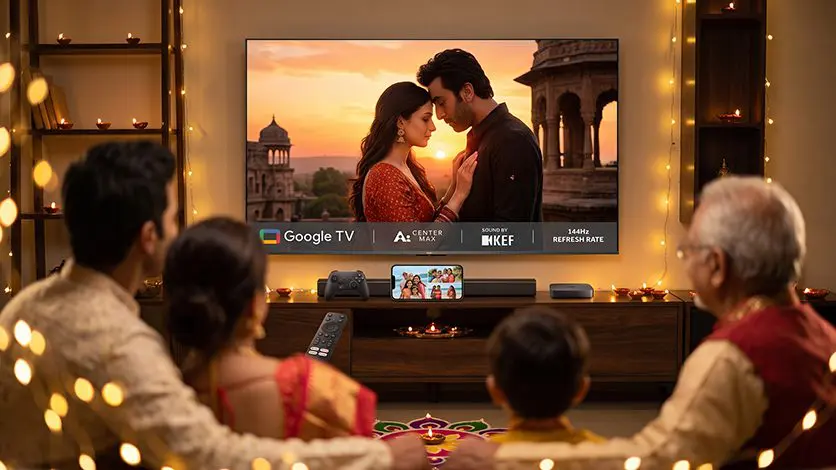
A good festive TV setup is not about connecting as many devices as possible. It’s about making the devices your family already uses to work together without the unnecessary hassle.
With the right smart multi-device connectivity, a single screen can handle gaming, streaming, music, family photos, and shared moments all the way throughout the celebration. Whether that is HDMI for the console, Bluetooth for the audio, or HaiCast for photos and videos, planning the connections makes the evening go much smoother.
FAQs
What is multi-device connectivity on a smart TV?
Multi-device connectivity allows you to connect smartphones, gaming consoles, streaming devices, speakers, and other compatible devices to one TV, either wirelessly or through physical connections.
How do Haier’s smart processing chips ensure lag-free screen mirroring and media sharing?
Haier’s smart processing technology is designed to handle image processing and connectivity efficiently, helping provide smoother screen mirroring and media sharing on compatible models.
How do Haier Smart TVs facilitate seamless multi-device connectivity and casting?
Haier Smart TVs support features such as wireless casting and screen mirroring on compatible models, making it easier to share content from smartphones and other devices.
How can I wirelessly cast photos and videos from my smartphone to a smart TV?
Connect your phone and TV to the same Wi-Fi network, then use your phone’s built-in cast or screen mirroring option to select the compatible TV.
Can I connect multiple game controllers or external Bluetooth accessories to a smart TV?
Yes, compatible Haier Smart TVs can connect with Bluetooth accessories, although the number and types of devices supported can vary by model.