
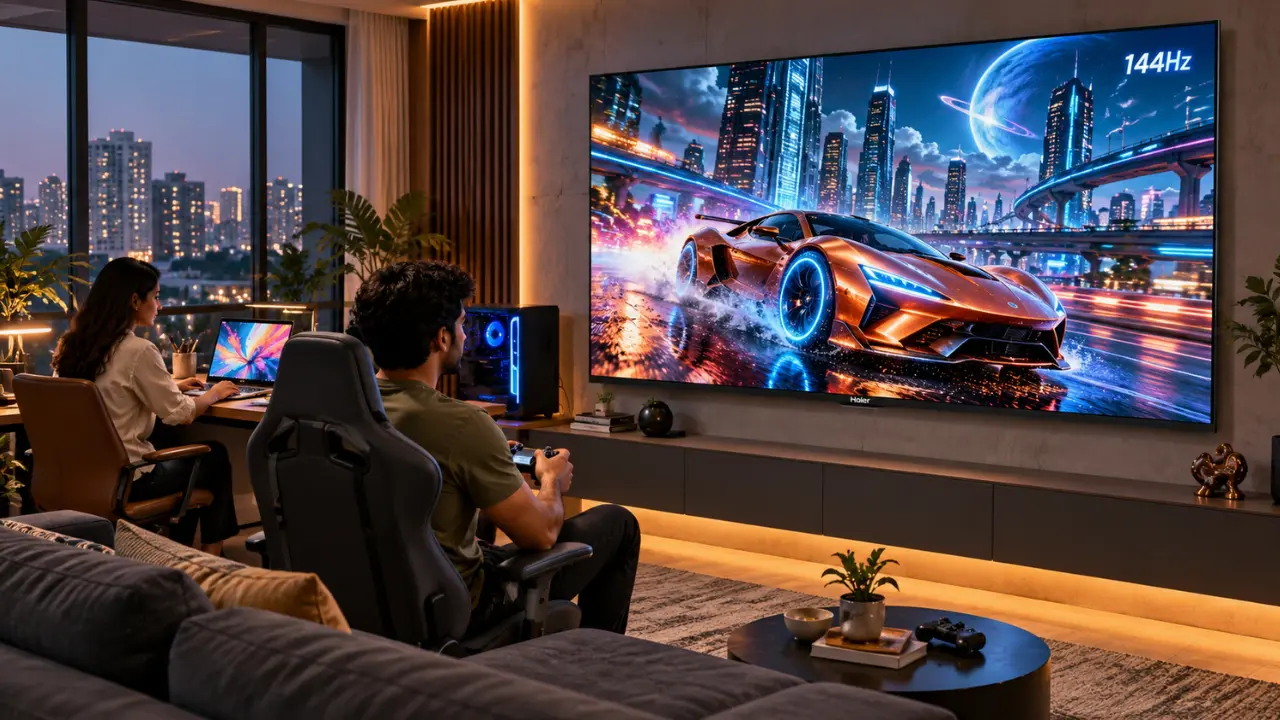

Your laptop screen feels cramped. There are twelve browser tabs open, an Excel sheet waiting for attention, and a video meeting about to begin. Meanwhile, a perfectly good 43-inch television sits across the room.
Why not connect the two?
Yes, you can use a TV as a computer monitor for work or gaming. Most modern televisions support HDMI connections, allowing you to display your laptop or desktop screen on a much larger display. However, whether it works comfortably depends on the TV’s resolution, refresh rate, input lag and viewing distance.
For Indian households where bedrooms double as home offices and living rooms occasionally become gaming stations, this arrangement can be surprisingly practical.
But there’s a catch. A television that looks spectacular during a cricket match may not necessarily feel comfortable when you’re editing spreadsheets for six hours.
Here’s what you should know before making the switch.
Can You Really Replace a Computer Monitor With a TV?
Technically, yes. A modern smart TV can function as an external display for a Windows laptop, desktop computer or compatible Mac.
The computer handles the processing, while the television displays the output. You can open documents, attend online meetings, browse websites, edit photographs and play PC games.
However, televisions and computer monitors are designed with slightly different priorities.
A television generally focuses on delivering an enjoyable viewing experience from a distance. Computer monitors, meanwhile, are optimised for close-up viewing, text clarity and responsive interaction.
When Does Using a TV as a Monitor Make Sense?
A TV can be particularly useful when:
- You need additional screen space for presentations or spreadsheets.
- Your work involves reviewing large images, videos or design layouts.
- You want to enjoy PC games on a bigger screen.
- Your home office doubles as an entertainment space.
- You occasionally connect your laptop for video calls or collaborative work.
For someone working from a sofa or a desk positioned a reasonable distance away, a larger television can offer welcome flexibility.
Still, screen size alone shouldn’t determine your decision.
What Should You Check Before Using a TV as a Monitor?
Five specifications deserve attention. Some affect everyday productivity, while others become particularly important during gaming.
1. Screen Resolution: Will the Text Look Sharp?
Resolution determines how many pixels appear on the display.
A 4K television has a resolution of 3840 × 2160 pixels, providing substantially more detail than a Full HD screen.
This becomes important when you’re working with small text, multiple windows or detailed graphics.
For example, a 43-inch 4K TV can display considerably more desktop information than a similarly sized Full HD television.
However, the operating system’s scaling settings may need adjustment to keep text readable.
Practical tip: For regular computer use, consider a 4K television with suitable screen scaling rather than simply choosing the largest available display.
2. Refresh Rate: How Smooth Will Everything Feel?
Refresh rate refers to how many times the screen updates its image every second.
Common options include:
- 60Hz: Suitable for office applications, browsing, streaming and casual gaming.
- 120Hz: Offers smoother motion when supported by the connected computer.
- 144Hz: Particularly appealing for compatible high-frame-rate gaming setups.
A higher refresh rate can make scrolling and fast-moving games appear smoother.
However, the computer’s graphics hardware, cable and television input must support the desired refresh rate.
3. Input Lag: Does the Screen Respond Quickly?
Input lag is the delay between an action on your computer and the corresponding change appearing on the television.
Imagine moving your mouse and noticing the pointer responding a fraction of a second later. That delay can become frustrating during gaming.
For regular document editing, minor input lag may be less noticeable. Competitive gaming is another story.
Look for televisions with Game Mode or Auto Low Latency Mode (ALLM), where available.
These features can reduce unnecessary image processing and improve responsiveness.
4. HDMI Connectivity: Can Your Devices Communicate Properly?
Most modern laptops and desktop graphics cards support HDMI output, although some laptops require a compatible USB-C adapter.
For a stable connection, check:
- Available HDMI ports on the television.
- HDMI output capabilities of your computer.
- Supported resolution and refresh rate.
- Cable compatibility.
- Audio output settings.
Remember, an HDMI 2.1-labelled connection doesn’t automatically guarantee every advanced gaming feature. Actual support depends on the television and connected device.
5. Viewing Distance: Is Bigger Always Better?
Not necessarily.
A 55-inch television positioned directly behind a small study desk may force you to move your head repeatedly just to read information across the screen.
That becomes tiring.
A 43-inch display may be more manageable for a spacious desk, while larger televisions generally work better when viewed from farther away.
The ideal arrangement depends on your seating position, desk depth and the type of work you perform.
How Do You Connect a Laptop or PC to a Smart TV?
The setup is usually straightforward.
Step 1: Connect one end of a compatible HDMI cable to your laptop or desktop.
Step 2: Insert the other end into an available HDMI port on your television.
Step 3: Use the TV remote to select the corresponding HDMI input.
Step 4: Open your computer’s display settings and choose your preferred arrangement.
You can generally select between two options:
- Duplicate: Show the same content on both screens.
- Extend: Use the television as additional desktop space.
Step 5: Adjust the resolution, refresh rate and display scaling.
For Windows users, display settings are available under Settings > System > Display.
On compatible Mac computers, these options appear under System Settings > Displays.
If text appears blurry, check whether the television supports a PC input mode or appropriate picture settings. Proper 4:4:4 chroma reproduction can also improve fine coloured text clarity.
Is a TV Better for Office Work or Gaming?
The answer changes depending on what you’re doing.
For Office Work: Screen Space Matters
Consider someone working remotely from Bengaluru.
Their daily routine involves Google Meet calls, financial reports, emails and multiple browser windows.
A large 4K television could help them display documents side by side without constantly switching tabs.
It may also be useful for presentations, reviewing architectural drawings or collaborative discussions.
However, dedicated monitors can remain preferable for prolonged close-up work because of their ergonomics, pixel density and text-display characteristics.
For Gaming: Responsiveness Becomes Important
Gaming introduces different requirements.
Fast-moving titles benefit from higher refresh rates, low input lag and Variable Refresh Rate (VRR) support.
VRR helps synchronise the television’s refresh rate with the graphics processor’s frame output, reducing visible tearing when supported.
For relaxed gaming sessions, a 60Hz television may be perfectly adequate.
But someone playing fast-paced racing games or competitive shooters should pay closer attention to gaming-specific specifications.
And this is where choosing the right television makes a noticeable difference.
Which Haier TVs Are Worth Considering for Work and Gaming?
Haier India offers televisions with different display technologies and features suited to varied viewing preferences.
Three models are particularly relevant when exploring larger screens for entertainment, occasional computer use and gaming.
Haier S80 QLED 43-Inch Google TV: A Versatile 4K Option
The Haier S80 QLED 109 cm (43) Google TV (H43S80FUX) offers a practical screen size for households looking to combine entertainment with occasional computer connectivity.
Its 4K UHD QLED display provides detailed visuals, while the 60Hz refresh rate suits everyday viewing and casual gaming.
Notable specifications include:
- 4K UHD resolution: 3840 × 2160 pixels for detailed visuals.
- QLED technology: Designed to deliver vibrant colours.
- 60Hz refresh rate: Suitable for everyday applications.
- VRR support: Helps reduce screen tearing with compatible sources.
- ALLM: Supports lower-latency gaming operation.
- Four HDMI inputs: Offers connectivity for multiple devices.
- Dolby Audio: Enhances entertainment audio.
For users who occasionally connect a laptop to review presentations, browse content or enjoy games, the S80 offers a useful combination of screen space and entertainment features.
Its 43-inch format also makes it worth considering where a 55-inch television would feel excessive.
Haier M70 Mini LED 43-Inch Google TV: Detailed Visuals With Gaming Mode
The Haier New M70 Series Mini LED 109 cm (43) AI Smart Google TV (43M70UHMINI LED) takes a different approach.
Its Mini LED technology uses Micro Dimming to optimise brightness across different screen areas, improving perceived contrast and image detail.
The television also features AI Picture Quality technology that adjusts brightness, contrast, colour and clarity according to the displayed content.
Key highlights include:
- 4K resolution: Detailed picture reproduction.
- Mini LED technology: Enhanced contrast through Micro Dimming.
- 60Hz refresh rate: Appropriate for everyday entertainment.
- Game Mode: Designed to improve gaming responsiveness.
- MEMC technology: Helps smooth motion in supported video content.
- Four HDMI inputs: Convenient connectivity options.
- 30W audio output: Built-in sound for entertainment.
The M70 is particularly interesting for users who prioritise picture quality while occasionally connecting a computer.
Its Game Mode is useful for gaming, although its 60Hz panel should not be confused with a native high-refresh-rate gaming monitor.
Haier C95 OLED 55-Inch Google TV: Built for Immersive Gaming
For users who want a larger, more gaming-focused display, the Haier C95 OLED 140 cm (55) Google TV (H55C95EUX) deserves attention.
Its OLED panel delivers deep blacks and wide viewing angles, while the 144Hz refresh rate provides greater potential for smooth motion with compatible sources.
The model also includes AMD FreeSync Premium, which helps reduce tearing and stuttering during supported gaming sessions.
Its notable features include:
- 55-inch 4K OLED display: Detailed visuals with deep blacks.
- 144Hz refresh rate: Designed for smoother high-frame-rate content.
- AMD FreeSync Premium: Helps synchronise compatible gaming hardware and display output.
- Dolby Vision IQ and HDR10+: Enhanced HDR viewing capabilities.
- Four HDMI inputs: Connectivity for gaming and entertainment devices.
- 50W Sound by Harman Kardon: Richer built-in audio.
- Dolby Atmos: Immersive audio support with compatible content.
For gaming enthusiasts who also enjoy films and streaming, the C95 offers an appealing entertainment-focused setup.
One consideration: OLED displays can experience image retention or permanent burn-in with prolonged static content. Users planning extended spreadsheet or desktop sessions should follow the manufacturer’s screen-care recommendations.
What Are the Disadvantages of Using a TV as a Computer Monitor?
A bigger screen isn’t automatically a better workstation.
Before replacing your monitor, consider these limitations.
Text clarity: Some televisions may display small fonts less sharply than dedicated computer monitors, particularly when chroma handling or scaling isn’t configured correctly.
Ergonomics: Large screens require appropriate positioning to avoid uncomfortable neck movement.
Input lag: Certain picture-processing settings can introduce noticeable delays.
Desk space: A television may be too large for conventional computer desks.
Static images: Prolonged display of fixed interface elements deserves particular attention on OLED televisions.
For many households, the sensible approach is to use a TV as a secondary display rather than permanently replacing a dedicated monitor.
How Can You Make a TV More Comfortable for Computer Use?
A few adjustments can improve the experience considerably.
- Set the computer to the television’s native resolution.
- Enable PC Mode or Game Mode when appropriate.
- Adjust display scaling for comfortable text size.
- Disable unnecessary motion processing during computer use.
- Position the screen at a comfortable viewing distance.
- Avoid excessive brightness, particularly during evening work.
- Take regular breaks during extended screen sessions.
For gaming, verify the actual refresh rate reported by your computer after connecting the television.
For office work, test small text and spreadsheet readability before committing to the setup.
Should You Buy a TV Instead of a Computer Monitor?
If your priority is eight hours of close-up office work every day, a dedicated computer monitor will often be the more practical choice.
However, if you want a larger screen for occasional work, presentations, entertainment and gaming, a modern 4K television can serve multiple purposes.
Haier India’s television range offers options for different needs, from the 43-inch S80 QLED and M70 Mini LED to the larger C95 OLED with its 144Hz refresh rate and AMD FreeSync Premium.
The right choice depends less on how impressive the screen looks in a showroom and more on how you intend to use it at home.
Explore Haier India’s range of smart TVs to find a display that complements your work setup and entertainment preferences.
Frequently Asked Questions
1. Can I use a 4K smart TV as a computer monitor?
Yes. A 4K smart TV can function as a computer monitor when connected through a compatible HDMI connection. Set the computer’s output resolution to 3840 × 2160 for the sharpest supported image.
2. Is a 43-inch TV too big for computer work?
Not necessarily. A 43-inch television can work well with sufficient viewing distance and suitable display scaling. However, it may feel oversized on a shallow desk.
3. Can I connect my laptop to a Haier smart TV?
Yes. Compatible laptops can connect to Haier smart TVs through HDMI. Depending on the laptop, an appropriate USB-C-to-HDMI adapter may be required.
4. Is a 60Hz TV good enough for PC gaming?
Yes, particularly for casual gaming, story-driven titles and games running at up to 60 frames per second. Competitive gamers seeking higher frame rates may prefer a higher-refresh-rate display.
5. Does using a TV as a monitor damage the television?
Normal computer use doesn’t inherently damage a television. However, prolonged static images can increase burn-in risk on OLED displays. Appropriate brightness settings and recommended screen-care practices are important.
6. Which Haier TV is suitable for gaming?
The Haier S80 QLED offers VRR and ALLM for compatible gaming setups, while the M70 Mini LED includes Game Mode. For users prioritising higher refresh rates, the Haier C95 OLED features a 144Hz panel and AMD FreeSync Premium. Actual gaming performance depends on the connected hardware and supported input modes.