

The lights are on, the sweets are close to being finished, and a picture has just been found of Diwali ten years ago. Everyone wants to see it within seconds. You’ll see pictures of you playing in your old clothes on the table, your cousins will tease you about your outfits again, and someone will say, “Can we take these pictures on the TV?”
Why not?
Rather than having a telephone go around the room, you can take those memories to a larger screen for everyone to enjoy together.
Making a Diwali family photo slide show on your smart TV is not difficult. Google Photos lets you sort photos, and you can cast them from a compatible gadget or even play supported files on a USB drive. With some effort, your TV can become a digital family scrapbook, and you can bring years of celebrating back to life.
Create a Family Celebration Out of Your Diwali Photos
For every Indian house, there are its own set of memories of Diwali. Some photos show the extensive rangoli designs, some have cousins lighting sparklers up and then a few are the wonderfully awkward family poses that everyone’s favourite.
The problem is that most of these photos continue to be out of order on smartphones, cloud storage and on old folders.
A smart TV provides you with the chance to enjoy them again without having to sit together around a tiny screen.
You can make a slideshow with any of the following elements:
- Photographs of children’s activities at Diwali in previous years.
- Celebrations at the family level and at festive meals.
- Beautifully lit homes and Rangoli decorations.
- Clothing worn by various members of the family.
- Indoor & outdoor games with grandparents & family members.Diwali party celebration with grandparents & family members.
- Special moments of Bhai Dooj or other festivals.
The true magic is to see familiar faces on a bigger screen. One of the photos you would quickly look at on your mobile phone becomes the focal point of a discussion.
Sometimes, the talks are more fun than the pictures
Make a Diwali Photo Slideshow with Google Photos
A smart TV is a great way to show your festive pictures, and Google Photos is a convenient tool for organising it before viewing it on TV.
Can store photos from various times, put them together in an album and view them on supported devices.
Step 1: Create a Dedicated Diwali Album
Open Google Photos app on your phone.
- Log in your Google account.
- On the Albums or Collections section, click the Open button (depending on the version of the app).
- Create a new album.
- Give it a catchy title like ‘Our Family Diwali Memories’.
- Choose the pictures you wish to use.
- Save the album and review its contents.
You could arrange photos from oldest to newest, starting with their childhood celebrations up until the latest Diwali.
Or hang them next to special events or family members.
There’s no hard and fast rule. The ideal arrangement is one that conveys your family’s history.
Check Step 2: Check Your Smart TV Connection
The smart TV connection can be tested to determine whether the issue is on the TV or the internet.
Make sure that your smartphone and compatible smart TV are on the same Wi-Fi network before you cast.
When playing videos, especially high-resolution photos, it is important to have a stable wireless connection.
Also, make sure your TV can receive Google Cast or other compatible casting.
For instance, the Haier S80G QLED Google TV series features a Chromecast built-in, allowing users to cast their supported content on compatible devices.
Step 3: Show Your Photos on the TV
When your album is finished:
- Open the Google Photos app on your phone.Go to Google Photos on your phone.
- Choose an album of your Diwali or one of your favourite pictures.
- Look for the Cast option, if available.
- Choose the smart TV that is compatible with you.
- Display the photographs on the television.
Casting controls and slideshow options can vary depending on your smartphone, Google Photos version and television software.
Use a slideshow to show pictures one at a time, if available. Otherwise, you can click on the images manually.
This can be helpful when the family members wish to reflect on a specific memory.
Create a Diwali Slideshow Without Wi-Fi?
Yes. If the TV is capable of playing back photos from a USB drive, then that’s another convenient method to view images on the smart TV.
This is helpful if you have a weak internet connection or if you don’t want your personal photos on the internet.
To Play Diwali Photos Using a USB Drive
First of all, move the pictures that you’ve chosen from your computer to a USB or thumb drive.
After which, follow these steps:
- Plug the USB stick into a USB port on your TV.
- Open media player / USB source of the TV.
- Click on the folder where your Diwali pictures are stored.Click on the folder with the Diwali pictures.
- Choose the pictures you wish to display.
- If your TV has a slideshow feature in the media player, then use that.
Try using common image formats like JPEG, for better compatibility. The exact supported formats and the slideshow controls vary with the TV model.
There are two USB 2.0 ports in the Haier S80G QLED Google TV models H55S80GUX and H65S80GUX that provide physical ports with compatible USB devices.
You don’t have to upload your family photos to an online service to use the storage method via USB.
Create a Diwali Slideshow That Is More Interesting Than Just a Photo Album
A slideshow is more fun to participate in when it doesn’t feel like a long series of photos.
The secret? Thoughtful selection.
Start With a Photo Most People Know
Select the first picture that evokes a memory.
Maybe it has been an old family photograph from your grandparents’ home, or a photo from the first Diwali held outside your grandparents’ home.
A single image can make or break the whole slideshow.
Combine Old With New in Celebration
Avoid displaying all the older photographs first and the newer ones afterwards.
Consider using different years.
For example, display a picture of two siblings holding sparklers as children, and then a picture of them now holding sparklers with their children at Diwali.
There’s a surprising level of poignancy in the comparison.
Make the Slideshow Comfortable to View
There should be sufficient time for everyone to be able to identify the individuals and the detail in photographs.
A slideshow is automatically triggered after about 5-8 seconds per picture is a good guideline.
But photos that include multiple people from your family might warrant a longer wait.
If you have several hours of work to do, it is better to make a short set of photographs to be replayed, than to show hundreds of them all back to back.
If Playback Is Supported by the Method, Then Add Music In
Photographs can be complemented with soft instrumental music or a familiar festive song.
Once you have made the Slideshow video with a compatible video editing software, you can add background music to the finished video before playing it on your TV.
You can use music you are authorised to use, particularly if you share the video with others outside your home.
Diwali Photographs Are More Enjoyable With a QLED Smart TV
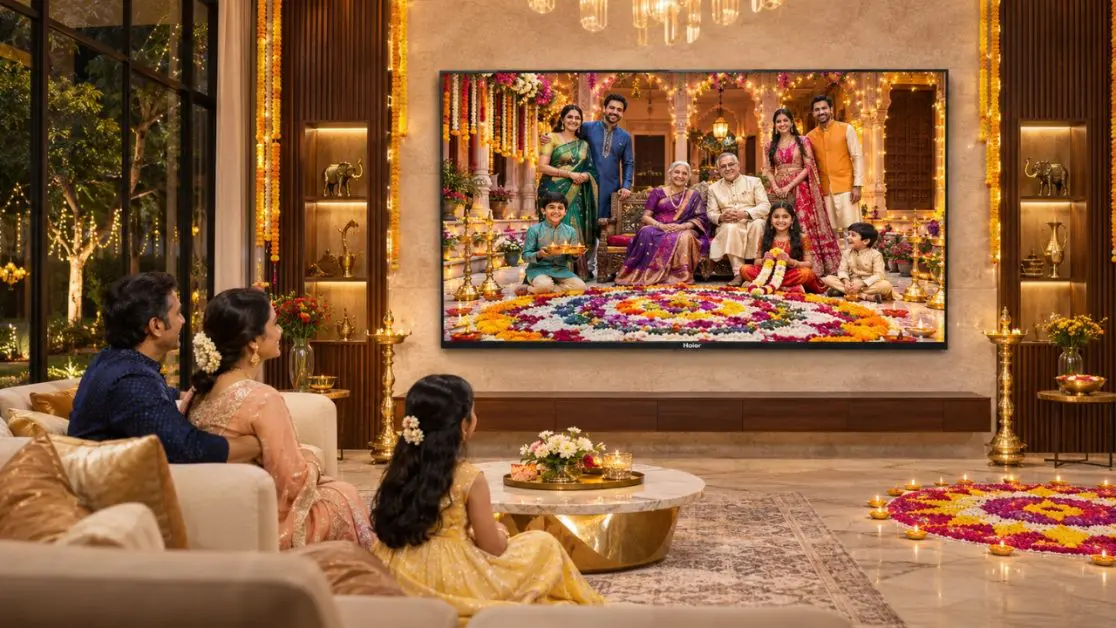
The image shows a beautifully decorated house featuring colorful rangoli patterns, traditional attire, and intricate lights.
These details may be clearer or not, depending on the quality of the television’s display.
This is where Haier India’s S80G QLED Google TV series comes in handy.
Haier S80G QLED 139 cm (55) Google TV (H55S80GUX) and Haier S80G QLED 165 cm (65) Google TV (H65S80GUX) have attributes that are perfect for festive photo viewing.
4K UHD QLED Display for Colourful Memories
Both models offer 4K UHD QLED technology with a resolution of 3840×2160.
QLED technology is used to create rich and vivid colours, which makes it ideal for viewing photos of festive decorations, colourful outfits and family celebrations.
If you’re looking at a rangoli pattern you’d like to recreate or a photo of your beautifully decorated living room, the large display gives you more space to enjoy the picture
Keep in mind that the finished image also relies on the quality and resolution of the original image.
Select a Size of Screen Appropriate to Your Gathering
There are two models that should be considered for family entertainment with the S80G series.
For families looking for a big screen experience without a significantly larger TV, the Haier S80G QLED 139 cm (55) Google TV (H55S80GUX) may be a good option.
If you have a roomy living room or seating area, the Haier S80G QLED 165 cm (65) Google TV (H65S80GUX) provides a larger screen.
A larger screen will make it easier for everyone to see group photos from different seats, but distance and space still do matter.
Convenient Sharing With Built-In Chromecast
Haier has developed Google Chromecast Built-In on both of its S80G models.
It enables users to stream content that is supported, from compatible devices.
This can be especially useful during Diwali when close family members might want to show pictures from their Diwali parties.
Compatible content can be wirelessly displayed instead of transferring all the pictures to a USB drive.
The televisions are also a first to carry Google TV and Google Assistant, which offer more smart entertainment and voice-control capabilities.
Small Tips That Can Make Your Diwali Photo Viewing Experience Better
There are a number of small tips that can make your Diwali photo viewing experience better.
Take some time to review the presentation before you run in and get the class in front of the TV.
Some minor tweaks can make a significant difference.
- Use large images when possible to prevent distortion of images.
- For a better fit on widescreen televisions use landscape photographs.
- Do not stretch portrait photographs because this can strain out the faces.
- Ensure brightness to the light in the room.
- Avoid having light reflections on the TV from holiday decorations.
- Preview the entire slideshow ahead of time.
Also be sure to look at photos for privacy.
Personal information, private moments or pictures could be included in a family album that a person would not want to share with the world.
If sharing a TV, make sure you are casting to the correct device and be sure to disconnect after the slideshow is over.
What to Do if You’re Unable to See Diwali Photos on the Smart TV?
Sometimes a slideshow will fail to start and the TVs won’t show up in the casting list or photos won’t load as quickly as they should.
Many common issues can be diagnosed without an in-depth troubleshooting process.
The TV Is Not Showing Up for Casting
Make sure both the devices are on the same wireless network.
If required, restart the casting application and see if the casting option for the television is available.
Photographs Look Blurry
Photographs that are older than the last two years, compressed images and low resolution images may not look as crisp when enlarged.
If possible, work with the original photo and not a screen shot or a highly compressed copy of the photo.
USB Photos Are Not Opening
Verify if your television supports the image format and USB drive’s file system.
Make copies of the photos in a format that is commonly supported and retest the drive.
The Slideshow Keeps Stopping
Be sure to test your wireless connection while casting.
If the problem persists try to show pictures directly from compatible USB storage or to play a slideshow in a compatible video format.
Make This Diwali About More Than Just Taking New Photographs
Each Diwali is an addition to the story of your family.
New clothes, new decorations, growing children and familiar faces will be around the same holiday traditions.
However, those photos from previous festivities should be given some consideration too.
It’s easy to make a family photo slideshow on your smart TV to get those memories rolling in the living room again.
With the Haier S80G QLED 139 cm (55) Google TV (H55S80GUX) and Haier S80G QLED 165 cm (65) Google TV (H65S80GUX), families can enjoy 4K UHD QLED visuals, built-in Chromecast connectivity and large-screen entertainment suited to shared viewing.
Discover the perfect Haier India S80G QLED Google TV size for your home and daily entertainment needs.
Years down the road, someone will most likely find this Diwali’s photos too. And the family will sit around the tv once more.
Frequently Asked Questions
1. How do I create a Diwali photo slideshow on my smart TV?
Create an album using Google Photos or another compatible photo application. You can then cast supported photographs to your smart TV or transfer them to a USB drive for playback, depending on the television’s capabilities.
2. Can I cast Diwali photographs from my Android phone to a Haier Google TV?
Yes. Compatible Android smartphones can cast supported content to Haier Google TVs featuring Chromecast Built-In. Ensure that the devices are connected to the same Wi-Fi network and that the application supports casting.
3. Can I display photographs on my smart TV without an internet connection?
Yes, if your television supports USB photo playback. Transfer compatible image files to a USB drive, connect it to the television and open them through the supported media player.
4. Which Haier TV models are suitable for viewing Diwali family photographs?
The Haier S80G QLED 139 cm (55) Google TV (H55S80GUX) and Haier S80G QLED 165 cm (65) Google TV (H65S80GUX) are suitable options to consider. Both offer 4K UHD QLED displays, Google TV and Chromecast Built-In.
5. Can I add background music to my Diwali slideshow?
Yes. You can create a slideshow video using a compatible editing application and add background music before playing it on your television. Whether music can be added directly during photo playback depends on the application or TV media player.