
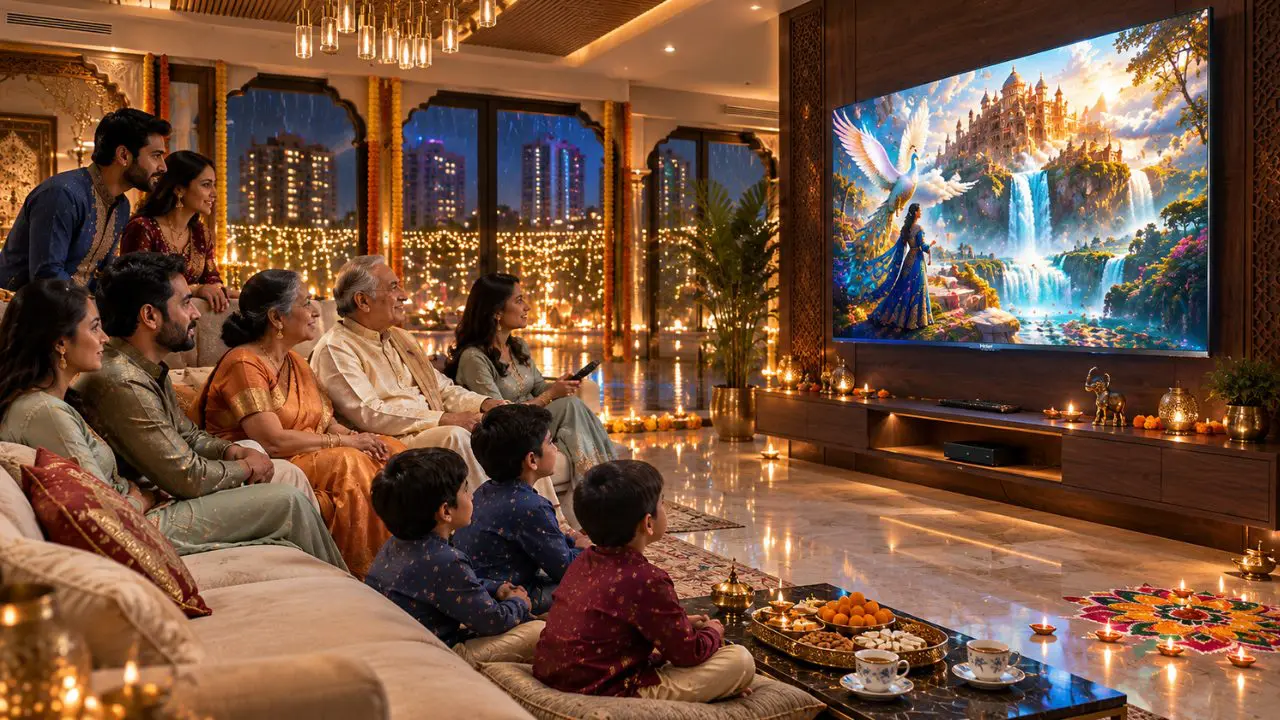

The sweets are distributed, the diyas are lit and everyone has now arrived in the living room. A person proposes to watch a Bollywood classic. Dadaji agrees right away; after 5 minutes in the film he requests that the volume be turned up. Meanwhile Dadiji is too small to read the subtitles.
Sounds familiar?
A Diwali movie night with grandparents should be about sharing stories that they are familiar with, laughter and spending time together. But a slight problem with the sound, clarity of the picture or the TV’s controls can ruin the fun.
Fortunately, there are a few intelligent and thoughtful TV accessibility settings that can make a world of difference. Modern smart TVs have many features that can enhance the experience of watching family entertainment on a TV, including features that can adjust the subtitles and audio to make them more comfortable for older viewers, as well as features that can help make it easier to see the picture.
And, when the TV itself is engineered with handy controls and engaging viewing features, it is even simpler to put generations together.
Why TV Accessibility Matters During Family Movie Night
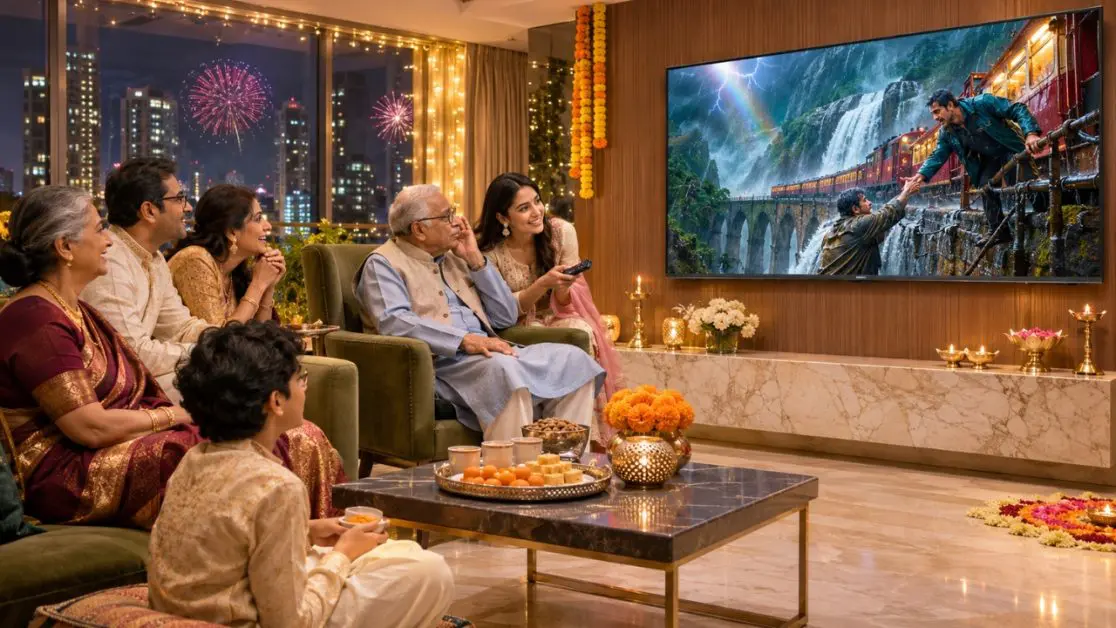
TV viewing is a family pastime but there is no universal experience.
Grandparents can prefer more distinct speaking and subtitles that are bigger or a picture that is not too intense to watch for a long time. The younger family members may show an interest in bright colors and film music.Younger family members may be interested in bright colors and movie music.
Both preferences are correct. The problem is finding settings which are suitable for everyone.
Some television experiences may be more difficult due to changes in the senses of vision and hearing with age. For example, background music can be distracting from conversations, and small text can be hard to read from afar.
While you’re planning your Diwali movie marathon, try making these small changes:
- Maximize the size of the subtitles, if the TV or streaming app permits.
- Use an audio setting that will help to make conversations easier to understand.
- Set the brightness of the screen depending on the lighting conditions of the room.
- Minimize unwanted sound in “silent” scenes.
- Ensure the remote and other necessary controls are within easy reach.
These are easy changes to make, and can help grandparents feel more included in the evening’s activities.
1. Make Subtitles Easier to Read Without Distracting From the Film
Envision watching a classic Hindi movie with your grandparents, and a key line of dialogue is being spoken. The music builds, one person lapses part of the sentence and everyone wants to go back.
To prevent these interruptions, consider using subtitles.
But just turning them on might not be sufficient.
Change the Size and Appearance of the Subtitles
There are a variety of smart TV platforms and streaming apps available with the option to customize subtitles, but not all of them offer this feature.
Depending on the application it is possible to adjust:
- Make text bigger – ensure it is big enough to read from the sofa.
- Background colour: It is advisable to print on a white or yellow background against a dark background, as this can make the text easier to read.
- Use of dark background contrast for subtitles might make them easier to see in high-light situations.
- Use caption language (the language that your grandparents can read).
For instance, if you are viewing a Hindi movie with poor speaking content you can use Hindi subtitles, if available.
There’s one thing to note: Subtitle preferences may have to be adjusted within the streaming service, not in the TV’s general settings.
Don’t Make Subtitles Too Big If They Aren’t Needed
Larger text is beneficial but too large may obscure the key image content.
Do a short scene before you decide on the last setting. Consider asking your grandparents if the text is comfortable or not – don’t assume the largest one is the best.
2. Improve Dialogue Clarity Before Increasing the Volume
If you want to make a dialogue clearer, then increase its volume before you make it clearer.
“Volume thoda badhao.”
It’s likely one of the most common demands that come from watching TV with the family.
However, more isn’t always better.
The actual challenge can be identifying dialogue from background music, sound effects or other competing sounds.
Go to the Audio Settings of the TV
First, check out the sound modes.
Depending on the model, some televisions will have settings like Standard, Movie, Speech or User.
If available, use the dialogue enhancement option first; then increase the overall volume.
Some simple changes will also help:
- Set the music to an appropriate level for all.
- Minimize background noise in key moments.
- Don’t put things in front of the TV’s speakers.
- If the streaming application provides an alternative audio track, see if that channel is available.
- Use closed captioning for speech that is still hard to hear.
Remember, louder sound is not necessarily clearer sound.
Understand the Role of Haier M70 Mini LED TVs in Creating an Immersive Audio Experience
Learn how Haier M70 Mini LED TVs contribute to an immersive audio experience.
If you’re thinking about getting a new TV and upgrading it, there is a lot to pay attention to besides just screen dimension.If you are thinking of buying a new TV and upgrading it, audio performance should be considered along with screen size.
Haier New M70 Series MiniLED 164 cm (65) AI Smart Google TV with Gemini (65M70UHMINI LED) comes with 2.1 channel 50W sound system, which includes a built-in subwoofer.
It also features Dolby Atmos for an even more immersive listening experience.
The entertainment is enhanced by the sound system, whether it’s a dramatic performance of a family’s emotions or a fun Diwali special.
These audio options are, however, not to be mistaken for a hearing assistance or dialogue enhancement option. The individual sound preference should be set via the TV or the application control system.
3. Record Picture Settings for ‘Comfortable Evening Viewing’
The lighting during Diwali can make for a nice atmosphere, but can also impact on TV viewing.
The picture can be difficult to see due to the competition of lights, illuminated diyas and reflections from nearby windows in the room.
Switching off each and every light isn’t always the answer.
Good home entertainment typically will rely on a balanced room lighting and screen brightness.
Experiment With These Picture Adjustments
Begin with the television’s Movie or Standard picture mode with small adjustments based on the room.
Remember to listen for the following:
- Brightness: Do not have a screen if the room is too dark.
- Contrast: Ensure there is sufficient contrast between dark shades and bright ones, but still enough detail to be seen.
- Colour: Use natural colours, not too bright.
- Sharpness: Do not over sharpen edges, as they may look man-made.
- Motion Settings: If fast-paced scenes are distracting, try adjusting the motion smoothing.
No single viewing environment is suitable for all viewers.
The image that looks good in the brightly lit show rooms can feel bad in the dim light of an evening movie at home.
Haier Mini LED Technology: Enhancing Picture Quality
Picture quality is improved by Haier Mini LED Technology.
Haier New M70 Series MiniLED 189 cm (75) AI Smart Google TV with Gemini (75M70UHMINI LED) uses Mini LED technology, Micro Dimming and AI Picture Quality.
Micro Dimming optimizes the light level in various parts of the screen to achieve better contrast, black depth, and brightness.
AI Picture Quality automatically adjusts brightness, contrast, colour and clarity intelligently based on the content.
The television also has Dolby Vision and HDR10+ support, which will help it to deliver cinematic visuals with compatible content.
These technologies can contribute to better picture presentation, but viewers need to make sure they choose the appropriate brightness and picture settings for their environment.
4. Voice Control Makes Navigating Your TV Easier
Use Voice Control to make TV navigation easier.
Look, I don’t need to change the channel with three remotes and 10 minutes of scrolling on the channel guide.
But sometimes that is what happens.
The actor is remembered, but not the film’s name. Another person proposes to search by genre. At the same time, the family’s youngest member has already opened another application.
This can be much easier with voice control.
Let Grandparents Search Without Complicated Menus
The Haier New M70 Series MiniLED 139 cm (55) AI Smart Google TV with Gemini (55M70UHMINI LED) comes with Google TV and hands-free voice control.
This means that users can speak to control the supported functions of the television rather than using a remote control to control it completely.
Depending on the commands supported and language settings, users may make requests like:
- “Open YouTube.”
- “Find comedy movies.”
- Look for movies for the family.
- “Play music.”
Voice recognition, languages and supported actions are subject to change.
Voice navigation is the other option for exploring entertainment for grandparents who are not used to the complicated menus.
It’s a better idea to test or show the feature before going into the movies than during the movie.
5. Choose the Right Screen Size for the Family Seating Arrangement
If making movie night feel more like a movie, a larger screen may be the answer.
However, screen size is not the only factor in determining viewing comfort.
Think of the seating arrangement, how close the sofa is to the TV and if the people at the sides can see the TV clearly.
Haier M70 Series Screen Options
The Haier New M70 Series offers four Mini LED screen sizes:
- Haier New M70 Series MiniLED 139 cm (55) AI Smart Google TV with Gemini (55M70UHMINI LED)
- Haier New M70 Series MiniLED 164 cm (65) AI Smart Google TV with Gemini (65M70UHMINI LED)
- Haier New M70 Series MiniLED 189 cm (75) AI Smart Google TV with Gemini (75M70UHMINI LED)
- Haier New M70 Series MiniLED 215 cm (85) AI Smart Google TV with Gemini (85M70UHMINI LED)
The 4K resolution is available in all four models to provide rich visuals for compatible contents.
A smaller viewing setup, such as a 139 cm model, might be appropriate for a more compact living room or space, whereas a larger one could be suitable for a spacious living room where there is more room for seating options.
The key is to find the right television for the space, not the biggest one.
6. Get to Know Accessibility Features That Can Be Accessed via Google TV
Today’s smart TVs are more than capable of subtitles and sound settings.
The Google TV platforms could provide accessibility features that cater to various viewing and navigating requirements.
These can vary based on the version of the software, device configuration and supported applications, and can include screen-reading support, text adjustments and caption controls.
Accessibility Settings: How to Find Them
To use on a compatible Google TV:
- On the home screen, tap Settings.
- Check for System or Device Preferences.
- If available, choose Accessibility.
- Look at the options listed.
- Select the option you wish to test.
The choice of names and features for each menu and the features available may vary depending on the television model and software version.
The Haier M70 owners should consider the user manual or on-screen setting as a reference of the functions supported in the television.
Also, not all of the Google TV accessibility features are provided in all TVs.
7. Create a Comfortable Viewing Space Before the Film Begins
An uncomfortable seating position can’t be solved with the most sophisticated television controls.
Some practical suggestions will help the evening go better.
You can use this checklist to help you choose the right movie for your Diwali Movie Night.
- Place grandparents so that they can see well and have a good view.
- Do not place decorative lights directly in front of screen reflections.
- Place supportive seating and cushions.
- Choose a movie before everyone is seated.
- Test subtitles and audio using a short scene.
- Have water and food on hand.
- Make use of brief breaks in longer movies.
Last but not least, make sure that the remote control is in a location you know.
No one wants to look under 5 cushions, just as the interval is over.
Make Haier This Diwali Movie Night More Memorable
Not all the family movie nights are created equally, and the best ones don’t have the loudest sound or the brightest picture.
They are the nights where everyone can follow along, enjoy the story and be involved without having to continually ask for changes.
Haier’s New M70 Series Mini LED TVs are equipped with technology that can enhance this experience such as AI Picture Quality, Micro Dimming, Dolby Vision, Dolby Atmos and hands-free voice control.
The range provides options ranging from 139 cm to 215 cm of screen size so that families considering an upgrade to their home entertainment system can choose a television that will work for them.
Visit the official Haier India website to learn more about the Haier New M70 Series and experience the film in an altogether different manner with those close to you.
The best part of a Diwali movie night is after all the film though, right? It’s having grandparents, parents and children enjoying the same story together.
Frequently Asked Questions
How can I make TV subtitles easier for grandparents to read?
You can increase the subtitle size, choose a contrasting background and select a language your grandparents are comfortable reading. These settings may be available in the TV or streaming app.
How can I improve dialogue clarity on my smart TV?
Explore the TV’s audio settings and try a Speech or Dialogue Enhancement mode, if available. You can also reduce competing background music and ensure that nothing blocks the TV speakers.
What picture settings are best for comfortable evening viewing?
Start with Movie or Standard picture mode and adjust brightness, contrast, colour and sharpness according to your room lighting. Avoid excessive brightness and oversharpening.
How does voice control make TV viewing easier for older people?
Voice control allows users to search for movies, open supported applications and perform certain TV functions using spoken commands instead of navigating complicated menus.
What accessibility features are available on Google TV?
Depending on the TV model and software version, Google TV may offer screen-reading support, text adjustments and caption controls. These options can generally be found under Settings > System or Device Preferences > Accessibility.